agilex® 3 fpgas and socs
141 Topics
Why I can't change the device family in Power and Thermal Analyzer?
Description Due to a problem in the Quartus® Prime Pro Edition Software version 26.1, you may not be able to change to a different device family in Power and Thermal Analyzer (PTA) after you create or open a design. For example, if you open a design targeting a Stratix® 10 device, you may not be able to change to an Agilex® FPGA device. In version 26.1, if you select File > New File to create a new PTA design, the new file wizard does not appear. Without the wizard, you cannot select a different device family when creating a new file. Resolution PTA locks a design to the device family selected when the file is created. To explore power consumption across different device families, create a new PTA file in the target family and import your existing design. To import an existing PTA design into a different device family: Create a new PTA file targeting the desired device family. Use the Import function to bring your existing PTA design into the new file. If you chose the wrong device family when creating a file, close the existing file and create a new one. In the File menu, select New File, and select the correct device family in the new file wizard. In version 26.1 of Power and Thermal Analyzer, the new file wizard does not appear when you select New File. To work around this issue, exit and restart PTA. After restarting, select File > New File to open the new file wizard and select the correct device family.9Views0likes0CommentsWhy does Quartus® Prime Pro give an error when trying to route HPS reset signals, such as s2f_rst or s2f_cold_rst, to the Fabric using the localized Sector Clock Network?
Description Due to device architecture requirements in Altera® SoC FPGA families with a Hard Processor System (HPS), the Quartus® Prime Pro Edition Software version 25.3.1 reports a fitter routing error when you try to route certain HPS-to-FPGA reset signals to the FPGA fabric using the localized Sector Clock Network instead of the Global Clock Network. In the Agilex® FPGA architecture, there is a device-wide Global Clock Network (meant for high fan-out signals) and a localized Sector Clock Network (meant for low fan-out, smaller regional scope, or localized logic structures). Certain signals, such as s2f_rst or s2f_cold_rst, are restricted to be only on the Global Clock Network. For example, if you use: set_instance_assignment -name GLOBAL_SIGNAL OFF -to ...|hps_inst|s2f_cold_rst Quartus reports an error similar to: Error (170084): Can't route signal "...|hps_inst|s2f_cold_rst" to atom ... Resolution Certain signals, such as s2f_rst or s2f_cold_rst, are restricted to be only on the Global Clock Network. To work around this routing error in the Quartus® Prime Pro Edition Software: Remove any instance assignment that sets GLOBAL_SIGNAL to OFF for HPS-to-FPGA reset outputs (for example, s2f_rst or s2f_cold_rst). Recompile the design and allow Quartus to route these reset signals on the Global Clock Network. This behavior reflects device architecture and fitter rules; it is not scheduled to be changed to allow HPS-to-FPGA reset signals on the Sector Clock Network.9Views0likes0CommentsWhy does the SystemConsole.refreshMasters DSP Builder function fail?
Description When using the SystemConsole.refreshMasters DSP Builder function in the Quartus® Prime Pro Edition version 26.1.1 and above, you may see the following error: Unable to resolve the name 'com.altera.systemconsole.matlabapi.SystemConsoleLink' This error occurs because the Java version used by MATLAB is incompatible with com.altera.systemconsole.matlabapi.SystemConsoleLink. For DSP Builder version 26.1.1 and later, MATLAB must use Java version 11 or later for SystemConsole.refreshMasters to run successfully. Resolution You can change MATLAB's Java version using either the jenv MATLAB function or the matlab_jenv executable. For information on how to use jenv and matlab_jenv, refer to the MATLAB documentation.7Views0likes0CommentsWhy are there no example design options available in the “Select Design” drop-down list in the DisplayPort IP Parameter Editor GUI?
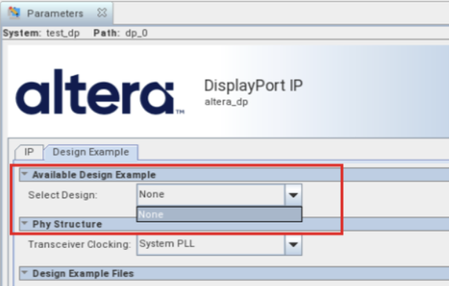
Description Due to a problem in the Quartus ® Prime Pro Edition Software version 26.1, the drop-down list for “Select Design” in the Display Port IP Parameter Editor GUI only has “None” option, as shown in the screenshot below. Resolution This problem has been fixed beginning with version 26.1.1 of the Quartus® Prime Pro Edition Software.135Views0likes0CommentsError: (vlog-7) Failed to open design unit file
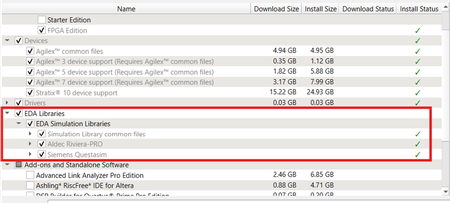
Description Due to simulation models not being installed along with the Quartus ® Prime Pro Edition Software, an error such as: Error: (vlog-7) Failed to open design unit file "C:/altera_pro/26.1.1/quartus/eda/sim_lib/220model.v" in read mode may occur during simulation. The root cause of missing files is that “EDA libraries” are not installed properly during installation of the Quartus ® Prime Pro Edition Software. Resolution To fix this problem, make sure “EDA Libraries” has been checked and installed properly during installation of the Quartus ® Prime Pro Edition Software, as shown in the screenshot below.58Views0likes0CommentsWhy am I unable to run BKP operations with Quartus® Prime Pro Edition 26.1.1 on Windows*?
Description Due to a problem in the Quartus® Prime Pro Edition Software version 26.1.1, Black Key Provisioning (BKP) operations might fail on Windows* with the following error: Error: BKP PLUGIN: [3000] Http error: Could not use specified SSL cipher because Quartus has enabled the Windows SSP interface Schannel (Secure Channel) to work with the OpenSSL library. When using libcurl with the Schannel (Windows) backend, the option CURLOPT_SSL_CIPHER_LIST does not accept individual, specific cipher suites (for example TLS_ECDHE_RSA_WITH_AES_256_GCM_SHA384). Resolution To work around this problem in the Quartus® Prime Pro Edition Software version 26.1.1, build a patched bkpprog.dll and select it through the project configuration, as follows: 1. Clone the source repository: GitHub - altera-fpga/device-security-software-services: Device Security Software and Services source code for FPGA Device Onboarding, Attestation, Secure Session, Black Key Provisioning. 2. Prepare the Windows build environment. Follow the Windows Build instructions in the repository README. Install the listed prerequisites and prepare the repository dependencies exactly as documented there. 3. Modify network_wrapper.cpp. Open the following file in the cloned repository: bkpprogrammer/src/core/cpp/network/network_wrapper.cpp In CurlWrapper::CurlWrapper, locate the TLS version and cipher-list configuration: setCurlOptionWithErrorHandling( curlHandle, CURLOPT_SSLVERSION, CURL_SSLVERSION_TLSv1_2); setCurlOptionWithErrorHandling( curlHandle, CURLOPT_SSL_CIPHER_LIST, acceptedCiphers.c_str()); Replace it with: setCurlOptionWithErrorHandling( curlHandle, CURLOPT_SSLVERSION, CURL_SSLVERSION_TLSv1_2); 4. Build the patched plug-in. Return to the repository root and build by following the repository Windows Build instructions. Confirm that bkpprog.dll is regenerated after network_wrapper.cpp was modified. 5. Place the custom plug-in. Create the following directory under the BKPS project and copy the rebuilt bkpprog.dll into it. Do not replace the DLL inside the Quartus installation. <project>\cm_provisioning\bkp_plugin\bkpprog.dll 6. Create quartus.ini. Create a quartus.ini file directly under the project cm_provisioning directory with the following line: PGM_ALLOW_CUSTOM_BKP_PLUGIN=7S6Nh0s3@on 7. Update bkp_options.txt. Use the normal project-specific BKP values and add bkp_plugin with the path to the rebuilt DLL: bkp_cfg_id = <ID> bkp_ip = <IP> bkp_port = <PORT> bkp_tls_ca_cert = "<Path_To_bkps_ssl_cert.crt>" bkp_tls_prog_cert = "<Path_To_pro_cert>" bkp_device_opn = <OPN> bkp_plugin = "<Path_To_bkpprog.dll>" 8. Run Quartus Programmer where quartus.ini is located. Set the current working directory to the cm_provisioning directory that contains quartus.ini and bkp_options.txt. Quartus reads quartus.ini from its current working directory, so run the commands from here: quartus_pgm.exe -c 1 -m jtag --bkp_options=bkp_options.txt --bkp_prefetch Use the same working directory for Set Authority and Provision operations, so Quartus continues to load the custom plug-in setting from quartus.ini. This problem is scheduled to be resolved in a future release of the Quartus® Prime Pro Edition Software.29Views0likes0CommentsWhy the Error Injection using Linux debugfs interface causes SError and kernel panic on Agilex® 5 Ethernet ECC?
Description Due to a problem in the EDAC (Error Detection and Correction) driver, Error Injection using the Linux debugfs interface on Agilex® 5 Ethernet ECC can cause a fatal SError and kernel panic. The error injection command below logs a correctable error (CE), then panics: echo c > /sys/kernel/debug/edac/emac2-tx-ecc/altr_trigger Example symptomatic prints: SError Interrupt on CPU..., far: 0xbe000411 Kernel panic - not syncing: Asynchronous SError Interrupt The same path can also affect other Port-A-only ECC blocks that use the INTTEST register (for example emac*, usb1*, and ocram uncorrectable inject). This issue is impacting Agilex® 5 SoC FPGA devices and Quartus® Prime software of version 26.1.1 (Images that include the ES-406 unconditional INTTEST Port B write) until the fix below is present. Resolution To workaround this issue for 26.1.1 release, apply the patch by following the instructions below: 1. git clone the repo altera-fpga/linux-socfpga: Linux development repository for socfpga 2. git checkout socfpga-6.18.20-lts 3. run: git format-patch to get the patch Make sure the commit is included in the patch: ES-14714: EDAC/altera: skip INTTEST Port B write when unused · altera-fpga/linux-socfpga@7726132 e.g Using commit ID for - ES-14714: EDAC/altera: skip INTTEST Port B write when unused git format-patch -1 772613293c40ce9051798847682c262e59b37243 4. Use “git am” to apply the patch onto your source code.82Views0likes0CommentsError(14394): Verilog HDL error at <module_name>.sv(<line>): vector/single is not declared under the prefix ""
Description Due to a problem in the Quartus® Prime Pro Edition Software version 26.1.1 or earlier, you might see this error when synthesizing the SystemVerilog HDL code where a typedef struct declared inside an interface is referenced within a nested submodule. The SystemVerilog HDL code as below: interface my_interface #( parameter int WIDTH = 1 )(); typedef struct packed { logic single; logic [WIDTH-1:0] vector; } MY_STRUCT; logic req; logic ack; MY_STRUCT data; modport src ( output req, input ack, output data ); modport dst ( input req, output ack, input data ); endinterface module testmodule ( input wire clock, my_interface.dst data_in, my_interface.src data_out ); typedef data_in.MY_STRUCT ITYPE; typedef data_out.MY_STRUCT OTYPE; … ITYPE demo_in; OTYPE demo_out; assign demo_in = data_in.data; assign data_out.data = demo_out; submodule my_sub ( .data_in ( demo_in ), .data_out ( demo_out ) ); module submodule ( input ITYPE data_in, output OTYPE data_out ); … endmodule endmodule Resolution To work around this problem in the Quartus® Prime Pro Edition Software version 26.1, download and install the patch 0.37 below. This problem is scheduled to be fixed in a future release of the Quartus® Prime Pro Edition Software.128Views0likes0CommentsWhy output register cannot be enabled when inferred RAM depth is larger than 2048?
Description Due to limitation with the Quartus® Prime Pro Edition software, the output register in M20K cannot be enabled when inferred RAM depth is large than 2048. Resolution To work around this problem in the Quartus Prime Pro Edition software, use the template below to enable output register for inferred RAM. module ram_template #( parameter DATA_WIDTH=8, parameter ADDR_WIDTH=12, parameter SPLIT_RAM_INTO_SUB_BLOCKS=1 ) ( input [(DATA_WIDTH-1):0] data, input [(ADDR_WIDTH-1):0] read_addr, write_addr, input we, read_clock, write_clock, output reg [(DATA_WIDTH-1):0] q ); localparam MAX_ADDR_BITS = 11; localparam SPLIT_RAM = (ADDR_WIDTH > MAX_ADDR_BITS) ? SPLIT_RAM_INTO_SUB_BLOCKS : 0; localparam SPLIT_ADDR_BITS = SPLIT_RAM ? (ADDR_WIDTH - MAX_ADDR_BITS) : 1; localparam NUM_RAM_SUB_BLOCKS = SPLIT_RAM ? (1 << SPLIT_ADDR_BITS) : 1; wire [(DATA_WIDTH-1):0] ram_out; reg [(SPLIT_ADDR_BITS-1):0] read_addr_reg0, read_addr_reg1; wire [(NUM_RAM_SUB_BLOCKS-1):0][(DATA_WIDTH-1):0] ram_out_channels; wire [(NUM_RAM_SUB_BLOCKS-1):0] we_channels; genvar i; generate if (SPLIT_RAM) begin always @(posedge read_clock) begin read_addr_reg0 <= read_addr[(ADDR_WIDTH-1):(ADDR_WIDTH-SPLIT_ADDR_BITS)]; read_addr_reg1 <= read_addr_reg0; end for (i=0; i<NUM_RAM_SUB_BLOCKS; i=i+1) begin : SUB_RAM_BLOCKS ram_template_sub_ram_block #( .DATA_WIDTH(DATA_WIDTH), .ADDR_WIDTH(MAX_ADDR_BITS) ) sub_ram_block ( .data(data), .read_addr(read_addr[MAX_ADDR_BITS-1:0]), .write_addr(write_addr[MAX_ADDR_BITS-1:0]), .we(we_channels[i]), .read_clock(read_clock), .write_clock(write_clock), .q(ram_out_channels[i]) ); end assign we_channels = {NUM_RAM_SUB_BLOCKS{we}} & (1 << write_addr[(ADDR_WIDTH-1):(ADDR_WIDTH-SPLIT_ADDR_BITS)]); assign ram_out = ram_out_channels[read_addr_reg0]; end else begin ram_template_sub_ram_block #( .DATA_WIDTH(DATA_WIDTH), .ADDR_WIDTH(ADDR_WIDTH) ) sub_ram_block ( .data(data), .read_addr(read_addr), .write_addr(write_addr), .we(we), .read_clock(read_clock), .write_clock(write_clock), .q(ram_out) ); end endgenerate always @(posedge read_clock) begin q <= ram_out; end endmodule module ram_template_sub_ram_block #( parameter DATA_WIDTH=8, parameter ADDR_WIDTH=12 ) ( input [(DATA_WIDTH-1):0] data, input [(ADDR_WIDTH-1):0] read_addr, write_addr, input we, read_clock, write_clock, output reg [(DATA_WIDTH-1):0] q ); reg [(ADDR_WIDTH-1):0] read_addr_reg; // Declare the RAM variable reg [DATA_WIDTH-1:0] ram[2**ADDR_WIDTH-1:0]; always @ (posedge write_clock) begin // Write if (we) ram[write_addr] <= data; end always @ (posedge read_clock) begin // Read read_addr_reg <= read_addr; q <= ram[read_addr_reg]; end endmodule52Views0likes0CommentsWhy does Nios® V/g experience data corruption when using DTCM?
Description Due to a problem in Quartus® Prime software, data corruption may occur when running a Nios® V/g processor application that interacts with a Tightly-Coupled Memory (TCM). This happens because of a RTL bug in the load-store unit. This problem is affecting Nios® V/g processor in, Quartus® Prime Pro Edition release 25.3.1 and earlier Quartus® Prime Standard Edition release 25.1 and earlier When Nios® V/g processor executes a non-TCM load (i.e. Load from On-Chip Memory or memory-mapped CSR) followed by a Data TCM load, the latter corrupts the former. This causes the non-TCM load to receive incorrect load data. For example, lw rd1,0(non-TCM) lw rd2,0(TCM) Expectation Actual Failure rd1 = load data from address “non-TCM” rd1 = load data from address “TCM” rd2 = load data from address “TCM“ rd2 = load data from address “TCM“ Resolution This problem is fixed in Quartus® Prime Pro Edition 26.1 and is scheduled to be resolved in a future Quartus® Prime Standard Edition release. Additional Information A patch is available to fix this problem. Quartus® Prime Standard Edition Software v25.1 Patch 0.01 Please contact Altera Support for additional support.162Views0likes0Comments