agilex® 7 fpgas and socs
1542 Topics
Why does the EMIF Debug Toolkit report fixed channel 1 driver margin values for two channel memory designs?
Description Due to a problem in the Quartus® Prime Pro Edition Software version 26.1.1 and earlier, EMIF Debug Toolkit might report the same fixed driver margin values for every DQ pin of channel 1 when used with 2chx16 memory designs targeting Agilex® 3, Agilex® 5, and Agilex® 7 FPGA M-Series devices. The same behavior might also occur during Vref margining. Resolution Only the displayed values are affected. It does not impact the functionality of the hardware interface. This problem is scheduled to be fixed in a future release of the Quartus® Prime Pro Edition Software.40Views0likes0CommentsWhy do I get the error "Verilog HDL error at name_of_file.sv (XXX): Name_of_parameter is not declared under the prefix 'Name_of_interface'" when using nested interface instances with parameters in Quartus® Prime Pro 26.1 and earlier?
Description When using nested interface instances with parameters in Quartus® Prime Pro 26.1 and earlier, compilation may fail with the following error message: Verilog HDL error at name_of_file.sv (XXX): Name_of_parameter is not declared under the prefix "Name_of_interface" This issue can occur when a parameter is referenced through a nested interface hierarchy and is not correctly resolved during compilation. Resolution This issue has been fixed in Quartus® Prime Pro 26.1.1. If a patch for an earlier version is required, please contact Altera Support and reference patch ID QS-20872.37Views0likes0CommentsWhy do Quartus® Prime Pro 26.3 and earlier fail to build a Agilex® 5/Agilex® 3/Agilex® 7 FPGA M-Series VDS based design whose RTL has been generated with VDS?
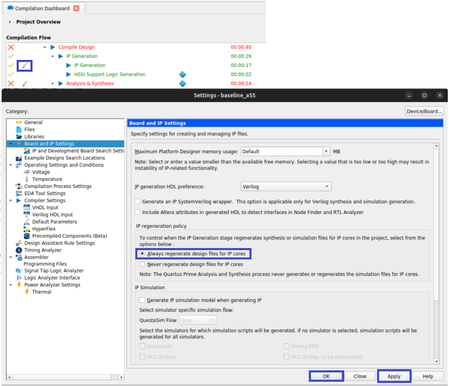
Description Due to a problem related to how VDS handles the EMIF IO96B IP (emif_io96b_hps.ip) during the RTL generation, the Quartus PRO 26.3 and earlier compilation of a Agilex® 5/Agilex® 3/Agilex® 7 FPGA M-Series design fails at Synthesis stage, when RTL is generated using VDS, with the following error: Error(16045): Instance "u_baseline_top|u_shell_subsys|u_hps_subsys|u_emif_hps|emif_io96b_hps_inst" instantiates undefined entity "emif_io96b_hps_emif_io96b_hps_510_prw4fva" : Error: Failed to elaborate design: Error: Flow failed: Errors generated during elaboration Error: Quartus Prime Synthesis was unsuccessful. 3 errors, 1 warning Error: Peak virtual memory: 2354 megabytes Error: Processing ended: Mon Oct 12 13:24:09 2026 Error: Elapsed time: 00:00:27 Error: System process ID: 2357227 Error(21794): Quartus Prime Full Compilation was unsuccessful. 5 errors, 1 warning Resolution To workaround this problem, don’t use VDS to generate the RTL. If you need to modify or edit the design in VDS, save the updates and leave VDS without generating the RTL. Go back to Quartus, in the Compilation Dashboard > Compilation Flow window open the Open Settings Dialog in the IP generation section, go to Board and IP settings and in the IP regeneration policy section, select Always regenerate design files for IP cores; press Apply button and OK button. Proceed with the full design compilation. The same can be done if you add the following setting into the corresponding .qsf file: set_global_assignment -name PROJECT_IP_REGENERATION_POLICY ALWAYS_REGENERATE_IP This problem will be fixed in a future release.155Views0likes0CommentsWhy does the Quartus® Prime Pro Edition Software version 26.1 complete compilation even when two PCIe* Hard IPs are enabled for CvP application?
Description Due to a problem in the Quartus® Prime Pro Edition software version 26.1 and earlier, compilation may complete successfully when more than one PCIe* IP is enabled for CvP application, which conflicts with the description in the Configuration via Protocol (CvP) Implementation User Guide. Resolution Currently, there is no workaround. This problem is scheduled to be fixed in a future release of the Quartus Prime Pro Edition software.52Views0likes0CommentsWhy does the Quartus® Prime Pro Edition Software version 26.1 complete compilation even when two PCIe* Hard IPs are enabled for CvP application?
Description Due to a problem in the Quartus® Prime Pro Edition software version 26.1 and earlier, compilation may complete successfully when more than one PCIe* IP is enabled for CvP application, which conflicts with the description in the Configuration via Protocol (CvP) Implementation User Guide. Resolution Currently, there is no workaround. This problem is scheduled to be fixed in a future release of the Quartus Prime Pro Edition software.60Views0likes0CommentsWhy does compilation fail after restoring a project archive?
Description Due to a problem in the Quartus® Prime Pro Edition software Windows version 26.1.1, an archived project that compiles successfully before may fail to compile after it is restored from a Quartus Archive File (.qar). Some IP-generated files may be missing from the restored project. Resolution To work around this problem, open your project from the QAR file and change the following IP Generation settings: Open Assignments → Settings → IP Generation. Select VHDL as the IP generation language. Note: Do not regenerate the IP.55Views0likes0CommentsWhy does Linux* fail to access components from the QSPI in any device in QPDS26.1.1_REL_GSRD_PR release and onwards?
Description Due to a problem in the Quartus® Prime Pro Edition Software version 25.3.1, atomic compare-and-swap operations on the CXL.cache AXI interface might fail to swap the expected value when AWBURST is set to 2 (WRAP) for designs targeting Agilex® 7 FPGAs and SoCs with R-Tile CXL Type 2 IP. This behavior can occur for 1-, 2-, 4-, and 8-byte compare-and-swap operations that follow the attribute settings in the Agilex 7 R-Tile Compute Express Link* (CXL*) 1.1/2.0 FPGA IP User Guide, Table 9. Attribute Settings for Different Data Block Sizes. Compare-and-swap operations with AWBURST set to 1 for aligned addresses complete successfully for the same data sizes. Associated Quartus Suite bug: QS-22385. Resolution To work around this problem in the Quartus® Prime Pro Edition Software, install patch 0.13 for Quartus® Prime Pro Edition Software version 26.1, then regenerate or rebuild the R-Tile CXL IP design and revalidate the CXL.cache atomic compare-and-swap WRAP sequence. A patch is available to fix this problem for the Quartus® Prime Pro Edition Software version 26.1. Download and install patch 0.13 below. This problem is scheduled to be resolved in the Quartus® Prime Pro Edition Software version 26.1.1.16Views0likes0CommentsWhy is data transfer performance low when using the HPS DMA Controller?
Description Due to the design of the Hard Processor System (HPS) Direct Memory Access Controller (DMAC) in Altera FPGA Agilex® 7, Agilex® 5, and Agilex® 3 devices, data transfer throughput across the HPS-to-FPGA (H2F) and Lightweight HPS-to-FPGA (LWH2F) bridges can appear low-sometimes as low as approximately half of the theoretical maximum-when you use the HPS DMAC for transfers via the H2F or LWH2F path. The generic DMA controller in the HPS is optimized and sized for peripheral data movement within the HPS complex and may not move data near the maximum theoretical throughput across the H2F or LWH2F bridges. Resolution To work around this limitation when higher throughput is required between the HPS and FPGA fabric, follow these steps: Evaluate a fabric-based DMA controller for data transfers between the HPS and FPGA fabric. Measure the resulting throughput against your application bandwidth requirements to determine whether the fabric-based DMA meets your needs. This behavior reflects HPS DMAC sizing for bridge traffic; it is not scheduled to be changed in a Quartus® Prime software release.28Views0likes0Comments
Does Altera provide 3D mechanical models for device packages?
Description 3D Package Step (STP) models are available for Agilex® FPGA devices. They are included in the Compact Thermal Models that are available to customers with “My Collateral” secure content entitlement. Resolution To request “My Collateral” entitlement, visit your My Altera dashboard and request “My Collateral” access. A on-line Non-disclosure agreement is required.297Views0likes0CommentsWhy I can't change the device family in Power and Thermal Analyzer?
Description Due to a problem in the Quartus® Prime Pro Edition Software version 26.1, you may not be able to change to a different device family in Power and Thermal Analyzer (PTA) after you create or open a design. For example, if you open a design targeting a Stratix® 10 device, you may not be able to change to an Agilex® FPGA device. In version 26.1, if you select File > New File to create a new PTA design, the new file wizard does not appear. Without the wizard, you cannot select a different device family when creating a new file. Resolution PTA locks a design to the device family selected when the file is created. To explore power consumption across different device families, create a new PTA file in the target family and import your existing design. To import an existing PTA design into a different device family: Create a new PTA file targeting the desired device family. Use the Import function to bring your existing PTA design into the new file. If you chose the wrong device family when creating a file, close the existing file and create a new one. In the File menu, select New File, and select the correct device family in the new file wizard. In version 26.1 of Power and Thermal Analyzer, the new file wizard does not appear when you select New File. To work around this issue, exit and restart PTA. After restarting, select File > New File to open the new file wizard and select the correct device family.499Views2likes0Comments