agilex® 7 fpgas and socs
1542 Topics
Why do I unexpectedly observe intermittent DDM Errors?
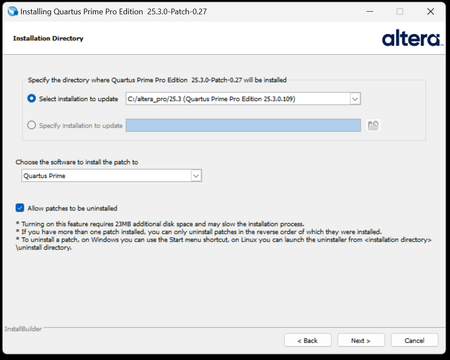
Description Beginning January 10, 2026, executing commands in the terminal or GUI of Quartus® Prime Pro Edition software, Quartus Embedded Edition software or select standalone tools may cause the software or tool to crash with an error similar to the crash signature shown below. This error affects: Quartus Prime Pro Software versions v23.3 through v25.3.1 Standalone Quartus Prime Pro Programmer v23.3 through v25.3.1 Standalone Quartus Prime Pro Embedded Edition v25.3 and v25.3.1 Standalone Quartus Prime Pro Power Thermal Analyzer v25.3 through v25.3.1 This issue is not observed in Quartus Prime Pro Edition versions 23.2 or prior or Quartus Prime Standard Edition. Crash Signature: Error (22912): Unhandled exception: Fatal Error: Assertion failed tools/cpp/ddm/ddm_assessor.cpp:53: DDM_T::verify_token(token) : Cannot identify the client from function assertion_error in tools/cpp/ddm_report/ddm_report_msg.cpp@465 *** Fatal Error: Program termination requested *** *** Below is the stack trace at the time the error occurred. *** The lines beginning "Err Handler" represent frames relating *** to generating this report. *** The point at which the error occurred is somewhere after these lines. *** There may be a few frames representing standard/library code *** before the Quartus frames begin. *** The search for the error should begin with the Quartus frames. *** Unwinder: libunwind *** Stack depth: 15 Quartus 0x24e67: err_terminator() + 0x1bc (ccl_err) Quartus 0xb036a: __cxxabiv1::__terminate(void (*)()) + 0xa (stdc++) Quartus 0xb03d5: (stdc++) Quartus 0xb0628: (stdc++) Quartus 0x1680d: void ddm_throw<DDM_RUNTIME_ERROR>(std::__cxx11::basic_string<char, std::char_traits<char>, std::allocator<char> > const&) + 0x26d (ddm_report) Quartus 0x13fae: DDM_REPORT::DDM_ASSERTION_HANDLER::assertion_error(std::__cxx11::basic_string<char, std::char_traits<char>, std::allocator<char> >) const + 0xde (ddm_report) Quartus 0x12a52: DDM_REPORT::ASSERTION_HANDLER::error(std::__cxx11::basic_string<char, std::char_traits<char>, std::allocator<char> >) + 0x72 (ddm_report) Quartus 0x13e64: DDM_REPORT::detail::assert_at_line(char const*, char const*, int, char const*, ...) + 0x1b4 (ddm_report) Quartus 0x205fb0: ddm_set_lassessor(DDM_T_ASSESSOR*, std::__cxx11::basic_string<char, std::char_traits<char>, std::allocator<char> > const&) + 0x60 (ddm) Quartus 0xf4445: DMS_MANAGER::DMS_MANAGER() + 0x5c5 (dni_dms) Quartus 0xf45b2: DMS_MANAGER::get() + 0x7a (dni_dms) Quartus 0xf6db4: _GLOBAL__sub_I_dms_manager.cpp + 0x58 (dni_dms) Quartus 0x647e: (ld-linux-x86-64) Quartus 0x6568: (ld-linux-x86-64) Quartus 0x202ca: (ld-linux-x86-64) Resolution To work around this problem: For Windows machines Download and unzip the Quartus Prime Pro version zip file that matches your Quartus Prime Pro version from this KDB. Double click on the executable ending in “windows.exe”. When the GUI pops up, press Next. Note that the GUI may look slightly different depending on the version of Quartus you are using. Accept the license agreement Specify the directory where the patch needs to be applied which may be a different location than Quartus install if you have standalone tools in a different directory from your Quartus Prime Pro software installation. Keep “Allow Patch to be uninstalled” selected. Select the software in which to install the patch: The patch will install in the directory of the software or tool you have selected. You will see an uninstall directory for the patch in your software or tool folder where patch is installed; it will contain an executable to uninstall the patch if required for any reason. To confirm patch is installed, you can run quartus_sh -v or corresponding version command for your tool via command line. Alternatively, you can Open Quartus in the GUI and select Help → About Quartus Prime in the main menu. If you are opening up a standalone tool you will navigate to Help-> About <tool_name>. For the Command Line Implementation of the patch in Windows, use the following command: <patch_filename.exe> --mode unattended --installdir <your_install_directory> --accept_eula 1 --patch_to [quartus|qprogrammer|qemb|pta] # An example to patch Quartus Prime Pro Edition Software v25.3: quartus-25.3-0.27-windows.exe --mode unattended --installdir /tmp/altera_pro/25.3 --accept_eula 1 # An example to patch the Standalone Programmer for Quartus Prime Pro Software v25.3: quartus-25.3-0.27-windows.exe --mode unattended --installdir /tmp/altera_pro/25.3 --accept_eula 1 --patch_to qprogrammer For Linux machines: Download and unzip the Quartus Prime Pro version zip file that matches your Quartus Prime Pro version from this KDB. Ensure you run chmod +x on the file ending with linux.run. Run in the command line: ./<installation_patch_run_file>. When GUI pops up, press Next. Note that the GUI may look slightly different depending on the version of Quartus you are using. Accept the license agreement Specify the directory where the patch needs to be applied which may be a different location than Quartus install if you have standalone tools in a different directory from your Quartus Prime Pro software installation. Keep “Allow Patch to be uninstalled” selected. Select the software in which to install the patch: The patch will install in the directory of the software or tool you have selected. You will see an uninstall directory for the patch in your software or tool folder where patch installed; it will contain an executable to uninstall the patch if required for any reason. To confirm patch is installed, you can run ./quartus_sh -v or corresponding version command for your tool via command line. Alternatively, you can Open Quartus in the GUI and select Help → About Quartus Prime in the main menu. If you are opening up a standalone tool you will navigate to Help-> About <tool_name>. For the Command Line Implementation of the patch in Linux, use the following command: ./<patch_filename.run> --mode unattended --installdir <your_install_directory> --accept_eula 1 --patch_to [quartus|qprogrammer|qemb|pta] # An example to patch Quartus Prime Pro Edition v25.3: ./quartus-25.3-0.27-linux.run --mode unattended --installdir /tmp/altera_pro/25.3 --accept_eula 1 # An example to patch the Standalone Programmer for Quartus Prime Pro Software v25.3: ./quartus-25.3-0.27-linux.run --mode unattended --installdir /tmp/altera_pro/25.3 --accept_eula 1 --patch_to qprogrammer This problem has been fixed in Quartus® Prime Pro Edition Software version 26.1. The below table lists the patches that are available and the associated patch number. The patch zip files are attached to the KDB below: Quartus Prime Pro Edition Version Patch Number 23.3 0.52 23.4 0.70 23.4.1 1.01 24.1 0.52 24.2 0.64 24.3 0.35 24.3.1 1.29 25.1 0.36 25.1.1 1.31 25.3 0.27 25.3.1 1.0213KViews5likes0CommentsWhy does my Quartus® Prime Installation fail with certificate error: SSL certificate problem: unable to get local issuer certificate (curlcode 60)?
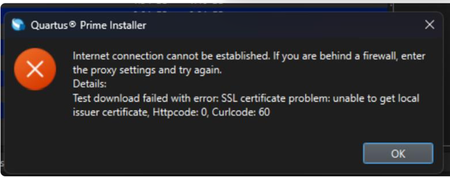
Description Due to a problem in the Quartus® Prime Installer Software, you might see the error message shown below when you click Download & Install. This happens because the certificate bundled with the Quartus® Prime Installer Software is no longer accepted by the Altera® Content Delivery Network (CDN). As a result, secure downloads initiated during the installation process cannot be verified using the outdated certificate. The issue impacts the Installer for the following versions of Quartus software: Operating System Quartus Prime Pro Installer Version(s) Quartus Std/Lite Installer Version(s) Microsoft Windows* 23.3 to 25.3.1 23.1std to 25.1std Linux* 23.3 to 23.4 23.1std The KDB workaround provided below applies to the following versions of Quartus software: Quartus Prime Pro Installer Version(s) Quartus Std/Lite Installer Version(s) KDB workaround applies to 24.3 to 25.3.1 24.1std to 25.1std Note that for all other affected versions not covered by the KDB, you cannot use the installer workaround and must download Quartus software package files individually without using the installer. Separate packages can be found in the Individual Files tab of the Quartus Software Download pages. Resolution To work around this problem, follow these steps: 1. Download and unzip the cacert.zip, which contains the cacert.pem certificate file. 2. Specify the new certificate using one of the following methods: i) Command Line Interface (CLI): Open a command prompt or terminal and run the installer with the--cacert option, pointing to the new certificate file. Windows*: qinst_<version>.exe -sp"--cacert <full path to cacert.pem>" Linux*: qinst_<version>.run -- --cacert <full path to cacert.pem> ii) Graphical User Interface (GUI): - Open the Quartus® Prime Installer, navigate to Settings, locate the CA Certificate Path, and specify the full path to the cacert.pem certificate file. - Then, click Apply > OK. This problem is scheduled to be resolved in a future release of the Quartus® Prime Installer Software.12KViews1like0Comments
Why does the R-Tile Avalon® Streaming Intel® FPGA IP for PCI Express* Performance Design Example report incorrect throughput numbers in the Intel® Quartus® Prime Pro Edition Software version 23.2?
Description Due to a problem in the Intel® Quartus® Prime Pro Edition Software version 23.2, the throughput numbers reported when running the R-Tile Avalon® Streaming Intel® FPGA IP for PCI Express* Performance Design Example will be incorrect. Resolution To work around this problem, download and install patch 0.24 for the Intel® Quartus® Prime Pro Edition Software version 23.2 and re-generate the Performance Design example: Patch 0.24 for the Intel® Quartus® Prime Pro Edition Software version 23.2 for Windows (.exe) Patch 0.24 for the Intel® Quartus® Prime Pro Edition Software version 23.2 for Linux (.run) Readme for Patch 0.24 for the Intel® Quartus® Prime Pro Edition Software (.txt) This problem is fixed beginning with the Intel® Quartus® Prime Pro Edition Software version 23.3.899Views0likes0CommentsHow do I connect the F-Tile Reference and System PLL Clock IP out_coreclk_#i port to an IOPLL FPGA IP reference clock input in the Agilex 7™ FPGA devices?
Description There is no dedicated connection from the F-Tile Reference and System PLL Clock IP out_coreclk_#i port to an IOPLL FPGA IP reference clock input in the Agilex™ 7 FPGA devices. You may see an error message like this if you connect an F-Tile Reference and System PLL Clock IP out_coreclk_#i port directly to an IOPLL FPGA IP reference clock input. Error(14566): The Fitter cannot place 1 periphery component(s) due to conflicts with existing constraints (1 HSSI_PLDADAPT_RX(s)). Fix the errors described in the submessages, and then rerun the Fitter. The Intel FPGA Knowledge Database may also contain articles with information on how to resolve this periphery placement failure.Error(175020): The Fitter cannot place logic HSSI_PLDADAPT_RX in region (11, 65) to (11, 67), to which it is constrained, because there are no valid locations in the region for logic of this type. Info(14596): Information about the failing component(s): Info(175028): The HSSI_PLDADAPT_RX name(s): FTL_auto_tiles|z1577b_x5_y0_n0|hdpldadapt_rx_chnl_21 ... Resolution You can do the following to connect the F-Tile Reference and System PLL Clock IP out_coreclk_#i port to an IOPLL FPGA IP reference clock input. Divide the F-Tile Reference and System PLL Clock IP out_coreclk_#i signal by two in rtl. Connect the rtl divided out_coreclk_#i signal to a Clock Control FPGA IP buffer Connect the output of the Clock Control FPGA IP buffer to the IOPLL FPGA IP reference clock input. The following example connects out_coreclk_2 of an F-Tile Reference and System PLL Clock IP to an IOPLL FPGA IP reference clock. ref_sys_pll_clk_i0 : component ref_sys_pll_clk port map ( out_systempll_synthlock_0 => out_systempll_synthlock_0, out_systempll_clk_0 => out_systempll_clk_0, out_refclk_fgt_2 => out_refclk_fgt_2, in_refclk_fgt_2 => in_refclk_fgt_2, out_coreclk_2 => out_coreclk_2); process(out_coreclk_2) begin if rising_edge(out_coreclk_2) then out_coreclk_2_2<= not out_coreclk_2_2; end if ; end process; clkctrl_i0 : component clkctrl port map ( inclk => out_coreclk_2_2, clock_div1x => clkctrl_outclk); iopll_i0 : component iopll port map ( refclk => clkctrl_outclk, locked => open, rst => ninit_done(0), outclk_0 => iopll_outclk_0);798Views0likes0CommentsWhy are there error/warning messages in the FASTSIM mode when simulated with Synopsys verification IP?
Description In the FASTSIM mode, a simplified PMA abstract model is used to improve the overall simulation time for the F-Tile Avalon® Streaming Intel® FPGA IP for PCI Express. The following error and warning messages are expected in the FASTSIM mode when simulated with Synopsys verification IP. It is due to PHY calibration being bypassed in the simulation. It is safe to ignore the error and warning messages. UVM_ERROR /p/psg/EIP/synopsys/vip/vg_P-2019.06F/vip/svt/pcie_test_suite_svt/P-2019.06-1/design_dir/src/sverilog/vcs/pciesvc_serdes.sv(242) @ 382510.547 ns: uvm_test_top.env.pcie_env.rc_env.rc_agent.port0.pl0 [register_fail:ACTIVE_PL_LANE_SERDES:PROTOCOL:serdes_new_min_seen_14] : New min half bit period seen (was 0.062500, now is 0.048750 ns) - SERDES unlocked. UVM_ERROR /p/psg/EIP/synopsys/vip/vg_P-2019.06F/vip/svt/pcie_test_suite_svt/P-2019.06-1/design_dir/src/sverilog/vcs/pciesvc_serdes.sv(242) @ 519982.547 ns: uvm_test_top.secondary_tests_1.env.pcie_env.rc_env.rc_agent.port0.pl0 [register_fail:ACTIVE_PL_LANE_SERDES:PROTOCOL:serdes_new_min_seen_1] : New min half bit period seen (was 0.062500, now is 0.048750 ns) - SERDES unlocked. UVM_ERROR /p/psg/EIP/synopsys/vip/vg_P-2019.06F/vip/svt/pcie_test_suite_svt/P-2019.06-1/design_dir/src/sverilog/vcs/pciesvc_serdes.sv(242) @ 508334.547 ns: uvm_test_top.env.pcie_env.rc_env.rc_agent.port0.pl0 [register_fail:ACTIVE_PL_LANE_SERDES:PROTOCOL:serdes_new_min_seen_4] : New min half bit period seen (was 0.062500, now is 0.048750 ns) - SERDES unlocked. UVM_ERROR /p/psg/EIP/synopsys/vip/vg_P-2019.06F/vip/svt/pcie_test_suite_svt/P-2019.06-1/design_dir/src/sverilog/vcs/pciesvc_serdes.sv(242) @ 389018.547 ns: uvm_test_top.secondary_tests_3.env.pcie_env.rc_env.rc_agent.port0.pl0 [register_fail:ACTIVE_PL_LANE_SERDES:PROTOCOL:serdes_new_min_seen_3] : New min half bit period seen (was 0.062500, now is 0.048750 ns) - SERDES unlocked. UVM_ERROR /p/psg/EIP/synopsys/vip/vg_P-2019.06F/vip/svt/pcie_test_suite_svt/P-2019.06-1/design_dir/src/sverilog/vcs/pciesvc_serdes.sv(242) @ 510328.547 ns: uvm_test_top.env.pcie_env.rc_env.rc_agent.port0.pl0 [register_fail:ACTIVE_PL_LANE_SERDES:PROTOCOL:serdes_new_min_seen_3] : New min half bit period seen (was 0.062500, now is 0.048750 ns) - SERDES unlocked. Resolution There is no plan to fix the error and warning messages.703Views0likes0CommentsWhy don’t I get a programming file when I compile with the Quartus® Prime Pro Edition software version 25.1.1?
Description Beginning with version 25.1.1 of the Quartus® Prime Pro Edition software, pin location assignments and I/O standard assignments are required for a programming file to be generated. If these required assignments are missing, no programming file is generated. You must add the required assignments and recompile your design to generate a programming file. If you do not want to generate a programming file, you may ignore this behavior change. To determine whether your design is missing pin location or I/O standard assignments, review your compilation messages. If either of the following messages was generated during your compile, your design is missing pin location or I/O standard assignments that are required to generate a programming file: Critical Warning: Some pins have incomplete I/O assignments. Refer to the I/O Assignment Warnings report for details Critical Warning: No exact pin location assignment(s) for <number> pins of <number> total pins. For the list of pins, please refer to the I/O Assignment Warnings table in the fitter report Resolution Review the I/O Assignment Warnings report, found in the Place sub-section of the Fitter section of the compilation report. Alternately, review the <revision>.fit.plan.rpt report file. For any pins in the I/O Assignment Warnings report that are reported as “Missing location assignment” or “Missing I/O standard,” add the appropriate location or I/O standard assignment. For help making these assignments, refer to Assigning I/O Pins After adding any required assignments, recompile the design to generate a programming file. This change applies to all device families supported by the Quartus® Prime Pro Edition software, beginning in version 25.1.1. Missing pin location or I/O standard assignments are reported as a critical warning, not an error. If you script the compilation of projects, the exit code of the compilation process still indicates success even if pin location or I/O standard assignments are missing, because missing pin location or I/O assignments are reported as a critical warning, not an error.699Views0likes0CommentsWhy does the Quartus® Prime Pro Edition Programmer program pof file to DK-DEV-AGI027RBES unsuccessfully when following the R-Tile FPGA IP for Compute Express Link* (CXL*) Design Example User Guide?
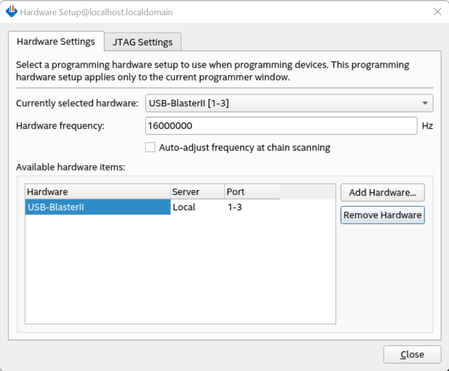
Description Due to a problem in the R-Tile FPGA IP for Compute Express Link* (CXL*) Design Example User Guide, version 1.10.0, you might observe pof programming failure on DK-DEV-AGI027RBES when following the chapter "C. Programming the Agilex™ 7 FPGA Development Kit with an External USB Blaster II", the description for the programming steps of DK-DEV-AGI027R1BES and DK-DEV-AGI027RBES is not separate and clear enough. Resolution To work around this problem, refer to the following instructions: 1. The programming steps for DK-DEV-AGI027R1BES: Connect an external USB blaster II into the J10- External JTAG header. Set the switch SW5.3 to ON (for the first time). Open the Quartus® Prime Pro Edition Software programmer tool. Click the Hardware Setup, and select USB Blaster II. Set the Hardware Frequency to 16000000Hz and uncheck the Auto-adjust frequency at chain scanning box. Click Close. Click Auto Detect and select MAX® 10 device, click OK. Right-click on the MAX® 10 device, and select Edit -> Change File. Select the MAX® 10 SOF file image: max10_bmc_avstx8_test.sof and click Open. Check the Program/Configure box and click Start to start the programming operation. When the operation is 100% successfully completed, click Auto Detect. Click Yes on pop-up windows. Right click on the QSPI_2Gb device, select Edit -> Change File. Select the POF file image: file.pof and click Open. Check Program/Configure box of QSPI_2Gb, P1, OPTION_BITS and click Start to start the programming operation. When the operation is 100% successfully completed, close the programmer window, shut down the platform (Pressing the on-off button on your server instead of typing “poweroff” in command window), set SW5.3 to OFF, disconnect USB Blaster II and boot the platform again. Type “lspci -vt ” in the command window, 0ddb device should be found. 2. The programming steps for DK-DEV-AGI027RBES: Plug in the USB cable to the USB port J8 (when using J10, DIPSWITCH SW5.3 (DK-DEV-AGI027RES and DK-DEV-AGI027R1BES) and SW8.3 (DK-DEV-AGI027RB and DK-DEV-AGI027-RA) should be off). Set the DIPSWITCH SW2 to [on:off:off:X] (the 4th bit is don't care). You can follow this combination which has been verified on the hardware: SW1=ON/Off/Off/Off; SW2=ON/Off/Off/Off; SW3=Off/ON/ON/Off; SW4=Off/Off/ON/Off; SW5=Off/Off/Off/Off; SW8=Off/Off/Off/Off Open the Quartus® Prime Pro Edition Software programmer tool. Click the Hardware Setup, and select USB Blaster II. Set the Hardware Frequency to 16000000Hz and uncheck the Auto-adjust frequency at chain scanning box. Click Close. Click Auto Detect to scan the JTAG devices. If the JTAG chain can not be detected, try setting SW4:3 to OFF. If a device called 1_BIT_TAP appears between AGIB027R29AR0 and VTAP10, ignore it and continue to the next step. Right click the VTAP10 device, Edit > Change Device, change it to MAX 10 > 10M50DAF256. Right click the 10M50DAF256 device, Edit > Attach Flash Device, select Quad SPI Flash Memory QSPI_2Gb. In the Programmer page, click QSPI_2Gb > Change File to select the .pof file. Start the Programmer. When the operation is 100% successfully completed, close the programmer window, and shut down the platform (Pressing the on-off button on your server instead of typing “poweroff” in the command window), if SW4:3 was OFF before, set it to ON, disconnect USB Blaster II and boot the platform again. Type “lspci -vt ” in the command window, 0ddb device should be found.600Views1like0CommentsWhy does Linux report "DMA engine initialization failed" error when EMAC uses GMII interface?
Description When supporting GMII interface for HPS EMAC, there are three clocks exported to FPGA: emac_tx_clk_i(input), emac_rx_clk_i(input), emac_gtx_clk(output) The Linux would report below error if the emac_tx_clk_i clock is not connected correctly: ...... [ 4.291414] socfpga-dwmac ff802000.ethernet: Failed to reset the dma [ 4.297785] socfpga-dwmac ff802000.ethernet eth1: stmmac_hw_setup: DMA engine initialization failed [ 4.306806] socfpga-dwmac ff802000.ethernet eth1: stmmac_open: Hw setup failed ...... Resolution Besides connecting the emac_rx_clk_i(125MHz) for GMII, the emac_tx_clk_i also needs to be connected correctly (2.5MHz or 25MHz), although it is not used in GMII mode. The emac_tx_clk_i requirement information has been added in the HPS document beginning with version 21.2.599Views0likes0CommentsWhy are UnsupReq, NonFatalErr, and CorrErr statuses asserted after power cycle or OS reboot while using the P-Tile Intel® FPGA IP for PCI Express?
Description You may find UnsupReq, NonFatalErr, and CorrErr status asserted after power cycle or operating system (OS) reboot when using the P-Tile Intel® FPGA IP for PCI Express. Resolution According to the PCI Express Base specification revision 4.0 version 1.0, during the enumeration of a non-existent device or function, completion with UR status is sent, and UnsupReq is asserted. Meanwhile, Non-Fatal Advisory Error is determined, and CorrErr and NonFatalErr are asserted. To work around this problem, clear the UnsupReq, NonFatalErr, and CorrErr statuses in the PCI Express configuration space registers before checking them during data transactions. This problem is not planned to be fixed in a future version of the Intel® Quartus® Prime Pro Edition Software.599Views0likes0CommentsWhen does the Quartus® Prime Design Software, IP cores, and Questa*-Altera® FPGA Edition Software check out a license?
Description Below is a description of how the Quartus® Prime Design Software, IP cores, and Questa*-Altera® FPGA Edition Software utilize licenses: Resolution Quartus® Prime Design Software: All Quartus® Prime Design Software processes check for a valid license, including the Quartus® GUI, Analysis & Synthesis, Assembler, and TimeQuest Timing Analyzer. These processes start only if a valid license is available. They do not hold or occupy the license; they only validate that one is available. However, the Fitter checks out a license when it starts and holds it for the duration of the Fitter process. IP cores: A license for an IP core is checked out when the Quartus® Prime Design Software opens the first encrypted file of the IP core for synthesis. This license is held for the duration of synthesis. The Assembler checks out the license for every IP core to create the programming file and holds it for the duration of the Assembler process. Questa*-Intel® FPGA Edition software: Once Questa*-Intel® FPGA Edition Software loads a design unit during elaboration, a Questa-Intel® FPGA Edition license is checked out. It remains checked out until the simulation ends (quit -sim), or the simulator is closed. Once a waveform is loaded into the simulator, a Questa*-Intel® FPGA Edition Software license is also checked out for viewing Wave Log Format File (.wlf), and it remains checked out until the waveform window is closed. Related Articles What happens to a license if the Quartus II software terminates unexpectedly? Can I perform multiple compilations using the Quartus II software at the same time on one computer with a one seat floating license or one fixed (node locked) license file?599Views0likes0Comments