stratix® 10 fpgas and socs
1547 Topics
Why do I unexpectedly observe intermittent DDM Errors?
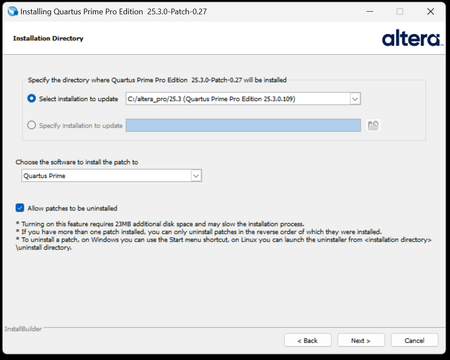
Description Beginning January 10, 2026, executing commands in the terminal or GUI of Quartus® Prime Pro Edition software, Quartus Embedded Edition software or select standalone tools may cause the software or tool to crash with an error similar to the crash signature shown below. This error affects: Quartus Prime Pro Software versions v23.3 through v25.3.1 Standalone Quartus Prime Pro Programmer v23.3 through v25.3.1 Standalone Quartus Prime Pro Embedded Edition v25.3 and v25.3.1 Standalone Quartus Prime Pro Power Thermal Analyzer v25.3 through v25.3.1 This issue is not observed in Quartus Prime Pro Edition versions 23.2 or prior or Quartus Prime Standard Edition. Crash Signature: Error (22912): Unhandled exception: Fatal Error: Assertion failed tools/cpp/ddm/ddm_assessor.cpp:53: DDM_T::verify_token(token) : Cannot identify the client from function assertion_error in tools/cpp/ddm_report/ddm_report_msg.cpp@465 *** Fatal Error: Program termination requested *** *** Below is the stack trace at the time the error occurred. *** The lines beginning "Err Handler" represent frames relating *** to generating this report. *** The point at which the error occurred is somewhere after these lines. *** There may be a few frames representing standard/library code *** before the Quartus frames begin. *** The search for the error should begin with the Quartus frames. *** Unwinder: libunwind *** Stack depth: 15 Quartus 0x24e67: err_terminator() + 0x1bc (ccl_err) Quartus 0xb036a: __cxxabiv1::__terminate(void (*)()) + 0xa (stdc++) Quartus 0xb03d5: (stdc++) Quartus 0xb0628: (stdc++) Quartus 0x1680d: void ddm_throw<DDM_RUNTIME_ERROR>(std::__cxx11::basic_string<char, std::char_traits<char>, std::allocator<char> > const&) + 0x26d (ddm_report) Quartus 0x13fae: DDM_REPORT::DDM_ASSERTION_HANDLER::assertion_error(std::__cxx11::basic_string<char, std::char_traits<char>, std::allocator<char> >) const + 0xde (ddm_report) Quartus 0x12a52: DDM_REPORT::ASSERTION_HANDLER::error(std::__cxx11::basic_string<char, std::char_traits<char>, std::allocator<char> >) + 0x72 (ddm_report) Quartus 0x13e64: DDM_REPORT::detail::assert_at_line(char const*, char const*, int, char const*, ...) + 0x1b4 (ddm_report) Quartus 0x205fb0: ddm_set_lassessor(DDM_T_ASSESSOR*, std::__cxx11::basic_string<char, std::char_traits<char>, std::allocator<char> > const&) + 0x60 (ddm) Quartus 0xf4445: DMS_MANAGER::DMS_MANAGER() + 0x5c5 (dni_dms) Quartus 0xf45b2: DMS_MANAGER::get() + 0x7a (dni_dms) Quartus 0xf6db4: _GLOBAL__sub_I_dms_manager.cpp + 0x58 (dni_dms) Quartus 0x647e: (ld-linux-x86-64) Quartus 0x6568: (ld-linux-x86-64) Quartus 0x202ca: (ld-linux-x86-64) Resolution To work around this problem: For Windows machines Download and unzip the Quartus Prime Pro version zip file that matches your Quartus Prime Pro version from this KDB. Double click on the executable ending in “windows.exe”. When the GUI pops up, press Next. Note that the GUI may look slightly different depending on the version of Quartus you are using. Accept the license agreement Specify the directory where the patch needs to be applied which may be a different location than Quartus install if you have standalone tools in a different directory from your Quartus Prime Pro software installation. Keep “Allow Patch to be uninstalled” selected. Select the software in which to install the patch: The patch will install in the directory of the software or tool you have selected. You will see an uninstall directory for the patch in your software or tool folder where patch is installed; it will contain an executable to uninstall the patch if required for any reason. To confirm patch is installed, you can run quartus_sh -v or corresponding version command for your tool via command line. Alternatively, you can Open Quartus in the GUI and select Help → About Quartus Prime in the main menu. If you are opening up a standalone tool you will navigate to Help-> About <tool_name>. For the Command Line Implementation of the patch in Windows, use the following command: <patch_filename.exe> --mode unattended --installdir <your_install_directory> --accept_eula 1 --patch_to [quartus|qprogrammer|qemb|pta] # An example to patch Quartus Prime Pro Edition Software v25.3: quartus-25.3-0.27-windows.exe --mode unattended --installdir /tmp/altera_pro/25.3 --accept_eula 1 # An example to patch the Standalone Programmer for Quartus Prime Pro Software v25.3: quartus-25.3-0.27-windows.exe --mode unattended --installdir /tmp/altera_pro/25.3 --accept_eula 1 --patch_to qprogrammer For Linux machines: Download and unzip the Quartus Prime Pro version zip file that matches your Quartus Prime Pro version from this KDB. Ensure you run chmod +x on the file ending with linux.run. Run in the command line: ./<installation_patch_run_file>. When GUI pops up, press Next. Note that the GUI may look slightly different depending on the version of Quartus you are using. Accept the license agreement Specify the directory where the patch needs to be applied which may be a different location than Quartus install if you have standalone tools in a different directory from your Quartus Prime Pro software installation. Keep “Allow Patch to be uninstalled” selected. Select the software in which to install the patch: The patch will install in the directory of the software or tool you have selected. You will see an uninstall directory for the patch in your software or tool folder where patch installed; it will contain an executable to uninstall the patch if required for any reason. To confirm patch is installed, you can run ./quartus_sh -v or corresponding version command for your tool via command line. Alternatively, you can Open Quartus in the GUI and select Help → About Quartus Prime in the main menu. If you are opening up a standalone tool you will navigate to Help-> About <tool_name>. For the Command Line Implementation of the patch in Linux, use the following command: ./<patch_filename.run> --mode unattended --installdir <your_install_directory> --accept_eula 1 --patch_to [quartus|qprogrammer|qemb|pta] # An example to patch Quartus Prime Pro Edition v25.3: ./quartus-25.3-0.27-linux.run --mode unattended --installdir /tmp/altera_pro/25.3 --accept_eula 1 # An example to patch the Standalone Programmer for Quartus Prime Pro Software v25.3: ./quartus-25.3-0.27-linux.run --mode unattended --installdir /tmp/altera_pro/25.3 --accept_eula 1 --patch_to qprogrammer This problem has been fixed in Quartus® Prime Pro Edition Software version 26.1. The below table lists the patches that are available and the associated patch number. The patch zip files are attached to the KDB below: Quartus Prime Pro Edition Version Patch Number 23.3 0.52 23.4 0.70 23.4.1 1.01 24.1 0.52 24.2 0.64 24.3 0.35 24.3.1 1.29 25.1 0.36 25.1.1 1.31 25.3 0.27 25.3.1 1.0213KViews5likes0CommentsWhy does my Quartus® Prime Installation fail with certificate error: SSL certificate problem: unable to get local issuer certificate (curlcode 60)?
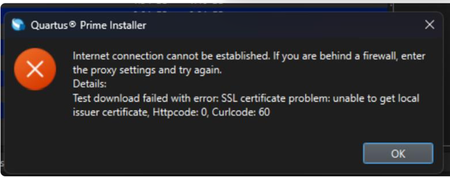
Description Due to a problem in the Quartus® Prime Installer Software, you might see the error message shown below when you click Download & Install. This happens because the certificate bundled with the Quartus® Prime Installer Software is no longer accepted by the Altera® Content Delivery Network (CDN). As a result, secure downloads initiated during the installation process cannot be verified using the outdated certificate. The issue impacts the Installer for the following versions of Quartus software: Operating System Quartus Prime Pro Installer Version(s) Quartus Std/Lite Installer Version(s) Microsoft Windows* 23.3 to 25.3.1 23.1std to 25.1std Linux* 23.3 to 23.4 23.1std The KDB workaround provided below applies to the following versions of Quartus software: Quartus Prime Pro Installer Version(s) Quartus Std/Lite Installer Version(s) KDB workaround applies to 24.3 to 25.3.1 24.1std to 25.1std Note that for all other affected versions not covered by the KDB, you cannot use the installer workaround and must download Quartus software package files individually without using the installer. Separate packages can be found in the Individual Files tab of the Quartus Software Download pages. Resolution To work around this problem, follow these steps: 1. Download and unzip the cacert.zip, which contains the cacert.pem certificate file. 2. Specify the new certificate using one of the following methods: i) Command Line Interface (CLI): Open a command prompt or terminal and run the installer with the--cacert option, pointing to the new certificate file. Windows*: qinst_<version>.exe -sp"--cacert <full path to cacert.pem>" Linux*: qinst_<version>.run -- --cacert <full path to cacert.pem> ii) Graphical User Interface (GUI): - Open the Quartus® Prime Installer, navigate to Settings, locate the CA Certificate Path, and specify the full path to the cacert.pem certificate file. - Then, click Apply > OK. This problem is scheduled to be resolved in a future release of the Quartus® Prime Installer Software.11KViews1like0CommentsWhy does Ashling* RiscFree* IDE for Altera® FPGAs detect Core 0 only in a Nios® V processor multicore system?
Description Due to a problem in the Ashling* RiscFree* IDE for Altera software version 25.2.1 (version dated 9 th May 2025), the Ashling* RiscFree* IDE might fail to detect other Nios ® V processor cores (except Core 0) for Nios ® V processor multicore designs. This is because there is a bug in the Ashling* GDBServer software. Error message: [GDB server output] Error: The device configuration selected has only 1 core (Core 0). Core 1 is not available. Resolution To workaround this issue, please switch from Ashling* GDBServer to Open On-Chip Debugger (OpenOCD) when debugging a Nios ® V multicore processor system. Add the “–o" argument when running niosv-download. niosv-download app.elf -o <options> The problem has been fixed starting with Quartus® Prime Pro Edition software version 25.3.137Views1like0Comments