Forum Discussion

 New Contributor
Error in QuestaSim when starting simulation
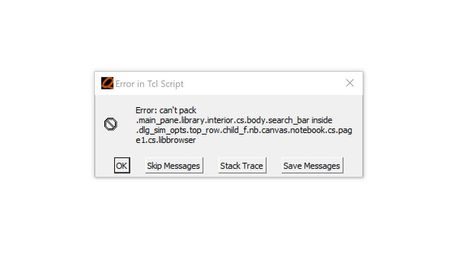

 Super Contributor
Try suggestion below:
1. Restart Questa with a Clean GUI Cache
Sometimes, GUI settings get corrupted. Try resetting them:
Close Questa.
Locate the Questa preferences/settings file (usually in your home directory or workspace).
Rename or delete the GUI-related cache/config files (e.g., .questasim or .modelsim folders).
Restart Questa and check if the problem persists.
2. Run Questa with a Fresh Workspace
If this issue occurs in a specific workspace, try:
Creating a new workspace.
Importing your project files.
Running the simulation again.
3. Verify Your Installation
If the issue is persistent across different projects:
Make sure QuestaSim is installed correctly.
If you’re using an older version, consider updating to the latest version.
Try reinstalling or repairing your Questa installation.
4. Check for Custom Tcl Scripts
If you have custom Tcl scripts or configurations modifying the GUI, they might be interfering with the default behavior. To test:
Run Questa without any custom startup scripts.
Try launching the GUI with the -gui option:
vsim -gui
See if the issue still occurs.
5. Disable Search Bar in the Simulation Options
Since the error is related to SearchBar::show, disabling the library search bar (if possible) might be a workaround. Try:
Going to Simulation Settings and disabling search-related features.
Running the simulation from the command line instead of the GUI.


