development kits
14 Topics
How do I retarget the F-Tile Ethernet Hard IP 100G example design from the Agilex® 7 FPGA I-Series Development Kit QSFP-DD J27 (QSFPDD0) to the Agilex® 7 FPGA M-Series Development Kit QSFP-DD J16 (QSFPDD CONN0)?
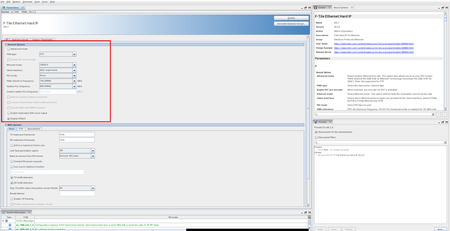
Description Currently, the F-Tile Ethernet Hard IP GUI only has the option to generate the 100GE-4 example design that targets the Agilex® 7 FPGA I-Series Development Kit QSFP-DD connector J27 (QSFPDD0). There is no way for users to generate a 100GE-4 F-tile Ethernet Hard IP example design through the IP GUI that maps the IP directly to QSFP-DD connector J16 (QSFPDD CONN0) on the Agilex® 7 FPGA M-Series Development Kit (DK-DEV-AGM039EA). For users working on the Agilex 7 FPGA M-Series devkit, this creates additional work for the users to refer to the Agilex 7 FPGA M-Series board schematics to modify the pin assignments and other SDM/Power Management settings accordingly to create an FPGA image that is compatible with the M-Series devkit. With the steps specified below, users can now modify the devkit agnostic 100GE-4 example design to map to the Agilex 7 FPGA M-Series Development Kit’s J16 QSFP-DD connector (QSFPDD CONN0) by generating the example design using the IP GUI with Select Board set to None, then retarget the Quartus® Settings File (.qsf) pin, I/O standard, and board power-management assignments to the DK-DEV-AGM039EA J16 pinout, and then recompile to generate the FPGA image, by following the steps specified below. Resolution To obtain the 100GE-4 F-Tile Ethernet Hard IP example design in the Quartus® Prime Pro Edition Software that maps to Agilex 7 FPGA M-Series Development Kit (DK-DEV-AGM039EA) on J16 (QSFPDD CONN0) port, follow these steps: Open the F-Tile Ethernet Hard IP Parameter Editor and set General Options as follows (see attached screenshot): PMA type FGT; Ethernet mode 100GE-4; Client interface MAC segmented; FEC mode None; PMA reference frequency 156.250000 MHz; System PLL frequency 805.664062 MHz. Open the Example Design tab and set Select Board to None; Select device initialization clock to OSC_CLK_1_125MHZ. Click Generate Example Design to generate the ED. Edit the example design .qsf so board-level assignments match the Agilex 7 M-Series Development Kit QSFP-DD J16 (QSFPDD CONN0). Compare the originally generated .qsf (left) to the retargeted .qsf (right) in the attached screenshots. Apply pin/location, fitter/assembler power-management, and ENTITY(eth_f_hw) I/O standard / virtual-pin changes as shown in these screenshots. Save the .qsf and run a full compile to generate the .sof. Program the DK-DEV-AGM039EA board and confirm loopback link-up on J16 QSFP port by connecting the external loopback module as seen below. Additional Information Source APS: 01009271 (Closed). Related engineering AR: QS-615224. RAE validated the retargeted design on DK-DEV-AGM039EA before delivering a reference QAR.58Views0likes0CommentsWhy is SW2 missing on my Agilex® 5 FPGA E-Series 065B Modular Development Kit?
Description Due to an issue with the revision C2 Agilex® 5 FPGA E-Series 065B Modular Development Kit carrier board, power switch SW2 is not installed. As a result, the PCIe® 12 V or ATX 12 V power supply paths cannot be controlled. A Rev C2 Carrier board uses the PCIe® 12 V supply when the card is plugged into a server and uses the ATX power when 12 V is provided from the ATX connector. DO NOT Connect both ATX 12V and PCIe 12V powers simultaneously. You can identify a Rev C2 board by one of the following methods: Serial number range—A5EBMKPA100009 to A5EBMKPA100050 Absence of SW2 "RevC2" silkscreen marking near the PCIe edge connector Resolution Agilex® 5 FPGA E-Series 065B Modular Development Kit revision C3 carrier boards are corrected and have SW2 installed.51Views0likes0CommentsWhat should I consider when designing a system board using Schmitt trigger inputs on MAX® 10 FPGAs?
Description When designing a system board that uses Schmitt trigger inputs on MAX® 10 FPGAs, board-level noise, power integrity, and signal integrity can significantly affect the effective hysteresis behavior. Factors such as power supply noise, input signal noise, and PCB layout practices may cause the observed switching thresholds to deviate from their typical values. This article outlines key considerations to help minimize noise sensitivity when using Schmitt trigger inputs in a system-level design Resolution When designing a system board that uses Schmitt trigger inputs, consider the following: Follow the recommendations in the MAX® 10 FPGA Design Guidelines, especially sections related to power distribution network (PDN) and signal integrity. Minimize power supply noise by using proper decoupling, grounding, and PCB layout practices. Note: The MAX® 10 FPGA 10M08 Evaluation Kit is intended for low-cost application testing and is not designed for DC or PDN characterization. It should not be used to measure intrinsic transistor switching thresholds.170Views0likes0CommentsCONSTRA error: Failed to open file 'C:\altera_pro\26.1\devices/10nm/sm7revb/hviowr_pllwrap_bf_rbc_constraints.ddb'
Description Due to a problem in the Quartus® Prime Pro Edition Software version 26.1 and earlier, you might see the following or similar simulation error message when simulating a design targeting an Agilex® 7 FPGA M-Series device or an Agilex® 3 FPGA C-Series device: CONSTRA (ed_sim.phylite_ph2_0_example_design.phylite_ph2_0_example_design.core.arch_inst.phylite_clocking_inst.iopll_inst.tennm_ph2_iopll_encrypted_inst): error: Failed to open file 'C:\altera_pro\26.1\devices/10nm/sm7revb/hviowr_pllwrap_bf_rbc_constraints.ddb' This CONSTRA error occurs because the SystemVerilog Constraint Solver executable file cannot find simulation files due to missing directories from the Quartus installation path, under the directory <Quartus_version>/devices/10nm. The missing directories are part of the Agilex® 5 FPGA device support files. Resolution To work around this problem: Download the Agilex® 5 FPGA device support file, according to the Quartus® Prime Pro Edition Software version and operating system. Install the downloaded Agilex® 5 FPGA device support file. Simulate your design again using a fresh simulation directory. This problem is scheduled to be fixed in a future release of the Quartus Prime Pro Edition Software.66Views0likes0CommentsWhy do I see SEU errors being detected consistently on my Agilex® 7 FPGA F-Series Development Kit (2x F-Tile) (DK-DEV-AGF023FA)?
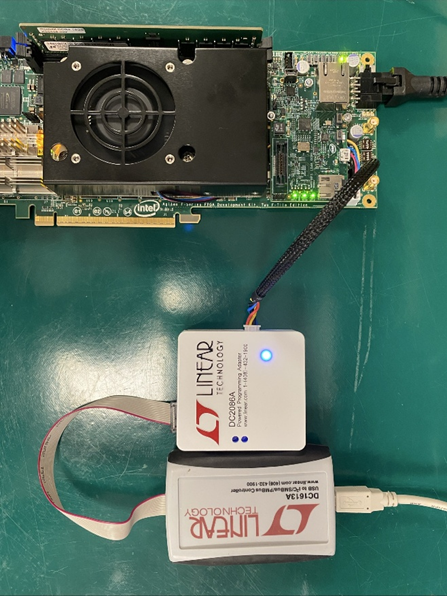
Description Due to an issue with the settings of the Voltage Regulator LTC3888 used on the Agilex® 7 FPGA F-Series Development Kit (2x F-Tile) (DK-DEV-AGF023FA), you may see SEU error being detected regularly when you enable SEU error check. The behavior occurs because the voltage required by Agilex® 7 devices during operation, which can be between 0.7 V and 0.9 V, is over the VOUT_OV_WARN_LIMIT value programmed on LTC3888. Triggering the LTC388 to report an error back to the FPGA SDM. The SDM queues this error on the Error Message Queue (EMQ) which then asserts the SEU Error check. Resolution To solve this problem, you will need to reconfigure the Non-Volatile Memory registers of the Voltage Regulator using a Linear Technologies USB-to PMBus Controller (DC1613A) and Programming Adapter (DC2086A) and the Linear Technologies LTpowerPlay Software. Using the PMBus Controller and the LTpowerPlay software, configure the following Voltage Regulator configuration file linked at the bottom of this article and follow the steps lay out below: 1. Open the LTpowerPlay on a Windows computer. 2. Connect dongles as shown in picture, power up the board 3. Start LTpowerPlay. It will show a window like below: 4. Click "Open Project", browse to the project file, select it and click "Open". 5. Go to Utilities > Programming Utility. 6. Press OK when asked 7. In the LT Device Programmer, browse again for the project file: 8. Click "Program and Verify System" 9. Application will confirm all was programmed fine: Loading this file will configure the LTC3888 Voltage Regulator to operate within the required voltage range and allow the Agilex® 7 FPGA device to operate with getting assertions from false errors.75Views0likes0CommentsWhy is the FPGA To HPS bridge not functional in a non-HPS EMIF hardware design in Agilex® 5 FPGA device in 25.3.1 release and earlier?
Description Due to an incorrect configuration in the mpfe_config register in the System Manager, performed by the SDM FW, the FPGA-to-HPS transactions will fail to complete on the Agilex® 5 FPGA device in a hardware design that does not instantiate the HPS EMIF IP created with Quartus® Prime 25.3.1 and before. The problem resides in the incorrect value that the SDM FW assigns to the mpfe_config[f2soc_intfcsel] bit when the HPS EMIF is not instantiated. Under this scenario, it is expected that the f2soc_intfcsel field has a value of ‘1', but this is set to '0’ instead. Resolution To workaround this problem, you can set the mpfe_config[f2soc_intfcsel] bit to '1' in the FSBL. The following snippet shows an example of how to do it in U-Boot SPL: #define MPFE_CONFIG_F2SOC_INTFCSEL_BIT 0 void board_init_f(ulong dummy) { : setbits_le32(socfpga_get_sysmgr_addr() + SYSMGR_SOC64_MPFE_CONFIG, BIT(MPFE_CONFIG_F2SOC_INTFCSEL_BIT)); do_bridge_reset(1, RSTMGR_BRGMODRST_FPGA2SOC_MASK ); : } This needs to be done before the FPGA-to-HPS (F2H) bridge is released from reset. This problem will be fixed in a future release. Note: If your non-HPS EMIF design instantiates the Altera ACE5-Lite Cache Coherency Translator (CCT) and, after applying the above workaround, you observe that read transactions in the FPGA-to-HPS (F2H) bridge succeed, but after a write transaction, the system hangs, you may require an additional fix in the ACCT IP that will be released together with the mpfe_config[f2soc_intfcsel] configuration fix. Please refer to Why does the Agilex® 5 FPGA Hard Processor System hang during ACCT IP operations when translating AXI4 to ACE5‑LITE?92Views0likes0CommentsWhy can’t the Agilex® 5 FPGA E‑Series 065B Modular Development Kit be configured using the configuration file generated from the GTS AXI Streaming IP for PCI Express* design example?
Description Due to a problem in the Quartus® Prime Pro Edition software version 26.1 with the Agilex® 5 FPGA E‑Series 065B Modular Development Kit (Production) MK‑A5E065AB32AEA development kit preset in the GTS AXI Streaming IP for PCI Express, you may see the following error messages when configuring the development kit using a programming file generated from the PCIe design example using that preset. Error(18939): Unexpected error in JTAG server: Internal error Error(18939): Unexpected error in JTAG server: Invalid OPEN_ID Error(18947): Device not responding Error(18939): Unexpected error in JTAG server: Invalid OPEN_ID Error(209012): Operation failed Resolution To work around this problem, replace the following settings in pcie_ed.qsf file of the GTS AXI Streaming IP for PCI Express Design Example set_global_assignment -name USE_PWRMGT_SCL SDM_IO0 set_global_assignment -name USE_PWRMGT_SDA SDM_IO16 set_global_assignment -name USE_CONF_DONE SDM_IO12 set_global_assignment -name VID_OPERATION_MODE "PMBUS MASTER" set_global_assignment -name USE_INIT_DONE SDM_IO10 set_global_assignment -name PWRMGT_TRANSLATED_VOLTAGE_VALUE_UNIT VOLTS set_global_assignment -name PWRMGT_SLAVE_DEVICE_TYPE OTHER set_global_assignment -name PWRMGT_SLAVE_DEVICE0_ADDRESS 74 set_global_assignment -name PWRMGT_SLAVE_DEVICE1_ADDRESS 00 set_global_assignment -name PWRMGT_SLAVE_DEVICE2_ADDRESS 00 set_global_assignment -name PWRMGT_BUS_SPEED_MODE "400 KHZ" set_global_assignment -name PWRMGT_DIRECT_FORMAT_COEFFICIENT_M 1 set_global_assignment -name PWRMGT_PAGE_COMMAND_ENABLE OFF with the following settings set_global_assignment -name USE_PWRMGT_SCL SDM_IO14 set_global_assignment -name USE_PWRMGT_SDA SDM_IO11 set_global_assignment -name PWRMGT_TRANSLATED_VOLTAGE_VALUE_UNIT VOLTS set_global_assignment -name PWRMGT_SLAVE_DEVICE_TYPE OTHER set_global_assignment -name PWRMGT_SLAVE_DEVICE0_ADDRESS 74 set_global_assignment -name PWRMGT_SLAVE_DEVICE1_ADDRESS 00 set_global_assignment -name PWRMGT_SLAVE_DEVICE2_ADDRESS 00 set_global_assignment -name PWRMGT_BUS_SPEED_MODE "400 KHZ" set_global_assignment -name PWRMGT_PAGE_COMMAND_ENABLE ON set_global_assignment -name STRATIXV_CONFIGURATION_SCHEME "ACTIVE SERIAL X4" set_global_assignment -name ACTIVE_SERIAL_CLOCK AS_FREQ_125MHZ After that, recompile the design to generate a new programming file. This problem is scheduled to be fixed in a future release of the Quartus Prime Pro Edition software.79Views0likes0CommentsWhy does the Ethernet link fail to come up during the U‑Boot stage after reboot on the Agilex® 5 FPGA 013B Dev Kit GSRD HPS?
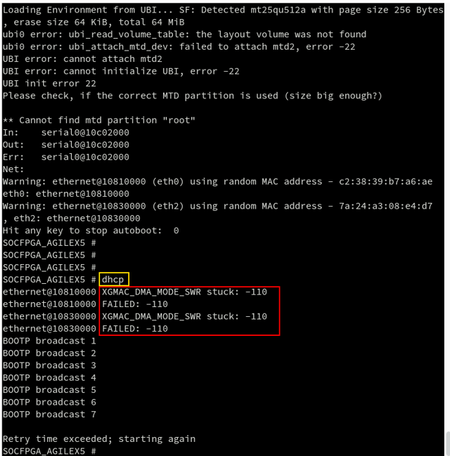
Description Due to an issue in the Quartus® Prime Pro Edition software version 25.3.1 GSRD release for the Agilex® 5 FPGA 013B Development Kit, the Ethernet link may fail to initialize during the U‑Boot stage after a reboot. When the dhcp command is executed, the Ethernet connection does not come up successfully and the following error message is displayed: Resolution This problem is scheduled to be resolved in a future release of the Quartus® Prime Pro Edition Software. Additional Information This issue occurs only when a reboot is performed after a successful power‑on. During the initial power‑on boot, the problem does not occur because the operating system uses a generic Ethernet driver. The issue arises because the Micrel PHY driver is not enabled by default in the U‑Boot configuration, causing the Ethernet link to fail during subsequent boot cycles.83Views0likes0CommentsWhy does the MIPI DSI‑2 FPGA IP design example fail when programming the FPGA on the Agilex® 3 FPGA and SoC C‑Series Development Kit?
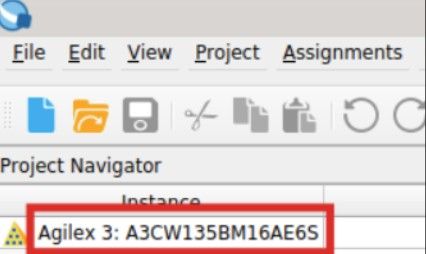
Description Due to an issue in Quartus® Prime Pro Edition software version 26.1, users may encounter a failure when programming the FPGA with the .sof file generated by the MIPI DSI‑2 IP Design Example for the Agilex® 3 FPGA and SoC C‑Series Development Kit. This issue occurs because the design example generation script incorrectly maps the selected Agilex 3 development kit to an unintended target board. When configuring the FPGA using the Quartus Programmer, the following error may be reported: Error(18952): Error status: The device chain in Programmer does not match physical device chain. Expected JTAG ID code 0xXX Additionally, the FPGA part number shown in the generated example design may not match the FPGA device on the selected development kit. Resolution To work around this issue in Quartus® Prime Pro Edition software version 26.1, follow the steps below to generate the MIPI DSI‑2 IP Design Example for the correct Agilex® 3 FPGA device. 1. Open the Design Example Tab In the Quartus Prime Pro Edition software, open the MIPI DSI‑2 IP. Navigate to the Parameters window and ensure that the Design Example tab is selected at the top of the MIPI DSI‑2 IP GUI. 2. Select the Correct Target Board In the Target Development Kit section, open the Select Board drop‑down menu and choose the option that corresponds to your development kit, as shown in the table below: Development Kit Kit Part Number FPGA Part Number Target Board Option to Select Agilex® 3 FPGA and SoC C‑Series Development Kit DK‑A3W135BM16AEA A3CW135BM16AE6S Agilex® 3 FPGA C‑Series Development Kit Agilex® 3 FPGA C‑Series Development Kit DK‑A3Y135BM16AEA A3CY135BM16AE6S Agilex® 3 SoC C‑Series Development Kit Ensure that the selected target board option matches your development kit. 3. Generate the Design Example After selecting the correct target board option, click Generate Example Design and allow Quartus to complete the generation process. 4. Verify the FPGA Device Open the generated Quartus project and locate the device OPN in the Project Navigator. Verify that the device OPN (for example, A3CW135BM16AE6S) matches the FPGA part number listed for your development kit in the table above. If the device OPN matches, the design example has been generated correctly and can be programmed onto the FPGA. This problem affects only the target board selection mapping during design example generation for the Agilex® 3 FPGA and SoC C‑Series Development Kit. The MIPI DSI‑2 IP core and generated design examples are otherwise fully functional. This problem is scheduled to be fixed in a future release of the Quartus Prime Pro Edition software.102Views0likes0CommentsWhy do FPGA GPIO interrupts fail to trigger in the HPS GSRD for the Agilex® 5 FPGA E-Series Premium Dev Kit in release 25.3.1?
Description Due to a problem in the 25.3.1 GHRD 2.0 (Baseline) for Agilex® 5 FPGA E-Series Premium Development Kit, the FPGA GPIO interrupts fail to trigger when the push buttons are pressed. The error message observed during the interrupts exercising is the following: root@agilex5e:~# modprobe gpio_interrupt gpio_number=592 ubtr_type 2 modeprobe: FATAL: Modeule gpio_interrupt not found in directory /lib/modules/6.12.43-altera-xyz root@agilex5e:~# modprobe gpio_interrupt gpio_number=524 ubtr_type 3 modeprobe: FATAL: Modeule gpio_interrupt not found in directory /lib/modules/6.12.43-altera-xyz The problem has been rooted caused to the PIO interrupt mapping in the GHRD, which incorrectly uses IRQ18 instead of IRQ17. Resolution To workaround this problem, you need to change the PIO interrupt mapping in the GHRD to use IRQ17 instead of IRQ18. The problem has been fixed starting with Quartus® Prime Pro Edition software version 26.1.110Views0likes0Comments