development kits
14 Topics
How do I retarget the F-Tile Ethernet Hard IP 100G example design from the Agilex® 7 FPGA I-Series Development Kit QSFP-DD J27 (QSFPDD0) to the Agilex® 7 FPGA M-Series Development Kit QSFP-DD J16 (QSFPDD CONN0)?
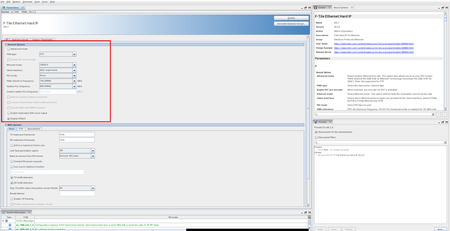
Description Currently, the F-Tile Ethernet Hard IP GUI only has the option to generate the 100GE-4 example design that targets the Agilex® 7 FPGA I-Series Development Kit QSFP-DD connector J27 (QSFPDD0). There is no way for users to generate a 100GE-4 F-tile Ethernet Hard IP example design through the IP GUI that maps the IP directly to QSFP-DD connector J16 (QSFPDD CONN0) on the Agilex® 7 FPGA M-Series Development Kit (DK-DEV-AGM039EA). For users working on the Agilex 7 FPGA M-Series devkit, this creates additional work for the users to refer to the Agilex 7 FPGA M-Series board schematics to modify the pin assignments and other SDM/Power Management settings accordingly to create an FPGA image that is compatible with the M-Series devkit. With the steps specified below, users can now modify the devkit agnostic 100GE-4 example design to map to the Agilex 7 FPGA M-Series Development Kit’s J16 QSFP-DD connector (QSFPDD CONN0) by generating the example design using the IP GUI with Select Board set to None, then retarget the Quartus® Settings File (.qsf) pin, I/O standard, and board power-management assignments to the DK-DEV-AGM039EA J16 pinout, and then recompile to generate the FPGA image, by following the steps specified below. Resolution To obtain the 100GE-4 F-Tile Ethernet Hard IP example design in the Quartus® Prime Pro Edition Software that maps to Agilex 7 FPGA M-Series Development Kit (DK-DEV-AGM039EA) on J16 (QSFPDD CONN0) port, follow these steps: Open the F-Tile Ethernet Hard IP Parameter Editor and set General Options as follows (see attached screenshot): PMA type FGT; Ethernet mode 100GE-4; Client interface MAC segmented; FEC mode None; PMA reference frequency 156.250000 MHz; System PLL frequency 805.664062 MHz. Open the Example Design tab and set Select Board to None; Select device initialization clock to OSC_CLK_1_125MHZ. Click Generate Example Design to generate the ED. Edit the example design .qsf so board-level assignments match the Agilex 7 M-Series Development Kit QSFP-DD J16 (QSFPDD CONN0). Compare the originally generated .qsf (left) to the retargeted .qsf (right) in the attached screenshots. Apply pin/location, fitter/assembler power-management, and ENTITY(eth_f_hw) I/O standard / virtual-pin changes as shown in these screenshots. Save the .qsf and run a full compile to generate the .sof. Program the DK-DEV-AGM039EA board and confirm loopback link-up on J16 QSFP port by connecting the external loopback module as seen below. Additional Information Source APS: 01009271 (Closed). Related engineering AR: QS-615224. RAE validated the retargeted design on DK-DEV-AGM039EA before delivering a reference QAR.58Views0likes0CommentsWhy is SW2 missing on my Agilex® 5 FPGA E-Series 065B Modular Development Kit?
Description Due to an issue with the revision C2 Agilex® 5 FPGA E-Series 065B Modular Development Kit carrier board, power switch SW2 is not installed. As a result, the PCIe® 12 V or ATX 12 V power supply paths cannot be controlled. A Rev C2 Carrier board uses the PCIe® 12 V supply when the card is plugged into a server and uses the ATX power when 12 V is provided from the ATX connector. DO NOT Connect both ATX 12V and PCIe 12V powers simultaneously. You can identify a Rev C2 board by one of the following methods: Serial number range—A5EBMKPA100009 to A5EBMKPA100050 Absence of SW2 "RevC2" silkscreen marking near the PCIe edge connector Resolution Agilex® 5 FPGA E-Series 065B Modular Development Kit revision C3 carrier boards are corrected and have SW2 installed.51Views0likes0CommentsWhy does the Ethernet link fail to come up during the U‑Boot stage after reboot on the Agilex® 5 FPGA 013B Dev Kit GSRD HPS?
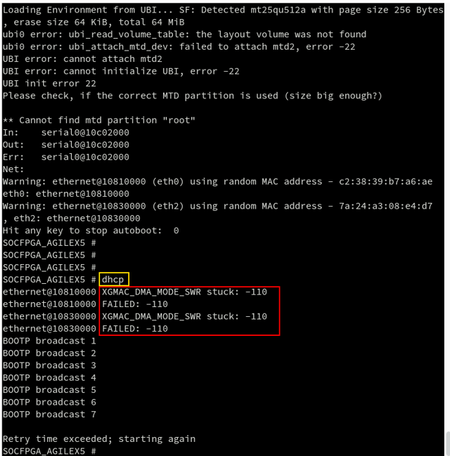
Description Due to an issue in the Quartus® Prime Pro Edition software version 25.3.1 GSRD release for the Agilex® 5 FPGA 013B Development Kit, the Ethernet link may fail to initialize during the U‑Boot stage after a reboot. When the dhcp command is executed, the Ethernet connection does not come up successfully and the following error message is displayed: Resolution This problem is scheduled to be resolved in a future release of the Quartus® Prime Pro Edition Software. Additional Information This issue occurs only when a reboot is performed after a successful power‑on. During the initial power‑on boot, the problem does not occur because the operating system uses a generic Ethernet driver. The issue arises because the Micrel PHY driver is not enabled by default in the U‑Boot configuration, causing the Ethernet link to fail during subsequent boot cycles.83Views0likes0CommentsWhy do FPGA GPIO interrupts fail to trigger in the HPS GSRD for the Agilex® 5 FPGA E-Series Premium Dev Kit in release 25.3.1?
Description Due to a problem in the 25.3.1 GHRD 2.0 (Baseline) for Agilex® 5 FPGA E-Series Premium Development Kit, the FPGA GPIO interrupts fail to trigger when the push buttons are pressed. The error message observed during the interrupts exercising is the following: root@agilex5e:~# modprobe gpio_interrupt gpio_number=592 ubtr_type 2 modeprobe: FATAL: Modeule gpio_interrupt not found in directory /lib/modules/6.12.43-altera-xyz root@agilex5e:~# modprobe gpio_interrupt gpio_number=524 ubtr_type 3 modeprobe: FATAL: Modeule gpio_interrupt not found in directory /lib/modules/6.12.43-altera-xyz The problem has been rooted caused to the PIO interrupt mapping in the GHRD, which incorrectly uses IRQ18 instead of IRQ17. Resolution To workaround this problem, you need to change the PIO interrupt mapping in the GHRD to use IRQ17 instead of IRQ18. The problem has been fixed starting with Quartus® Prime Pro Edition software version 26.1.110Views0likes0Comments
Why does the SEU test for Zephyr RTOS fail in the Agilex® 5 FPGA Premium development kit when using ATF and GHRD from the Quartus® Prime Pro Edition Software version 24.3.1 and later release?
Description Due to a compatibility problem between the latest version of Zephyr (24.3) and the ATF and GHRD releases from the Quartus® Prime Pro Edition Software version 24.3.1 and later, the SEU Zephyr test fails with a hang in the Agilex® 5 FPGA Premium Development kit. The test hangs after the following messages: SEU Test Started The Client No is 0x26ccad96 The Client No is 0x26dbf773 SEU Safe Error Insert Test Started. <hang is observed here> Resolution To work around this problem, it is recommended to use the latest version of the components in which this test passes, which corresponds to the Quartus® Prime Pro Edition Software version 24.3 release as documented on the following page: https://altera-fpga.github.io/latest/embedded-designs/agilex-5/e-series/premium/gsrd_zephyr/ug-zgsrd-agx5e-premium/ This problem will be fixed in a future release.176Views0likes0CommentsWhy am I observing failures in the I²C interface when running the LVDS Tunneling Protocol and Interface (LTPI) example design on the Agilex® 5 FPGA Premium Development Kit?
Description Due to a problem in the installer package of Quartus® Prime Pro Edition software version 25.1.1, you may observe below error when generating the LTPI example design targeting the Agilex® 5 FPGA Premium Development Kit. Error : I2C HW Test Failed! Resolution Please contact your local Sales representative or submit a request through the Support page for further support. This problem is scheduled to be fixed in a future release of Agilex® 5 FPGA Premium Development Kit Installer Package.118Views0likes0CommentsWhy do the 10G and 25G example design SOF files generated for the E-tile Ethernet IP for Agilex® 7 FPGAs with target development kit "Agilex® 7 FPGA F-series Development Kit (Production 1 P-Tiles & E-tile)" fail to program?
Description Due to a problem in the Quartus® Prime Pro Edition Software version 25.1, you may see failures when programming SOF files generated with the 10G and 25G E-Tile Ethernet Hard IP design examples for Agilex® 7 FPGA devices. This issue applies to the E-Tile Ethernet Hard IP for Agilex® 7 FPGA devices and is limited to the 10G and 25G Example Designs Resolution To workaround this problem, modify the PWRMGT_LINEAR_FORMAT_N setting to "-13" in the hardware test design QSF file located in <design_example_dir>/hardware_test_design. The problem has been fixed starting with Quartus® Prime Pro Edition software version 25.1.1.150Views0likes0CommentsWhy is data packet loss due to CRC error observed in Agilex® 5 and Agilex® 3 TSN XCVR SGMII 1G mode?
Description Due to a problem in the Quartus® Prime Pro Edition Software version 25.1, when running the TSN - SGMII XCVR System for the Agilex® 5 FPGA E-Series Premium Development Kit, you may observe data packet loss in the TX direction for a 1G SGMII configuration with the TSN transceiver PHY. This issue is not seen with 10m,100m, and 2.5G configurations. Resolution To work around this problem, some changes in the software and hardware design files are required. Software Changes: 1. Change link.speed1000 parameter value from XGMAC_CONFIG_SS_1000_GMII to XGMAC_CONFIG_SS_2500_GMII in the following file. <user_path>/src/sw/agilex5_dk_a5e065bb32aes1-gsrd-rootfs/tmp/work-shared/agilex5_dk_a5e065bb32aes1/kernel-source/drivers/net/ethernet/stmicro/stmmac/dwxgmac2_core.c mac->link.speed10 = XGMAC_CONFIG_SS_10_MII; mac->link.speed100 = XGMAC_CONFIG_SS_100_MII; -mac->link.speed1000 = XGMAC_CONFIG_SS_1000_GMII; +mac->link.speed1000 = XGMAC_CONFIG_SS_2500_GMII; mac->link.speed2500 = XGMAC_CONFIG_SS_2500_GMII; Hardware Design Changes: 1. Replace the existing input with 2'b00 for the signals below in the file below: <user_path>/applications.fpga.soc.agilex5e-ed-tsn-config3/src/hw/ghrd_agilex5_top.v .phy_0_gmii8b_mac_speed_export (2'b00), ... .phy_0_xcvr_mode_export (2'b00), Additional Information There is no workaround currently, and there is no plan to fix this problem.189Views0likes0CommentsWhy do I see SEU errors being detected consistently on my Agilex® 7 FPGA F-Series Development Kit (2x F-Tile) (DK-DEV-AGF023FA)?
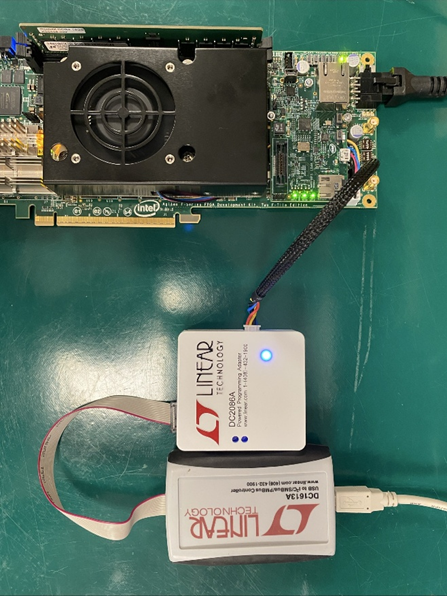
Description Due to an issue with the settings of the Voltage Regulator LTC3888 used on the Agilex® 7 FPGA F-Series Development Kit (2x F-Tile) (DK-DEV-AGF023FA), you may see SEU error being detected regularly when you enable SEU error check. The behavior occurs because the voltage required by Agilex® 7 devices during operation, which can be between 0.7 V and 0.9 V, is over the VOUT_OV_WARN_LIMIT value programmed on LTC3888. Triggering the LTC388 to report an error back to the FPGA SDM. The SDM queues this error on the Error Message Queue (EMQ) which then asserts the SEU Error check. Resolution To solve this problem, you will need to reconfigure the Non-Volatile Memory registers of the Voltage Regulator using a Linear Technologies USB-to PMBus Controller (DC1613A) and Programming Adapter (DC2086A) and the Linear Technologies LTpowerPlay Software. Using the PMBus Controller and the LTpowerPlay software, configure the following Voltage Regulator configuration file linked at the bottom of this article and follow the steps lay out below: 1. Open the LTpowerPlay on a Windows computer. 2. Connect dongles as shown in picture, power up the board 3. Start LTpowerPlay. It will show a window like below: 4. Click "Open Project", browse to the project file, select it and click "Open". 5. Go to Utilities > Programming Utility. 6. Press OK when asked 7. In the LT Device Programmer, browse again for the project file: 8. Click "Program and Verify System" 9. Application will confirm all was programmed fine: Loading this file will configure the LTC3888 Voltage Regulator to operate within the required voltage range and allow the Agilex® 7 FPGA device to operate with getting assertions from false errors.75Views0likes0CommentsWhat should I consider when designing a system board using Schmitt trigger inputs on MAX® 10 FPGAs?
Description When designing a system board that uses Schmitt trigger inputs on MAX® 10 FPGAs, board-level noise, power integrity, and signal integrity can significantly affect the effective hysteresis behavior. Factors such as power supply noise, input signal noise, and PCB layout practices may cause the observed switching thresholds to deviate from their typical values. This article outlines key considerations to help minimize noise sensitivity when using Schmitt trigger inputs in a system-level design Resolution When designing a system board that uses Schmitt trigger inputs, consider the following: Follow the recommendations in the MAX® 10 FPGA Design Guidelines, especially sections related to power distribution network (PDN) and signal integrity. Minimize power supply noise by using proper decoupling, grounding, and PCB layout practices. Note: The MAX® 10 FPGA 10M08 Evaluation Kit is intended for low-cost application testing and is not designed for DC or PDN characterization. It should not be used to measure intrinsic transistor switching thresholds.170Views0likes0Comments