arria® v fpgas and socs
1228 Topics
Error: (vlog-7) Failed to open design unit file
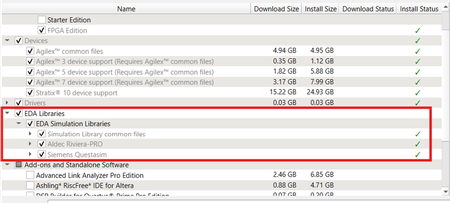
Description Due to simulation models not being installed along with the Quartus ® Prime Pro Edition Software, an error such as: Error: (vlog-7) Failed to open design unit file "C:/altera_pro/26.1.1/quartus/eda/sim_lib/220model.v" in read mode may occur during simulation. The root cause of missing files is that “EDA libraries” are not installed properly during installation of the Quartus ® Prime Pro Edition Software. Resolution To fix this problem, make sure “EDA Libraries” has been checked and installed properly during installation of the Quartus ® Prime Pro Edition Software, as shown in the screenshot below.9Views0likes0CommentsWhy can’t I open the Early Power Estimator (EPE) tool in the latest version of Microsoft* Excel?
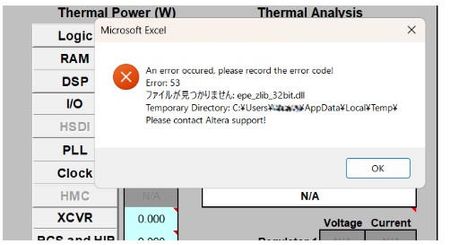
Description Due to the legacy design of the Early Power Estimator (EPE) worksheets, which include VBA macros, ActiveX components, and embedded DLL files, errors may occur when opening the Excel file on newer Windows platforms or when using Microsoft* Office 365, in both 32-bit and 64-bit versions. When the spreadsheet is opened, several actions occur in the background. Excel extracts the embedded DLLc files to the user's %TEMP% directory. A script then decompresses the DLLc files into standard DLL files. The script subsequently loads and executes the DLL files, which is used by the Excel macros. Why does this issue occur? To extract and execute the required DLL files, the Excel macros rely on a set of commands provided by Microsoft .NET and Microsoft Visual C++ runtime libraries, depending on the specific version of the Excel worksheet. In newer versions of Microsoft Windows and Microsoft Office 365, these runtime components are no longer bundled together by default, and some legacy functions used by older scripts have been deprecated or replaced with newer implementations. As a result, scripts designed for earlier environments may fail when attempting to call these functions. Note: In some systems, some of these are already installed automatically by other 3rd party software tools during installation. Additionally, the legacy script design does not support symbolic linking or modern handling of the user's %TEMP% directory, which can cause issues when extracting and accessing temporary files. Modern systems also enforce stricter security controls, including: ActiveX restrictions in newer versions of Microsoft Excel Trust Center policies that block code execution from untrusted locations Operating system security policies in Microsoft Windows that may prevent DLL execution from the %TEMP% directory if such restrictions are enabled As a result, if any of these conditions are triggered, users may encounter errors such as “Unable to find or load DLL files.” For example, errors may appear related to the zlib.dll file (the 32-bit or 64-bit version used depends on the installed Excel architecture). Resolution To workaround this issue PART A: Unblocking the Excel and Enable Macros/ActiveX 1. Unblock the Excel File • Right-click the EPE Excel file → Properties → Check Unblock under Security. • Click Apply → OK. 2. Enable Macros and ActiveX • Open Excel → File → Options → Trust Center → Trust Center Settings: Enable Macros. Enable ActiveX controls. Leave other settings as default (Safe Mode can remain enabled or disabled). 3. Check whether you can now open the EPE excel sheet. Else proceed to PART B. PART B: Installing the necessary Microsoft .NET and Visual C++ runtime libraries. Microsoft .NET installation Go to your Installed apps settings and find for .NET. It is recommended to have both .NET Runtime and ASP .NET installed in your system. If you already have a version installed on your machine then proceed to the next step( you only require 1 version each), otherwise refer to this location to download Download .NET 8.0 (Linux, macOS, and Windows) | .NET Example: Microsoft Visual C++ Installation As different EPE Excel sheet relies on specific Visual C++ version, you will need to install multiple versions of Visual C++ for both 32bit and 64bit. This is because even though Excel is running on 64bit, existing scripting might have dependency on 32bit functions as well. Recommendation to install C++ version for both 32 bit and 64 bit as below Latest Supported Visual C++ Redistributable Downloads Visual Studio 2017-2026 Visual Studio 2015 (in older Microsoft release, it might show as C++ V14 or 2015-2022 version) Visual Studio 2013 Visual Studio 2012 Example After installing both 32 bit and 64 bit, do restart the system and then try launching the EPE excel sheet again. In some rare occurrences, you might need to install Visual Studio C++ 2010 , Visual Studio C++ 2008 and Visual Studio C++ 2005. Do refer to PART C first as the issue might not be due to Visual C++ but symbolic link. PART C: Symbolic Link issue workaround (optional) If installing the .NET and Visual C++ runtime libraries still does not help in resolving the error opening EPE Excel, you should check whether your %TEMP% file folder is the same as what reported in the error when opening the EPE excel sheet. If the folder path are different between %TEMP% and the path reported by Excel sheet, it means that they are using symbolic link folder. In this case user should copy the .dll files generated out from the %TEMP% when they opened the excel sheet and copy it over to the Windows SySWoW folder (%windir%\SysWOW64). To access your %TEMP% folder , just type %TEMP% into your explorer and it will open your folder location (%TEMP% is set in windows environment variables) From the %TEMP% folder, there are multiple *epe* DLL files if you open different EPE excel sheets. Copy all of these .DLL files into your Windows SysWOW64 folder and try launching the EPE excel sheet again. Example, if using Cyclone® V EPE excel sheet, these are the 4 files required in red box in %TEMP% to be copied over NOTE 1: The SysWOW64 folder is selected because it is part of Windows’ default search locations when required DLL files cannot be found. Alternatively, you can add a custom directory to the Windows Environment Variables (PATH) so that Windows will also search that folder when looking for the DLL files. NOTE 2: Adding the %TEMP% folder into the system environment variables will not have any effect as latest Microsoft Windows have blocked the DLL searching mechanism to prevent search %TEMP% folder as part of the security to prevent remote execution from DLL. Additional Information If all fails, alternatively install Process Monitor from Microsoft to analyze the DLL failure/error 1. Download Process Monitor from this location Process Monitor - Sysinternals 2. Close all excel sheets that is open in Windows. 3. Launch the Process Monitor , then select Filter. Set to Process Name and EXCEL.exe and click Add. 4. After adding the filter, ensure that capturing is started 5. Then open any of the EPE excel file,and wait till you get the DLL (eg. epe_zlib_32bit.dll) error then press pause on the Process Monitor. 6. Then use Find and search for the dll error stated in the excel(eg. epe_zlib_32bit.dll) It will give you a list of things, but important is to check the details on createfile, open, close , query, those are the functions that are in the zlib dll file. Example Good case scenario where no error occurred. Fail case scenario where Windows unable to locate the DLL (due to symbolic link issue)303Views0likes0CommentsWhy can’t I open the Early Power Estimator (EPE) tool in the latest version of Microsoft* Excel?
Description There is a compatibility issue with the current EPE tools with the latest update from Microsoft* on the Excel version 2505 and later. The update from Microsoft causes the EPE tools to stop working. Resolution There is no plan to fix this. Users need to use the Excel version before version 2505 for the EPE tools to work. There is a workaround if the user needs to use the latest Excel version, please contact Altera support and quote this ID #15018720346162Views0likes0CommentsWhy does Nios® V/g experience data corruption when using DTCM?
Description Due to a problem in Quartus® Prime software, data corruption may occur when running a Nios® V/g processor application that interacts with a Tightly-Coupled Memory (TCM). This happens because of a RTL bug in the load-store unit. This problem is affecting Nios® V/g processor in, Quartus® Prime Pro Edition release 25.3.1 and earlier Quartus® Prime Standard Edition release 25.1 and earlier When Nios® V/g processor executes a non-TCM load (i.e. Load from On-Chip Memory or memory-mapped CSR) followed by a Data TCM load, the latter corrupts the former. This causes the non-TCM load to receive incorrect load data. For example, lw rd1,0(non-TCM) lw rd2,0(TCM) Expectation Actual Failure rd1 = load data from address “non-TCM” rd1 = load data from address “TCM” rd2 = load data from address “TCM“ rd2 = load data from address “TCM“ Resolution This problem is fixed in Quartus® Prime Pro Edition 26.1 and is scheduled to be resolved in a future Quartus® Prime Standard Edition release. Additional Information A patch is available to fix this problem. Quartus® Prime Standard Edition Software v25.1 Patch 0.01 Please contact Altera Support for additional support.150Views0likes0Comments
What is the maximum downward pressure that can be applied to the top of Altera BGA packages?
Description The following guidelines refer to the downward pressure or compressive load that can be applied to the top of Altera® FPGA BGA packages. Pitch (mm) Pattern Package Type Constant Compressive Load per Solder Ball (g) Eutectic SnPb (tin-lead) SAC (tin-silver-copper) 0.5 Grid MBGA 3 7 0.8 Grid UBGA 6 12 0.92 Hex FBGA 7 14 1 Hex FBGA 8 15 1 Grid FBGA 8 16 1.27 Grid BGA 12 24 Resolution For heat-sink application, Altera recommends heat sink pressure on the package between 20psi to 40psi for effective Thermal Interface Material (TIM) performance Your PCB and the supporting frame should be designed to withstand the pressure of the downward force to prevent bending or flexing of your PCB.2KViews1like0CommentsError: TBBmalloc: skip allocation functions replacement in ucrtbase.dll: unknown prologue for function _msize
Description Due to a problem in the Quartus® Prime Standard Edition Software version 25.1 or earlier, you might see this error message when generating PLL IP on Windows* 11 Operating System. The IP generation might complete successfully even though this error message is reported. Resolution To work around this problem, follow these steps: Go to This PC, right-click, and select Properties. Click Advanced System Setting. In the Advanced tab, select Environment Variable. Under System variables, create a new variable with the name TBB_MALLOC_DISABLE_REPLACEMENT and value as 1. Click OK and restart the Quartus® Prime Software. The workaround above does not work for the Quartus® Prime Standard Edition Software version 22.1std.2 or earlier. A patch is available to fix this problem for the Quartus® Prime Standard Edition Software version 22.1std.2. The environment variable is still required to prevent the TBBmalloc message from appearing. Download and install patch 2.02 below: Patch 2.02 for Windows (.exe) Readme for patch 2.02 (.txt) This problem is not scheduled to be fixed in the Quartus® Prime Standard Edition Software.1.2KViews1like0CommentsHow to mitigate the security vulnerability in the Nios® II Command Shell utility?
Description Due to a problem in the Quartus ® Prime Standard and Lite Edition Software version 19.1 through 24.1, the Nios® II Command Shell utility included in the Quartus ® Prime Software for Windows* is vulnerable to a Current Working Directory (CWD) planting attack. The Linux* versions are not affected. Resolution To work around this problem, replace the “Nios II Command Shell.bat” Windows Batch File located in the <drive>:\<edition>\<version number>\nios2eds\, with the attached file below. This problem is fixed beginning with the Quartus® Prime Standard and Lite Edition Software version 25.1.325Views0likes0CommentsWhy do I get "Fatal Error: Access Violation at" when running quartus_syn or quartus_fit?
Description Due to a problem in the Quartus® Prime Pro Edition Software versions 26.1 and earlier, and Quartus Prime Standard Edition Software versions 25.1 and earlier, compilation may terminate with a "Fatal Error: Access Violation" message during synthesis or fitting. This failure can occur intermittently, and the reported memory address may change between compilation runs. You may observe one or more of the following behaviors: Quartus® compilation fails during synthesis or fitting The failure may occur in either of the following modules: quartus_syn (during synthesis) quartus_fit (during fitting) The error message is similar to: *** Fatal Error: Access Violation at <<ADDRESS>> The reported memory address may change between runs. The fatal error is followed by a stack trace that includes one of the failure signatures listed below. CDB_SGATE_OTERM::adopt_fanouts HDB_ASGN_CONTAINER::remove_assignment LUTIL_DEVICE::get_fragment_from_subloc STA_NODE::reset_tag_heads DESIGN_HDB_ASSIGNMENT_CONVERTER::cleanup_after_conversion BSYN_RTM_FLOP::IsExpired RTM_ATOM_MGR::rip_out_simple_ff_for_bypass IRTM_FF_QUEUE::remove_ff PTI_BCM_TIMING_GRAPH::push_back_carry_hipi_clock_iterm FTM_TREE_NODE::num_sgates Stack traces may differ, even when compiling the same design. Specific Failure Signatures: Synthesis failure (quartus_syn): The crash report includes the following function call: RTL_ADDER::aggressive_adder_balancing Fitter failure (quartus_fit): The error occurs very early after the fitter starts, and the crash report includes the following function call: qhd_reread_global_assign_from_qsf Error Log Examples Stack Trace example for crashes in quartus_syn *** Fatal Error: Access Violation at 00007FFB92E2C63E Module: quartus_syn.exe Stack Trace: Quartus 0xc63d: CDB_SGATE_OTERM::adopt_fanouts + 0x2d (db_cdb_sgate) Quartus 0x117e7: RTL_ADDER::shrink_iports + 0x1f7 (SYNTH_OPT) Quartus 0x14a75: RTL_ADDER::create_binary_adder + 0x49e9 (SYNTH_OPT) Quartus 0x45910: RTL_ADDER::restrict_adder_network + 0x84a (SYNTH_OPT) Quartus 0x4f5d6: RTL_ADDER::aggressive_adder_balancing + 0x9d (SYNTH_OPT) Quartus 0x11533: RTL_SCRIPT::call_common_rtl_fns + 0x1043 (SYNTH_OPT) Quartus 0x115b5: RTL_SCRIPT::call_named_function + 0x8a2 (SYNTH_OPT) Quartus 0x3a87a: RTL_SCRIPT::process_script + 0x62c (SYNTH_OPT) Quartus 0x3a8e4: run_parallel_rtl + 0x1db4 (SYNTH_OPT) Quartus 0x8509d: SYNTH_QIS::SYNTHESIS_FLOW::run_parallel_rtl_in_helper_processes + 0x285 (synth_qis) Quartus 0x850d5: SYNTH_QIS::SYNTHESIS_FLOW::high_level_synthesis + 0x47d (synth_qis) Quartus 0x8546d: SYNTH_QIS::SYNTHESIS_FLOW::run_current_phase + 0x286 (synth_qis) Quartus 0x854d4: SYNTH_QIS::SYNTHESIS_FLOW::run_full_flow + 0x30d (synth_qis) Quartus 0x859b7: QIS_RTL_STAGE_IMPL::synthesize + 0x467 (synth_qis) Quartus 0x15b55: qis_synthesize + 0x245 (synth_qis) Quartus 0x16442: TclNRRunCallbacks + 0x62 (tcl86) Quartus 0x16f4d: TclEvalEx + 0x9ed (tcl86) Quartus 0xa6ab8: Tcl_FSEvalFileEx + 0x22b (tcl86) Quartus 0xa5136: Tcl_EvalFile + 0x36 (tcl86) Quartus 0x15246: qexe_evaluate_tcl_script + 0x4e6 (comp_qexe) Quartus 0x1143b: qexe_do_tcl + 0x46b (comp_qexe) Quartus 0x1a70e: qexe_run_tcl_option + 0x5ee (comp_qexe) Quartus 0x16451: QCU::DETAIL::initialize_qhd_and_run_qexe + 0xa1 (comp_qcu) Quartus 0x1f8e2: qcu_run_tcl_option + 0x2f2 (comp_qcu) Quartus 0x1b1ba: qexe_standard main + 0x26a (comp_qexe) Quartus 0x29eb: qexe_run + 0x3eb (comp_qexe) Quartus 0x1192p: qsyn2_main + 0x1a9p (quartus_syn) Quartus 0x1e808: msg_main_thread + 0x18 (CCL_MSG) Quartus 0x17021: msg_thread_wrapper + 0x71 (CCL_MSG) Quartus 0x1c89d: mem_thread_wrapper + 0x70 (CCL_MEM) Quartus 0x1b49d: msg_exe_main + 0x20d (CCL_MSG) Quartus 0x2b6c: __scrt_common_main_seh + 0x11c (quartus_syn) Quartus 0x2e8d6: BaseThreadInitThunk + 0x16 (KERNEL32) Quartus 0x5b3b: RtlUserThreadStart + 0x2b (ntdll) End-trace Stack Trace example for crashes in quartus_fit *** Fatal Error: Access Violation at 00007FFB8F79CFF7 Module: quartus_fit.exe Stack Trace: Quartus 0x1cff6: HDB_ASGN_CONTAINER::remove_assignment + 0x52 (DB_HDB) Quartus 0x1cf71: HDB_ASGN_CONTAINER::destroy_assignment + 0x31 (DB_HDB) Quartus 0xca69c: anonymous namespace::delete_all_global_assignments + 0x25c (comp_qhd) Quartus 0xcc344: qhd_reread_global_assign_from_qsf + 0x384 (comp_qhd) Quartus 0x51679: QHD_DATABASE_UTILS::load_design + 0x449 (comp_qhd) Quartus 0x1e1e0: FIT2_DATABASE_EXPERT_QDB::load + 0x5b0 (comp_fit2) Quartus 0x3xee: fit2_create_fitter_netlist + 0x3xee (comp_fit2) Quartus 0x16442: TclNRRunCallbacks + 0x62 (tcl86) Quartus 0x16f4d: TclEvalEx + 0x9ed (tcl86) Quartus 0xa6ab8: Tcl_FSEvalFileEx + 0x22b (tcl86) Quartus 0xa5136: Tcl_EvalFile + 0x36 (tcl86) Quartus 0x15246: qexe_evaluate_tcl_script + 0x4e6 (comp_qexe) Quartus 0x1143b: qexe_do_tcl + 0x46b (comp_qexe) Quartus 0x1a70e: qexe_run_tcl_option + 0x5ee (comp_qexe) Quartus 0x16451: QCU::DETAIL::initialize_qhd_and_run_qexe + 0xa1 (comp_qcu) Quartus 0x1f8e2: qcu_run_tcl_option + 0x2f2 (comp_qcu) Quartus 0x29eb: qexe_run + 0x3eb (comp_qexe) Quartus 0x16f2d: qfit2_main + 0x82d (quartus_fit) Quartus 0x1e808: msg_main_thread + 0x18 (CCL_MSG) Quartus 0x17021: msg_thread_wrapper + 0x71 (CCL_MSG) Quartus 0x1c89d: mem_thread_wrapper + 0x70 (CCL_MEM) Quartus 0x1b49d: msg_exe_main + 0x20d (CCL_MSG) Quartus 0x2b6c: __scrt_common_main_seh + 0x11c (quartus_fit) Quartus 0x2e8d6: BaseThreadInitThunk + 0x16 (KERNEL32) Quartus 0x5b3b: RtlUserThreadStart + 0x2b (ntdll) End-trace Resolution This problem is currently scheduled to be resolved in a future release of the Quartus Prime Pro Edition Software and the Quartus Prime Standard Edition Software. If you are using Quartus Prime Pro Edition Software version 26.1, apply the attached patch for your operating system: Download the Linux or Windows patch package for your platform. On Linux, install the patch package from the console. On Windows, run the patch executable file. Confirm the installation by opening the Quartus Prime GUI and checking the About window, or by running: quartus_sh -v If applying the patch is not possible, or if you need assistance with other Quartus Prime software versions, contact your local Altera support representative. Additional Information Affected software: Quartus Prime Pro Edition Software version 26.1 and earlier Quartus Prime Standard Edition Software version 25.1 and earlier187Views0likes0CommentsWhy do I see timing violations in 1G/10G and 10GBASE-KR PHY FPGA IP?
Description Due to an issue in 1G/10G and 10GBASE-KR PHY FPGA IP, Quartus® Prime Standard Edition Design Software is unable to generate SDC file along with the IP files. Resolution As a workaround, download the file below. Check the following parameter values in the downloaded .sdc file and modify as per the design, if required: num_channels period_10g period_1g period_mgmt path_project46Views0likes0CommentsWhy does the text overlap in the ALTPLL IP Parameter Editor?
Description Due to a problem in the Quartus® Prime Standard Edition Software version 25.1, you might see that the text overlaps in the ALTPLL IP Parameter Editor on the Windows* Operating System. This prevents the ALTPLL IP from being instantiated. This problem does not occur in the Quartus® Prime Standard Edition Software version 24.1 and earlier. Resolution To work around this problem in the Quartus® Prime Standard Edition Software version 25.1, download and install the patch below: This problem is scheduled to be resolved in a future release of the Quartus® Prime Standard Edition Software.1.5KViews1like0Comments