arria® ii fpgas
432 Topics
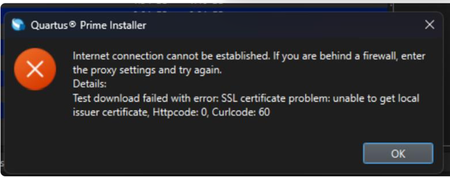
Why does my Quartus® Prime Installation fail with certificate error: SSL certificate problem: unable to get local issuer certificate (curlcode 60)?
Description Due to a problem in the Quartus® Prime Installer Software, you might see the error message shown below when you click Download & Install. This happens because the certificate bundled with the Quartus® Prime Installer Software is no longer accepted by the Altera® Content Delivery Network (CDN). As a result, secure downloads initiated during the installation process cannot be verified using the outdated certificate. The issue impacts the Installer for the following versions of Quartus software: Operating System Quartus Prime Pro Installer Version(s) Quartus Std/Lite Installer Version(s) Microsoft Windows* 23.3 to 25.3.1 23.1std to 25.1std Linux* 23.3 to 23.4 23.1std The KDB workaround provided below applies to the following versions of Quartus software: Quartus Prime Pro Installer Version(s) Quartus Std/Lite Installer Version(s) KDB workaround applies to 24.3 to 25.3.1 24.1std to 25.1std Note that for all other affected versions not covered by the KDB, you cannot use the installer workaround and must download Quartus software package files individually without using the installer. Separate packages can be found in the Individual Files tab of the Quartus Software Download pages. Resolution To work around this problem, follow these steps: 1. Download and unzip the cacert.zip, which contains the cacert.pem certificate file. 2. Specify the new certificate using one of the following methods: i) Command Line Interface (CLI): Open a command prompt or terminal and run the installer with the--cacert option, pointing to the new certificate file. Windows*: qinst_<version>.exe -sp"--cacert <full path to cacert.pem>" Linux*: qinst_<version>.run -- --cacert <full path to cacert.pem> ii) Graphical User Interface (GUI): - Open the Quartus® Prime Installer, navigate to Settings, locate the CA Certificate Path, and specify the full path to the cacert.pem certificate file. - Then, click Apply > OK. This problem is scheduled to be resolved in a future release of the Quartus® Prime Installer Software.12KViews1like0Comments
What is the maximum downward pressure that can be applied to the top of Altera BGA packages?
Description The following guidelines refer to the downward pressure or compressive load that can be applied to the top of Altera® FPGA BGA packages. Pitch (mm) Pattern Package Type Constant Compressive Load per Solder Ball (g) Eutectic SnPb (tin-lead) SAC (tin-silver-copper) 0.5 Grid MBGA 3 7 0.8 Grid UBGA 6 12 0.92 Hex FBGA 7 14 1 Hex FBGA 8 15 1 Grid FBGA 8 16 1.27 Grid BGA 12 24 Resolution For heat-sink application, Altera recommends heat sink pressure on the package between 20psi to 40psi for effective Thermal Interface Material (TIM) performance Your PCB and the supporting frame should be designed to withstand the pressure of the downward force to prevent bending or flexing of your PCB.2KViews1like0CommentsWhy does the text overlap in the ALTPLL IP Parameter Editor?
Description Due to a problem in the Quartus® Prime Standard Edition Software version 25.1, you might see that the text overlaps in the ALTPLL IP Parameter Editor on the Windows* Operating System. This prevents the ALTPLL IP from being instantiated. This problem does not occur in the Quartus® Prime Standard Edition Software version 24.1 and earlier. Resolution To work around this problem in the Quartus® Prime Standard Edition Software version 25.1, download and install the patch below: This problem is scheduled to be resolved in a future release of the Quartus® Prime Standard Edition Software.1.6KViews1like0CommentsError: TBBmalloc: skip allocation functions replacement in ucrtbase.dll: unknown prologue for function _msize
Description Due to a problem in the Quartus® Prime Standard Edition Software version 25.1 or earlier, you might see this error message when generating PLL IP on Windows* 11 Operating System. The IP generation might complete successfully even though this error message is reported. Resolution To work around this problem, follow these steps: Go to This PC, right-click, and select Properties. Click Advanced System Setting. In the Advanced tab, select Environment Variable. Under System variables, create a new variable with the name TBB_MALLOC_DISABLE_REPLACEMENT and value as 1. Click OK and restart the Quartus® Prime Software. The workaround above does not work for the Quartus® Prime Standard Edition Software version 22.1std.2 or earlier. A patch is available to fix this problem for the Quartus® Prime Standard Edition Software version 22.1std.2. The environment variable is still required to prevent the TBBmalloc message from appearing. Download and install patch 2.02 below: Patch 2.02 for Windows (.exe) Readme for patch 2.02 (.txt) This problem is not scheduled to be fixed in the Quartus® Prime Standard Edition Software.1.2KViews1like0CommentsError : FLEXlm version of vendor daemon is too old
Description In the Questa* FPGA Edition simulator and Questa* FPGA Starter Edition simulator version 2024.1, you might see this error or the following error if you are using the MGCLD daemon v11.16.4 “Unable to checkout a license. Make sure your license file environment variable (SALT_LICENSE_SERVER, MGLS_LICENSE_FILE, LM_LICENSE_FILE) is set correctly” Resolution To avoid this error, upgrade to the Siemens* Flexlm (SALTD) daemon v11.19.5 Download the daemon from the download page There is a change to the Siemens* License in v11.19.5.0. If you’re running a floating license server for Siemens* licenses, manually change the VENDOR daemon line in the license file from mgcld to saltd, for example: VENDOR saltd <path to saltd> Note: Do not change any of the INCREMENT lines. Leave the INCREMENT lines with the original vendor daemon name (mgcld).800Views0likes0CommentsHow do I interpret the Recommended Operating Conditions and Allowable Ripple recommendations of Altera devices?
Description The Recommended Operating Conditions for Devices and Allowable Ripple recommendations are separate parameters and cannot be combined. The Recommended Operating Conditions for Devices published in the device datasheets refers to the nominal DC requirement of the supply rails. The Allowable Ripple recommendations published in the Power Distribution Network (PDN) Tool refer to AC transient voltage fluctuations and are intended for PDN decoupling design. For device specific power supply recommended operating conditions, please refer to the relevant device datasheet. For device specific power supply voltage ripple recommendations, please refer to the "Introduction" tab of the device specific PDN Tool. Power Distribution Network Design Tool Related Articles Why are the device voltage supply minimum and maximum values different in the Power Delivery Network (PDN) Tool when compared to the Altera device Datasheet recommended operating conditions? How do I use the Altera PDN Tool to evaluate decoupling requirements for a MAX 10 device?600Views0likes0CommentsWhy do I get a fatal error when creating an ALTPLL IP?
Description Due to a problem in the Quartus® Standard Edition Software version 23.1, you might see a fatal error when creating an ALTPLL IP Using the MegaWizard Plug-In Manager. Resolution To work around this problem, download and install the patches below for the Quartus® Prime Standard Edition Software version 23.1 Quartus® Prime Standard Edition Software v23.1 Patch 0.02std for Windows (.exe) Quartus® Prime Standard Edition Software v23.1 Patch 0.02std for Linux (.run) Readme for Quartus® Prime Standard Edition Software v23.1 Patch 0.02std (.txt) This problem is scheduled to be fixed in a future release of the Quartus® Prime Standard Edition Software.500Views0likes0CommentsWhen does the Quartus® Prime Design Software, IP cores, and Questa*-Altera® FPGA Edition Software check out a license?
Description Below is a description of how the Quartus® Prime Design Software, IP cores, and Questa*-Altera® FPGA Edition Software utilize licenses: Resolution Quartus® Prime Design Software: All Quartus® Prime Design Software processes check for a valid license, including the Quartus® GUI, Analysis & Synthesis, Assembler, and TimeQuest Timing Analyzer. These processes start only if a valid license is available. They do not hold or occupy the license; they only validate that one is available. However, the Fitter checks out a license when it starts and holds it for the duration of the Fitter process. IP cores: A license for an IP core is checked out when the Quartus® Prime Design Software opens the first encrypted file of the IP core for synthesis. This license is held for the duration of synthesis. The Assembler checks out the license for every IP core to create the programming file and holds it for the duration of the Assembler process. Questa*-Intel® FPGA Edition software: Once Questa*-Intel® FPGA Edition Software loads a design unit during elaboration, a Questa-Intel® FPGA Edition license is checked out. It remains checked out until the simulation ends (quit -sim), or the simulator is closed. Once a waveform is loaded into the simulator, a Questa*-Intel® FPGA Edition Software license is also checked out for viewing Wave Log Format File (.wlf), and it remains checked out until the waveform window is closed. Related Articles What happens to a license if the Quartus II software terminates unexpectedly? Can I perform multiple compilations using the Quartus II software at the same time on one computer with a one seat floating license or one fixed (node locked) license file?500Views0likes0CommentsHow do I instantiate a differential input or output buffer in my design?
Description You can instantiate a differential input or output buffer in your design using the ALTIOBUF Intel® FPGA IP core available in the Intel® Quartus® Prime Software. Resolution The ALTIOBUF Intel® FPGA IP core allows you to specify your input or output pin as a differential receiver or transmitter and then you need to port both the positive and negative signals to I/O pins. This Intel FPGA IP core is supported beginning with the Stratix® III and Cyclone® III device families. For Stratix® II, Cyclone® II, Arria® GX, and previous device families, you cannot instantiate a differential buffer in your design. Instead, use the positive leg of the differential pair in your design, and locate that pin in the Assignment Editor. Give that pin an I/O standard assignment with a value of "LVDS" or the differential I/O standard you wish to use. Refer to the device handbook for a complete listing of the supported I/O standards. The negative leg will automatically be assigned to the corresponding complimentary pin by the fitter when you compile your design. This method is supported for all device families that support differential I/O standards such as LVDS. For more information on the ALTIOBUF Intel FPGA IP core, refer to the ALTIOBUF IP Core User Guide (PDF). Related Articles Internal Error: Sub-system: FIOMGR, File: /quartus/fitter/fiomgr/fiomgr_io_power_region.cpp, Line: 2460499Views0likes0CommentsWhy does the PCIe core send Unsupported Request completion message to my first good MRD request?
Description If bit 1 of the PCI® Command Register (Memory Space Access Enable) in the Configuration Space is not set, the PCIe core responds to the first good MRd request with a Completion with Unsupported Request status. To fix this issue, please set Memory Space Access Enable bit of the PCIe Command Register to one. Related Articles Why does the PCIe core return Unsupported Request for Type0 Configuration Read request?499Views0likes0Comments