Forum Discussion

 New Contributor
Modelsim - work (empty) problem

 Super Contributor
Checking the understanding:
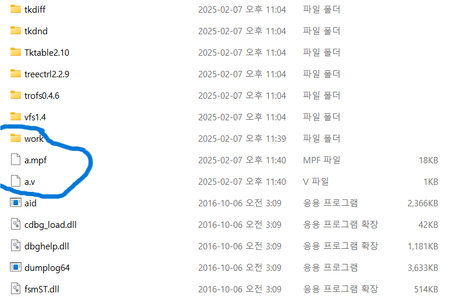
When you create a project, ModelSim automatically generates a work library, but in your case, it shows as empty even though you expect it to contain compiled files.
However, when you manually save and compile a source file into work, ModelSim recognizes it and allows simulation.
This means the library exists, but ModelSim’s project system isn’t linking to it properly.
If the understanding is correct, here are some possible Causes and Fixes
1. Your Work Library Is Not Set as the Active Library
Even though the work directory exists, ModelSim might not be treating it as the active library. Try setting it manually:
Command:
vmap work work
2. The Project Is Using a Different Work Library Path
Your project might be looking at the wrong work directory.
Open Project Settings and check where the "work" library is mapped.
Also, check the Compile Options to ensure compiled files are going into work.
Instead of manually placing source files into work, try moving them to the project folder and compiling from there.
3. Your Project Might Have Corrupted or Misconfigured Settings
Sometimes, ModelSim's internal settings can become misconfigured. Try these steps:
Close ModelSim and delete the modelsim.ini file in your project directory.
Restart ModelSim, and it will regenerate modelsim.ini with default settings.
Run:
vlib work
vmap work work
Then try recompiling.
4. ModelSim Might Be Using a Different Default Library
In the Library tab, right-click and check the library settings.
Ensure that work is the default library for compilation.


