Forum Discussion

 New Contributor
Modelsim - work (empty) problem

 Super Contributor
Step 1 Make Sure the Work Library Exists
Without the work folder, all compiled files may go to the wrong places. Check ModelSim’s preferences to ensure that the working folder is set correctly. To examine the log screen, look at the bottom of the interface; type the following command.
vlib work
If the library already exists, ModelSim will say so. If it does not, this command will create it.
At the bottom of the interface, there is a window named transcript. Let's open ModelSim first to verify if the library exists.
Type the command vlib work.
Now let’s check to see if “work” appears.
Step 2: Compile Your Verilog Files into the Work Library
Now that we know the work library is there, let's make sure your Verilog files are compiled correctly.
Method 1: Using the GUI
- Go to the "Compile" menu → Click "Compile".
- Select your .v files from where they are saved.
- Look at the "Library" column in the compile window.
- It should say "work" (if not, select "work").
- Click "Compile", then "Done".
Method 2: Using Commands
Alternatively, you can compile manually by typing:
vlog -work work myfile.v
(Replace myfile.v with your actual file name.)
Step 3: Verify the Work Library is Not Empty
After compiling, check if files were added to work:
- Open "Library" tab on the left.
- Click the "+" next to "work".
- You should see your compiled modules listed.
If the work library is still empty, your files might not be compiled correctly.
Step 4: Check Your File Paths
If files are getting created outside of work, it may be due to incorrect paths.
- Look at the path where your .v files are saved.
- Make sure they are in your ModelSim project folder.
- Check where ModelSim is compiling to:
- Open Compile → Compile Options.
- Ensure the "Library" is set to "work".
Step 5: Load Simulation Properly
If your files are compiled correctly but still not appearing in simulation:
- Go to "Simulate" → "Start Simulation".
- Expand the "work" library.
- Select your top module.
- Click "OK".
 New Contributor
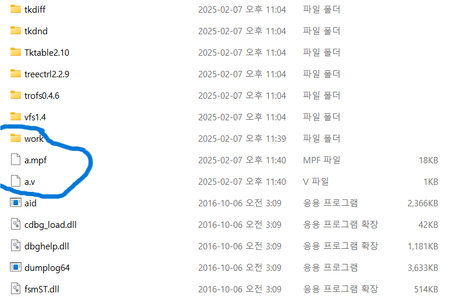
I still haven't solved the work(empty) phenomenon. But your advice was a hint, so I was able to proceed with the simulation I wanted. Thank you. However, this is only a temporary measure, and I don't know how long I can proceed with all the work I want. Let me explain my situation now.
When I create a project, I get work(empty), but I'm using the fact that if I create a source and store it directly in the work folder, I can compile it. Why does saving a project directly in the work folder get workempty and the source file is possible?


