Forum Discussion

Altera_Forum Honored Contributor
14 years agoHonored ContributorProblem with Quartus II 11.0 Programmer detecting Altera Cyclone II DE2 Dev Kit
After tools -> programmer the Programmer these show up like in the attached image. For hardware type, there is none other then ethernet blaster; and auto detect didn't work. Basically the ...

Altera_ForumHonored Contributor
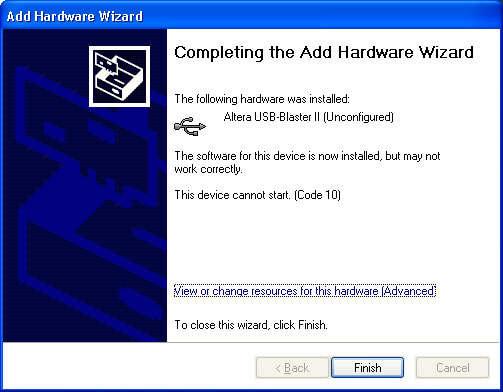
14 years agoHonored Contributor --- Quote Start --- Well, I'm just not able to get the USB-Blaster to install on my XP machine... It's driving me crazy... The best I can get to is a screen that shows a code(10) error.http://www.running2win.com/images/usb-blaster.jpg (http://www.running2win.com/images/usb-blaster.jpg) Nothing seems to work. I tried the zip file and I get a message saying "The specified location does not contain information about your hardware." I really need to be able to work from home but I feel like I've tried everything. --- Quote End --- Well the method works for windows 7 only... For Windows XP, do the following: 1. Plug the USB-Blaster download cable into the PC. The Found New Hardware dialog box appears. 2. Select Locate and install driver software (recommended). 3. Select Don't search online. 4. When you are prompted to Insert the disc that came with your USB-Blaster, select I don’t have the disc. Show me other options. 5. Select Browse my computer for driver software (advanced) when you see the Windows couldn’t find driver software for your device. 6. Click Browse... and browse to the <Path to Quartus II installation>\drivers\usb-blaster directory. Click OK. 7. Select the Include subfolders option and click Next. 8. If you are prompted Windows can’t verify the publisher of this driver software, select Install this driver software anyway in the Window Security dialog box. 9. The installation begins. 10. When The software for this device has been successfully installed appears, click Close. If you are running Windows in 64-bit mode, you MUST boot your computer as following both when installing the USB-Blaster driver AND when using Quartus to program your PLD.  During boot up of the computer, continuously press F8 (but do NOT hold it down).  Scroll down to “Disable Driver Signature Enforcement,” then hit Enter. You must set up the driver before programming your PLD (CPLD or FPGA).