troubleshooting
10383 Topics
Why do I unexpectedly observe intermittent DDM Errors?
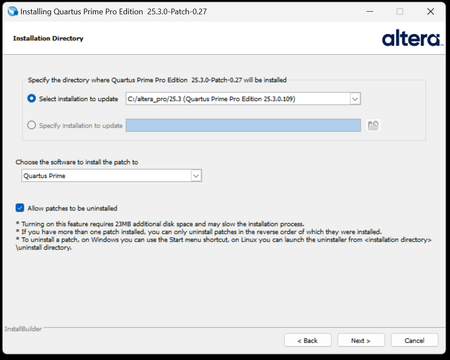
Description Beginning January 10, 2026, executing commands in the terminal or GUI of Quartus® Prime Pro Edition software, Quartus Embedded Edition software or select standalone tools may cause the software or tool to crash with an error similar to the crash signature shown below. This error affects: Quartus Prime Pro Software versions v23.3 through v25.3.1 Standalone Quartus Prime Pro Programmer v23.3 through v25.3.1 Standalone Quartus Prime Pro Embedded Edition v25.3 and v25.3.1 Standalone Quartus Prime Pro Power Thermal Analyzer v25.3 through v25.3.1 This issue is not observed in Quartus Prime Pro Edition versions 23.2 or prior or Quartus Prime Standard Edition. Crash Signature: Error (22912): Unhandled exception: Fatal Error: Assertion failed tools/cpp/ddm/ddm_assessor.cpp:53: DDM_T::verify_token(token) : Cannot identify the client from function assertion_error in tools/cpp/ddm_report/ddm_report_msg.cpp@465 *** Fatal Error: Program termination requested *** *** Below is the stack trace at the time the error occurred. *** The lines beginning "Err Handler" represent frames relating *** to generating this report. *** The point at which the error occurred is somewhere after these lines. *** There may be a few frames representing standard/library code *** before the Quartus frames begin. *** The search for the error should begin with the Quartus frames. *** Unwinder: libunwind *** Stack depth: 15 Quartus 0x24e67: err_terminator() + 0x1bc (ccl_err) Quartus 0xb036a: __cxxabiv1::__terminate(void (*)()) + 0xa (stdc++) Quartus 0xb03d5: (stdc++) Quartus 0xb0628: (stdc++) Quartus 0x1680d: void ddm_throw<DDM_RUNTIME_ERROR>(std::__cxx11::basic_string<char, std::char_traits<char>, std::allocator<char> > const&) + 0x26d (ddm_report) Quartus 0x13fae: DDM_REPORT::DDM_ASSERTION_HANDLER::assertion_error(std::__cxx11::basic_string<char, std::char_traits<char>, std::allocator<char> >) const + 0xde (ddm_report) Quartus 0x12a52: DDM_REPORT::ASSERTION_HANDLER::error(std::__cxx11::basic_string<char, std::char_traits<char>, std::allocator<char> >) + 0x72 (ddm_report) Quartus 0x13e64: DDM_REPORT::detail::assert_at_line(char const*, char const*, int, char const*, ...) + 0x1b4 (ddm_report) Quartus 0x205fb0: ddm_set_lassessor(DDM_T_ASSESSOR*, std::__cxx11::basic_string<char, std::char_traits<char>, std::allocator<char> > const&) + 0x60 (ddm) Quartus 0xf4445: DMS_MANAGER::DMS_MANAGER() + 0x5c5 (dni_dms) Quartus 0xf45b2: DMS_MANAGER::get() + 0x7a (dni_dms) Quartus 0xf6db4: _GLOBAL__sub_I_dms_manager.cpp + 0x58 (dni_dms) Quartus 0x647e: (ld-linux-x86-64) Quartus 0x6568: (ld-linux-x86-64) Quartus 0x202ca: (ld-linux-x86-64) Resolution To work around this problem: For Windows machines Download and unzip the Quartus Prime Pro version zip file that matches your Quartus Prime Pro version from this KDB. Double click on the executable ending in “windows.exe”. When the GUI pops up, press Next. Note that the GUI may look slightly different depending on the version of Quartus you are using. Accept the license agreement Specify the directory where the patch needs to be applied which may be a different location than Quartus install if you have standalone tools in a different directory from your Quartus Prime Pro software installation. Keep “Allow Patch to be uninstalled” selected. Select the software in which to install the patch: The patch will install in the directory of the software or tool you have selected. You will see an uninstall directory for the patch in your software or tool folder where patch is installed; it will contain an executable to uninstall the patch if required for any reason. To confirm patch is installed, you can run quartus_sh -v or corresponding version command for your tool via command line. Alternatively, you can Open Quartus in the GUI and select Help → About Quartus Prime in the main menu. If you are opening up a standalone tool you will navigate to Help-> About <tool_name>. For the Command Line Implementation of the patch in Windows, use the following command: <patch_filename.exe> --mode unattended --installdir <your_install_directory> --accept_eula 1 --patch_to [quartus|qprogrammer|qemb|pta] # An example to patch Quartus Prime Pro Edition Software v25.3: quartus-25.3-0.27-windows.exe --mode unattended --installdir /tmp/altera_pro/25.3 --accept_eula 1 # An example to patch the Standalone Programmer for Quartus Prime Pro Software v25.3: quartus-25.3-0.27-windows.exe --mode unattended --installdir /tmp/altera_pro/25.3 --accept_eula 1 --patch_to qprogrammer For Linux machines: Download and unzip the Quartus Prime Pro version zip file that matches your Quartus Prime Pro version from this KDB. Ensure you run chmod +x on the file ending with linux.run. Run in the command line: ./<installation_patch_run_file>. When GUI pops up, press Next. Note that the GUI may look slightly different depending on the version of Quartus you are using. Accept the license agreement Specify the directory where the patch needs to be applied which may be a different location than Quartus install if you have standalone tools in a different directory from your Quartus Prime Pro software installation. Keep “Allow Patch to be uninstalled” selected. Select the software in which to install the patch: The patch will install in the directory of the software or tool you have selected. You will see an uninstall directory for the patch in your software or tool folder where patch installed; it will contain an executable to uninstall the patch if required for any reason. To confirm patch is installed, you can run ./quartus_sh -v or corresponding version command for your tool via command line. Alternatively, you can Open Quartus in the GUI and select Help → About Quartus Prime in the main menu. If you are opening up a standalone tool you will navigate to Help-> About <tool_name>. For the Command Line Implementation of the patch in Linux, use the following command: ./<patch_filename.run> --mode unattended --installdir <your_install_directory> --accept_eula 1 --patch_to [quartus|qprogrammer|qemb|pta] # An example to patch Quartus Prime Pro Edition v25.3: ./quartus-25.3-0.27-linux.run --mode unattended --installdir /tmp/altera_pro/25.3 --accept_eula 1 # An example to patch the Standalone Programmer for Quartus Prime Pro Software v25.3: ./quartus-25.3-0.27-linux.run --mode unattended --installdir /tmp/altera_pro/25.3 --accept_eula 1 --patch_to qprogrammer This problem has been fixed in Quartus® Prime Pro Edition Software version 26.1. The below table lists the patches that are available and the associated patch number. The patch zip files are attached to the KDB below: Quartus Prime Pro Edition Version Patch Number 23.3 0.52 23.4 0.70 23.4.1 1.01 24.1 0.52 24.2 0.64 24.3 0.35 24.3.1 1.29 25.1 0.36 25.1.1 1.31 25.3 0.27 25.3.1 1.0213KViews5likes0CommentsWhy does my Quartus® Prime Installation fail with certificate error: SSL certificate problem: unable to get local issuer certificate (curlcode 60)?
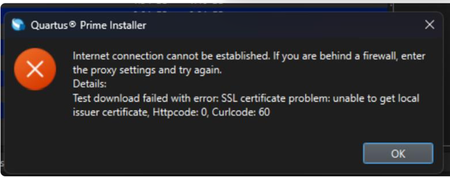
Description Due to a problem in the Quartus® Prime Installer Software, you might see the error message shown below when you click Download & Install. This happens because the certificate bundled with the Quartus® Prime Installer Software is no longer accepted by the Altera® Content Delivery Network (CDN). As a result, secure downloads initiated during the installation process cannot be verified using the outdated certificate. The issue impacts the Installer for the following versions of Quartus software: Operating System Quartus Prime Pro Installer Version(s) Quartus Std/Lite Installer Version(s) Microsoft Windows* 23.3 to 25.3.1 23.1std to 25.1std Linux* 23.3 to 23.4 23.1std The KDB workaround provided below applies to the following versions of Quartus software: Quartus Prime Pro Installer Version(s) Quartus Std/Lite Installer Version(s) KDB workaround applies to 24.3 to 25.3.1 24.1std to 25.1std Note that for all other affected versions not covered by the KDB, you cannot use the installer workaround and must download Quartus software package files individually without using the installer. Separate packages can be found in the Individual Files tab of the Quartus Software Download pages. Resolution To work around this problem, follow these steps: 1. Download and unzip the cacert.zip, which contains the cacert.pem certificate file. 2. Specify the new certificate using one of the following methods: i) Command Line Interface (CLI): Open a command prompt or terminal and run the installer with the--cacert option, pointing to the new certificate file. Windows*: qinst_<version>.exe -sp"--cacert <full path to cacert.pem>" Linux*: qinst_<version>.run -- --cacert <full path to cacert.pem> ii) Graphical User Interface (GUI): - Open the Quartus® Prime Installer, navigate to Settings, locate the CA Certificate Path, and specify the full path to the cacert.pem certificate file. - Then, click Apply > OK. This problem is scheduled to be resolved in a future release of the Quartus® Prime Installer Software.12KViews1like0Comments
How can I improve the security of my Quartus® Prime Software installation?
Description You can improve the security of your Quartus® Prime Software installation by following these security recommendations: • Install the latest tools that support your design. • During installation, select only the minimum software components that you require. • Install the latest version of the Quartus® Prime Standard Edition Software or the Quartus® Prime Pro Edition Software backward-compatible components that require connection to network or FPGA hardware device (FPGA Software Download Center, Additional Software tab): • FLEXlm License Server Software • Quartus® Prime Programmer and Tools, which includes Quartus Programmer, JTAG utilities, and USB-Blaster Drivers • Turn off the following optional features that connect to the Internet: • Check for software updates: Tools menu > Options, Internet Connectivity tab; Disable options under Startup. • Crash reporter: Tools menu > Options, Internet Connectivity tab, Problem report; Disable Always send report to Altera when internal error occurs (command-line only) • Talkback: Tools menu > Options, Internet Connectivity tab, TalkBack Options; Disable Turn on the Quartus® II software TalkBack feature option if you were using Quartus® II software edition 16.0 and below • Install and run the Quartus® Prime Software or Quartus® II software under unprivileged system accounts (No root/administrator privileges). • Set your firewall rules to block network connectivity for any of the Quartus® II software, Quartus® Prime software, or ModelSim* component: • Allow traffic only to the FlexLM license server, or use a node-locked fixed license instead of a network floating license. • Use System Console and related on-chip debug tools in a secure environment by opening ports (assigned when installing the server) only for inter-process communication on local machine. • Only open Quartus® Prime projects and files from trusted sources. The Quartus® Prime Software incorporates scripting capabilities and supports automated script execution that can be exploited by a malicious actor that is able to control Quartus® Prime Software project files. • Ensure all directories under your PATH environment variables are trusted. The Quartus® Prime software relies on the system environment variables to locate the 3 rd party simulations tools. • If you are using JTAG server, use SSH tunneling as recommended in Application Note 939. Resolution NIL2.5KViews0likes0CommentsWhat is an MD5 checksum value and what is it used for?
Description An MD5 checksum is a 32-character hexadecimal number that is computed on a file. If two files have the same MD5 checksum value, then there is a high probability that the two files are the same. After downloading an Altera software installation package, you can compute the MD5 checksum on the installation file. Use the computed MD5 checksum to compare against the MD5 checksum provided for that installation file on the download page. By doing this, you can verify the integrity of your download. There are a variety of MD5 checksum programs available on the Internet. Related Articles How do I determine if I have the right executables for running Modelsim Altera Starter Edition in the Quartus II software version 14.1?2.5KViews0likes0CommentsWhy does the Intel® FPGA Download Cables drivers installation fail on Windows* operating system?
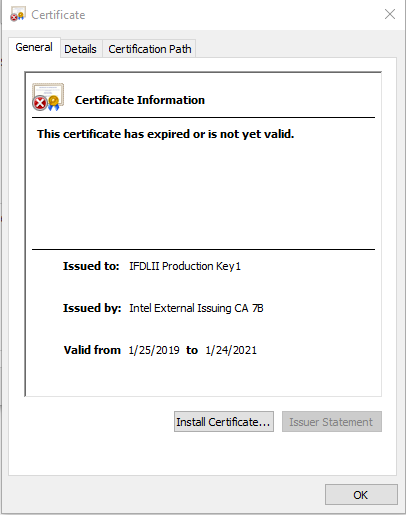
Description Due to the expiration of the digital signature certificate of the Intel® FPGA Download Cable I (formerly referred to as USB Blaster I download cable) and the Intel® FPGA Download Cable II (formerly referred to as USB Blaster II download cable) drivers for Windows* operating system, the installation process of the drivers may fail. Follow the next steps to verify if the digital signature certificate of your driver has expired: Go to '<Quartus Installation Path>\qprogrammer\quartus\drivers\usb-blaster-ii' folder Right-click on 'usbblasterii.cat' and select 'Properties, then select the 'Digital Signatures' tab Select the 'IFDLII Production Key1' signature from the 'Signature List' and click 'Details' Click on 'View Certificate' If the driver has expired, you will see the 'This certificate has expired or is not yet valid' message Resolution A patch is available to fix this problem for the Intel® Quartus® Prime Software. Download and install Patch 0.02i for the Intel® Quartus® Prime Pro Edition Software version 20.4 and the Intel® Quartus® Prime Standard Edition Software version 21.1. Download and install Patch 0.02i for the Intel® Quartus® Prime Pro Edition Programmer and Tools or Patch 0.02stdp for the Intel® Quartus® Prime Standard Edition Programmer and Tools from the appropriate link below. Download Intel® Quartus® Prime Pro Edition Software version 20.4 patch 0.02i for Windows (.exe) Download the Readme for Intel® Quartus® Prime Pro Edition Software version 20.4 patch 0.02i (.txt) Download Intel® Quartus® Prime Standard Edition Software version 21.1patch 0.02stdp for Windows (.exe) Download the Readme for Intel® Quartus® Prime Standard Edition Software version 21.1 patch 0.02stdp (.txt) After installing patch 0.02i or patch 0.02stdp for Windows, follow the next steps to update the driver on the operating system: Connect your Intel FPGA download cable or Intel FPGA download cable II Open Device Manager window of Windows* OS Choose Windows Settings from Start menu > Type “Device Manager” into the search area > Choose Device Manager Find Altera USB-Blaster II under JTAG cables or Altera USB-Blaster under Universal Serial Bus controllers Find USB-Blaster or USB-Blaster II under Other devices Choose Altera USB-Blaster or Altera USB-Blaster II Right-click and choose Update driver from the context menu Choose Browse my computer for driver software on the Update Drivers window Enter the following path for the driver and enable; include subfolders - <Intel Quartus Prime software install directory>\quartus\drivers or - <Intel Quartus Prime Programmer install directory>\qprogrammer\drivers or - <Intel Quartus Prime Programmer install directory>\qprogrammer\quartus\drivers Click Next This problem is fixed starting with the Intel® Quartus® Prime Pro Edition Software version 21.1.2.4KViews0likes0CommentsWhat is the maximum downward pressure that can be applied to the top of Altera BGA packages?
Description The following guidelines refer to the downward pressure or compressive load that can be applied to the top of Altera® FPGA BGA packages. Pitch (mm) Pattern Package Type Constant Compressive Load per Solder Ball (g) Eutectic SnPb (tin-lead) SAC (tin-silver-copper) 0.5 Grid MBGA 3 7 0.8 Grid UBGA 6 12 0.92 Hex FBGA 7 14 1 Hex FBGA 8 15 1 Grid FBGA 8 16 1.27 Grid BGA 12 24 Resolution For heat-sink application, Altera recommends heat sink pressure on the package between 20psi to 40psi for effective Thermal Interface Material (TIM) performance Your PCB and the supporting frame should be designed to withstand the pressure of the downward force to prevent bending or flexing of your PCB.2KViews1like0CommentsWhy does the text overlap in the ALTPLL IP Parameter Editor?
Description Due to a problem in the Quartus® Prime Standard Edition Software version 25.1, you might see that the text overlaps in the ALTPLL IP Parameter Editor on the Windows* Operating System. This prevents the ALTPLL IP from being instantiated. This problem does not occur in the Quartus® Prime Standard Edition Software version 24.1 and earlier. Resolution To work around this problem in the Quartus® Prime Standard Edition Software version 25.1, download and install the patch below: This problem is scheduled to be resolved in a future release of the Quartus® Prime Standard Edition Software.1.5KViews1like0CommentsUpdate Driver Software - USB-Blaster Windows encountered a problem installing the driver software for your device
Description Due to a problem in the Quartus® Prime Pro Edition Software version 17.0 and 17.1, you may see this dialog when you install the driver software for the FPGA Download Cable (formally the USB-Blaster). Resolution Install the driver from the drivers folder of version 17.0 or 17.1 of the Quartus Prime Standard Edition or Stand-alone Quartus® Prime Programmer and Tools Standard Edition instead. Install the Quartus® Prime Standard edition or stand-alone Quartus® Prime Programmer and Tools Standard edition. Open Device Manager of Windows OS. Select Altera USB-Blaster under Universal Serial Bus controllers or USB-Blaster under Other devices Choose Update Driver Software from Action menu Choose Browse my computer for driver software on Update Driver Software - USB-Blaster window Click Browse button, specify the following driver location and click Next button <Quartus Prime Standard edition install folder>\quartus\drivers or <Stand-alone Quartus Prime Programmer and Tools Standard edition install folder>\qprogrammer\drivers Click Close button when you see "Windows has successfully update your driver software" dialog. This problem is scheduled to be fixed in a future version of Quartus® Prime Pro Edition Software.1.5KViews0likes0CommentsDoes the Questa*-Intel® FPGA Starter Edition software require a license file?
Description Yes, the Questa* - Intel® FPGA Starter Edition Software will now require a valid license (free cost) as compared to the Modelsim* - Intel® FPGA Starter Edition Software that does not need a license previously. Resolution To obtain a new or renew an expired license file for the Questa*-Intel FPGA Starter Edition Software, go to the Intel® FPGA Self-Service Licensing Center (SSLC). In the SSLC, select the Questa*-Intel® FPGA Starter Edition SW-QUESTA product, fill in the number of seats required, and generate the license. Additional Information The Modelsim* - Intel® FPGA Edition (including Starter Edition) will be replaced by the Questa* - Intel® FPGA Edition (including Starter Edition) starting from the Intel® Quartus® Prime Pro Edition Software version 21.3 and Intel® Quartus® Prime Standard Edition Software version 21.1 onwards. You may refer to: Questa*-Intel® FPGA Edition Software for an overview of the Questa* - Intel® FPGA Edition software. Intel® FPGA Software Installation and Licensing for additional information.1.5KViews0likes0CommentsRun Time Error '57121': Application defined or object defined error
Description You may see this error when trying to open the Early Power Estimator (EPE) in Excel 2007 or later. This error occurs if your ActiveX settings are disabled. No warning is issued that ActiveX is disabled. Resolution To avoid this error, perform the following steps: In Excel 2007 or later, click on the Office Button, (the top left round icon) Select Excel Options Select the Trust Center category and click Trust Center Settings Select the ActiveX Settings category Change the setting from Disable all controls without notification to one of the other options.1.3KViews0likes0Comments