fpga dev tools quartus® prime software standard
503 Topics
Why does MAX® 10 FPGA PFL flash_nreset behave like an open-drain output when the Fitter report shows Open Drain = No?
Description In Quartus® Prime Standard Edition Software version 21.1, the flash_nreset output may appear to behave as an open-drain signal even when the Quartus Fitter report shows Open Drain = No for design targeting MAX® 10 FPGA using the Parallel Flash Loader (PFL) IP. When the PFL option Set flash bus pins to tri-state when not in use is enabled, the flash_nreset signal is driven low when asserted and placed in high impedance (Z) when de-asserted. In this condition, an external pull-up is required for the pin to reach a logic-high level. The Fitter report can still show Open Drain = No because it is reporting whether the dedicated open-drain hardware feature is used, not whether the resulting pin behavior is electrically equivalent to open-drain operation. Resolution This is expected behavior and is not a Quartus or PFL defect. The apparent discrepancy is caused by interpreting the Fitter report's Open Drain field as a description of the pin's logical/electrical behavior. The field indicates whether the dedicated open-drain hardware feature is used. It does not by itself indicate whether the RTL creates a low/high-impedance output that behaves similarly to open-drain operation.33Views0likes0CommentsWhy does the LTPI_PLL_LOCKED signal of the MAX® 10 LVDS Tunneling Protocol and Interface (LTPI) IP not behave as expected in Quartus® Prime Standard Edition Design Software Version 25.1 and earlier?
Description When using Quartus® Prime Standard Edition Design Software Version 25.1 or an earlier release, the LTPI_PLL_LOCKED signal of the MAX® 10 LVDS Tunneling Protocol and Interface (LTPI) IP may fail to assert even when the internal PLL has successfully achieved lock. Resolution This issue has been fixed in Quartus® Prime Standard Edition Design Software Version 26.1. As a workaround for earlier versions, do not rely on the LTPI_PLL_LOCKED signal to determine the PLL lock status. Instead, monitor the internal signal m10_pll_top_inst_locked, which accurately reflects the lock status of the internal PLL.6Views0likes0CommentsWhy does the SystemConsole.refreshMasters DSP Builder function fail?
Description When using the SystemConsole.refreshMasters DSP Builder function in the Quartus® Prime Pro Edition version 26.1.1 and above, you may see the following error: Unable to resolve the name 'com.altera.systemconsole.matlabapi.SystemConsoleLink' This error occurs because the Java version used by MATLAB is incompatible with com.altera.systemconsole.matlabapi.SystemConsoleLink. For DSP Builder version 26.1.1 and later, MATLAB must use Java version 11 or later for SystemConsole.refreshMasters to run successfully. Resolution You can change MATLAB's Java version using either the jenv MATLAB function or the matlab_jenv executable. For information on how to use jenv and matlab_jenv, refer to the MATLAB documentation.49Views0likes0CommentsError: (vlog-7) Failed to open design unit file
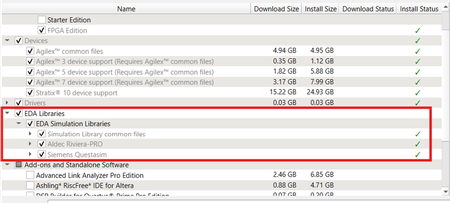
Description Due to simulation models not being installed along with the Quartus ® Prime Pro Edition Software, an error such as: Error: (vlog-7) Failed to open design unit file "C:/altera_pro/26.1.1/quartus/eda/sim_lib/220model.v" in read mode may occur during simulation. The root cause of missing files is that “EDA libraries” are not installed properly during installation of the Quartus ® Prime Pro Edition Software. Resolution To fix this problem, make sure “EDA Libraries” has been checked and installed properly during installation of the Quartus ® Prime Pro Edition Software, as shown in the screenshot below.99Views0likes0CommentsWhy does Nios® V/g experience data corruption when using DTCM?
Description Due to a problem in Quartus® Prime software, data corruption may occur when running a Nios® V/g processor application that interacts with a Tightly-Coupled Memory (TCM). This happens because of a RTL bug in the load-store unit. This problem is affecting Nios® V/g processor in, Quartus® Prime Pro Edition release 25.3.1 and earlier Quartus® Prime Standard Edition release 25.1 and earlier When Nios® V/g processor executes a non-TCM load (i.e. Load from On-Chip Memory or memory-mapped CSR) followed by a Data TCM load, the latter corrupts the former. This causes the non-TCM load to receive incorrect load data. For example, lw rd1,0(non-TCM) lw rd2,0(TCM) Expectation Actual Failure rd1 = load data from address “non-TCM” rd1 = load data from address “TCM” rd2 = load data from address “TCM“ rd2 = load data from address “TCM“ Resolution This problem is fixed in Quartus® Prime Pro Edition 26.1 and is scheduled to be resolved in a future Quartus® Prime Standard Edition release. Additional Information A patch is available to fix this problem. Quartus® Prime Standard Edition Software v25.1 Patch 0.01 Please contact Altera Support for additional support.195Views0likes0CommentsWhy does the Low Latency 40G Ethernet IP drop non-PTP packets when PTP residence-time update is enabled?
Description Due to a problem in the Quartus® Standard Edition software version 21.1, you may see the Low Latency 40G Ethernet IP may drop large non-PTP packets when the tx_etstamp_ins_ctrl_residence_time_update (PTP residence-time update) is asserted. This problem is typically observed with jumbo frames of approximately 3000 bytes or larger. The affected packets may be counted at the RX interface but may not appear at the TX output. PTP packets themselves may continue to transmit correctly. This problem is not observed when tx_etstamp_ins_ctrl_residence_time_update (PTP residence-time update) is kept deasserted. Resolution A patch (21.1std patch 0.16std) is available to fix this problem for the Quartus Standard Edition Software version 21.1. To request the patch, contact your local Altera support representative. This problem is resolved in the Quartus Prime Pro Edition Software 26.1. Altera recommends migrating to the latest Quartus Prime Pro Edition Software to address this problem.61Views0likes0CommentsWhy MAX® 10 FPGA programming failed when I used .jbc file with altera-stapl/JAM-STAPL player?
Description MAX® 10 FPGA programming with .jbc using altera-stapl/JAM-STAPL player failed with error log “No SLD hub”,”No SLD Node”, “Unrecognized device” and “Exit code = 6”. However, programming through Quartus® using same JBC or POF is successful. Reading ID_CODE and USER_CODE are working. Resolution Open the Quartus project’s programming or configuration-file generation settings. Enable “Enable real-time ISP to allow background programming” option. Regenerate the JAM file. Generate a new JBC from the newly created JAM file. Retry programming the MAX® 10 FPGA from the SoM using the new JBC.60Views0likes0CommentsWhy do I get "Fatal Error: Access Violation at" when running quartus_syn or quartus_fit?
Description Due to a problem in the Quartus® Prime Pro Edition Software versions 26.1 and earlier, and Quartus Prime Standard Edition Software versions 25.1 and earlier, compilation may terminate with a "Fatal Error: Access Violation" message during synthesis or fitting. This failure can occur intermittently, and the reported memory address may change between compilation runs. You may observe one or more of the following behaviors: Quartus® compilation fails during synthesis or fitting The failure may occur in either of the following modules: quartus_syn (during synthesis) quartus_fit (during fitting) The error message is similar to: *** Fatal Error: Access Violation at <<ADDRESS>> The reported memory address may change between runs. The fatal error is followed by a stack trace that includes one of the failure signatures listed below. CDB_SGATE_OTERM::adopt_fanouts HDB_ASGN_CONTAINER::remove_assignment LUTIL_DEVICE::get_fragment_from_subloc STA_NODE::reset_tag_heads DESIGN_HDB_ASSIGNMENT_CONVERTER::cleanup_after_conversion BSYN_RTM_FLOP::IsExpired RTM_ATOM_MGR::rip_out_simple_ff_for_bypass IRTM_FF_QUEUE::remove_ff PTI_BCM_TIMING_GRAPH::push_back_carry_hipi_clock_iterm FTM_TREE_NODE::num_sgates Stack traces may differ, even when compiling the same design. Specific Failure Signatures: Synthesis failure (quartus_syn): The crash report includes the following function call: RTL_ADDER::aggressive_adder_balancing Fitter failure (quartus_fit): The error occurs very early after the fitter starts, and the crash report includes the following function call: qhd_reread_global_assign_from_qsf Error Log Examples Stack Trace example for crashes in quartus_syn *** Fatal Error: Access Violation at 00007FFB92E2C63E Module: quartus_syn.exe Stack Trace: Quartus 0xc63d: CDB_SGATE_OTERM::adopt_fanouts + 0x2d (db_cdb_sgate) Quartus 0x117e7: RTL_ADDER::shrink_iports + 0x1f7 (SYNTH_OPT) Quartus 0x14a75: RTL_ADDER::create_binary_adder + 0x49e9 (SYNTH_OPT) Quartus 0x45910: RTL_ADDER::restrict_adder_network + 0x84a (SYNTH_OPT) Quartus 0x4f5d6: RTL_ADDER::aggressive_adder_balancing + 0x9d (SYNTH_OPT) Quartus 0x11533: RTL_SCRIPT::call_common_rtl_fns + 0x1043 (SYNTH_OPT) Quartus 0x115b5: RTL_SCRIPT::call_named_function + 0x8a2 (SYNTH_OPT) Quartus 0x3a87a: RTL_SCRIPT::process_script + 0x62c (SYNTH_OPT) Quartus 0x3a8e4: run_parallel_rtl + 0x1db4 (SYNTH_OPT) Quartus 0x8509d: SYNTH_QIS::SYNTHESIS_FLOW::run_parallel_rtl_in_helper_processes + 0x285 (synth_qis) Quartus 0x850d5: SYNTH_QIS::SYNTHESIS_FLOW::high_level_synthesis + 0x47d (synth_qis) Quartus 0x8546d: SYNTH_QIS::SYNTHESIS_FLOW::run_current_phase + 0x286 (synth_qis) Quartus 0x854d4: SYNTH_QIS::SYNTHESIS_FLOW::run_full_flow + 0x30d (synth_qis) Quartus 0x859b7: QIS_RTL_STAGE_IMPL::synthesize + 0x467 (synth_qis) Quartus 0x15b55: qis_synthesize + 0x245 (synth_qis) Quartus 0x16442: TclNRRunCallbacks + 0x62 (tcl86) Quartus 0x16f4d: TclEvalEx + 0x9ed (tcl86) Quartus 0xa6ab8: Tcl_FSEvalFileEx + 0x22b (tcl86) Quartus 0xa5136: Tcl_EvalFile + 0x36 (tcl86) Quartus 0x15246: qexe_evaluate_tcl_script + 0x4e6 (comp_qexe) Quartus 0x1143b: qexe_do_tcl + 0x46b (comp_qexe) Quartus 0x1a70e: qexe_run_tcl_option + 0x5ee (comp_qexe) Quartus 0x16451: QCU::DETAIL::initialize_qhd_and_run_qexe + 0xa1 (comp_qcu) Quartus 0x1f8e2: qcu_run_tcl_option + 0x2f2 (comp_qcu) Quartus 0x1b1ba: qexe_standard main + 0x26a (comp_qexe) Quartus 0x29eb: qexe_run + 0x3eb (comp_qexe) Quartus 0x1192p: qsyn2_main + 0x1a9p (quartus_syn) Quartus 0x1e808: msg_main_thread + 0x18 (CCL_MSG) Quartus 0x17021: msg_thread_wrapper + 0x71 (CCL_MSG) Quartus 0x1c89d: mem_thread_wrapper + 0x70 (CCL_MEM) Quartus 0x1b49d: msg_exe_main + 0x20d (CCL_MSG) Quartus 0x2b6c: __scrt_common_main_seh + 0x11c (quartus_syn) Quartus 0x2e8d6: BaseThreadInitThunk + 0x16 (KERNEL32) Quartus 0x5b3b: RtlUserThreadStart + 0x2b (ntdll) End-trace Stack Trace example for crashes in quartus_fit *** Fatal Error: Access Violation at 00007FFB8F79CFF7 Module: quartus_fit.exe Stack Trace: Quartus 0x1cff6: HDB_ASGN_CONTAINER::remove_assignment + 0x52 (DB_HDB) Quartus 0x1cf71: HDB_ASGN_CONTAINER::destroy_assignment + 0x31 (DB_HDB) Quartus 0xca69c: anonymous namespace::delete_all_global_assignments + 0x25c (comp_qhd) Quartus 0xcc344: qhd_reread_global_assign_from_qsf + 0x384 (comp_qhd) Quartus 0x51679: QHD_DATABASE_UTILS::load_design + 0x449 (comp_qhd) Quartus 0x1e1e0: FIT2_DATABASE_EXPERT_QDB::load + 0x5b0 (comp_fit2) Quartus 0x3xee: fit2_create_fitter_netlist + 0x3xee (comp_fit2) Quartus 0x16442: TclNRRunCallbacks + 0x62 (tcl86) Quartus 0x16f4d: TclEvalEx + 0x9ed (tcl86) Quartus 0xa6ab8: Tcl_FSEvalFileEx + 0x22b (tcl86) Quartus 0xa5136: Tcl_EvalFile + 0x36 (tcl86) Quartus 0x15246: qexe_evaluate_tcl_script + 0x4e6 (comp_qexe) Quartus 0x1143b: qexe_do_tcl + 0x46b (comp_qexe) Quartus 0x1a70e: qexe_run_tcl_option + 0x5ee (comp_qexe) Quartus 0x16451: QCU::DETAIL::initialize_qhd_and_run_qexe + 0xa1 (comp_qcu) Quartus 0x1f8e2: qcu_run_tcl_option + 0x2f2 (comp_qcu) Quartus 0x29eb: qexe_run + 0x3eb (comp_qexe) Quartus 0x16f2d: qfit2_main + 0x82d (quartus_fit) Quartus 0x1e808: msg_main_thread + 0x18 (CCL_MSG) Quartus 0x17021: msg_thread_wrapper + 0x71 (CCL_MSG) Quartus 0x1c89d: mem_thread_wrapper + 0x70 (CCL_MEM) Quartus 0x1b49d: msg_exe_main + 0x20d (CCL_MSG) Quartus 0x2b6c: __scrt_common_main_seh + 0x11c (quartus_fit) Quartus 0x2e8d6: BaseThreadInitThunk + 0x16 (KERNEL32) Quartus 0x5b3b: RtlUserThreadStart + 0x2b (ntdll) End-trace Resolution This problem is currently scheduled to be resolved in a future release of the Quartus Prime Pro Edition Software and the Quartus Prime Standard Edition Software. If you are using Quartus Prime Pro Edition Software version 26.1, apply the attached patch for your operating system: Download the Linux or Windows patch package for your platform. On Linux, install the patch package from the console. On Windows, run the patch executable file. Confirm the installation by opening the Quartus Prime GUI and checking the About window, or by running: quartus_sh -v If applying the patch is not possible, or if you need assistance with other Quartus Prime software versions, contact your local Altera support representative. Additional Information Affected software: Quartus Prime Pro Edition Software version 26.1 and earlier Quartus Prime Standard Edition Software version 25.1 and earlier229Views0likes0CommentsWhat is the GPIO pin state after full power-up and before configuration mode for MAX® 10 FPGA devices?
Description For MAX® 10 FPGA devices, GPIO pins are typically tri-stated with weak pull-up enabled after full power-up and before configuration mode, except for the pin identified in the table below for each device package. That pin is tri-stated without weak pull-up enabled during this period, but it functions correctly in user mode. Device Package Type Y180 180-pin WLCSP M153 153-pin MBGA U169 169-pin UBGA U324 324-pin UBGA B610 610-pin VPBGA E144 144-pin EQFP 10M02 — D7 E6 C5 — 128 10M04 — D7 E6 C5 — 132 10M08 — D7 E6 C5 — 132 10M16 A5 — E6 C5 — 132 10M25 — — — — — 132 10M40 — — — — P18 133 10M50 — — — — P18 133 Device Package Type U324 324-pin UBGA F256 256-pin FBGA B610 610-pin VPBGA F484 484-pin FBGA F672 672-pin FBGA 10M02 C5 — — — — 10M04 C5 B5 — — — 10M08 C5 B5 — E8 — 10M16 C5 B5 — E8 — 10M25 — B5 — E8 — 10M40 — B5 P18 E8 E10 10M50 — B5 P18 E8 E10 Resolution This is expected behavior. If your system depends on the GPIO pin state during this period, consider adding an external pull-up resistor to the pin or selecting a different GPIO pin in your design.89Views0likes0CommentsWhy USB-Blaster II does not work after closing the Quartus® Programmer Hardware Setup window?
Description When using Quartus® Prime Standard Edition to program a MAX® 10 FPGA device with a USB-Blaster II, changing the Hardware Setup frequency from the default 24 MHz to 16 MHz and then closing the Hardware Setup window with the Close button may cause the USB-Blaster II to stop functioning. Resolution Here are some practical solutions you can try to resolve the issue: 1. Restart the JTAG server. jtagserver --stop jtagserver --start 2. Unplug and replug the USB-Blaster II. 3. Kill lingering processes such as the JTAG server or Quartus Programmer process. jtagserver.exe quartus_pgm.exe 4. Change the clock frequency of the USB-Blaster II download cable to lower frequency like 16Mz and 6Mz. Related KDB: How do I change the clock frequency of the USB-Blaster II download cable? | Altera Community - 342304 5. Avoid USB conflicts by disconnecting other USB serial devices, especially FTDI or USB-UART adapters, and avoid opening COM ports or serial terminal applications while programming. 6. Try a different USB port and connect the USB-Blaster II directly to the PC instead of through a USB hub. 7. Reinstall the driver from the Quartus installation folder or try an older or known-stable driver version. 8. Avoid mixing drivers from multiple Quartus versions. 9. If a USB hub is required, avoid poor-quality or legacy USB 1.0 hubs. 10. If a clone USB-Blaster is being used, replace it with a known-good cable. 11. If none of the above steps recover the problem, reboot the system. Possible root causes: 1. JTAG server gets stuck and keeps the USB-Blaster II claimed. The device can appear normal in the operating system but remain inaccessible from Quartus Programmer. Restarting Quartus alone often does not recover the cable. Fix: jtagserver --stop jtagserver --start Or kill the process via Task Manager. 2. USB or driver conflicts with other devices. Conflicts with other devices, especially FTDI or USB-UART adapters, can break the USB-Blaster II mid-session. Opening a serial terminal can trigger the failure. This behavior is reported more often on Windows 64-bit systems. Fix: Disconnect other USB serial devices. Avoid opening COM ports or serial terminal applications while programming. Try a different USB port with a direct connection instead of a USB hub. 3. Driver bugs or Quartus version mismatches. Driver bugs or Quartus version mismatches can prevent Quartus Programmer from detecting the cable. Known bad driver versions or incompatible Quartus releases can cause the Programmer to lose the cable or prevent the standalone Programmer from detecting it. Fix: Reinstall the driver from the Quartus installation folder. Try an older or known-stable driver version. Avoid mixing drivers from multiple Quartus versions. 4. USB hub or signal quality problems. USB hub or signal quality problems can cause the USB-Blaster II to disappear after use. This is reported more often with poor-quality hubs or legacy USB 1.0 hubs. Fix: Plug the USB-Blaster II directly into the PC. Avoid poor-quality or legacy USB 1.0 hubs. 5. Clone USB-Blaster hardware. Clone USB-Blaster hardware can be unstable due to timing issues, firmware quirks, or driver incompatibilities. Fix: Replace the clone USB-Blaster with a known-good cable. 6. Closing Quartus Programmer leaves the cable in a bad state. Closing Quartus Programmer can leave the JTAG server running. It can leave the device handle locked. It can trigger USB re-enumeration issues on the USB stack. When Quartus Programmer is reopened, it may not be able to reattach to the already claimed cable. Fix: Unplug and replug the USB-Blaster II. Kill lingering JTAG server or Quartus Programmer processes. Reboot the system if the cable is still not detected.282Views0likes0Comments