Forum Discussion

 Occasional Contributor
questa_fse cannot simulate design: Module not found
 Occasional Contributor
Because that particular project is split over different folders with different platforms etc.... I decided to start from scratch. You never know I made a stupid error because of the folder-structure I set up.
In this new project, when only using self-written VHDL, including my testbench -> can simulate. I see the waves etc. as expected.
Then I decided to design a platform that just includes 1 IP block, the On-chip Flash Intel FPGA IP. After creating the design, I clicked "generate VHDL", including setting "VHDL" for the simulation. I then included the .qsys file in my project, adjusted the top level to instantiate the design. This compiled fine, but gave me the same error about "module not defined".
However, the platform designer now told me in a small pop-up that I had not seen before: "include the .qip and .sip file into your project to use the design". So including the .qsys was a mistake. So, out it went and in with the .qip and .sip files. Start simulation, lo and behold: the "module not defined" error disappeared! My joy was short-lived, as it had just made room for a new error to appear:
Error: /home/jensvkb/Documents/TESTproject/TESTproject/simulation/submodules/mentor/alt_dual_boot.v(12): in protected region
As shown in the screenshot, it produces this error a bunch of times. Does this mean the simulator found the correct files, but somehow can't use them?
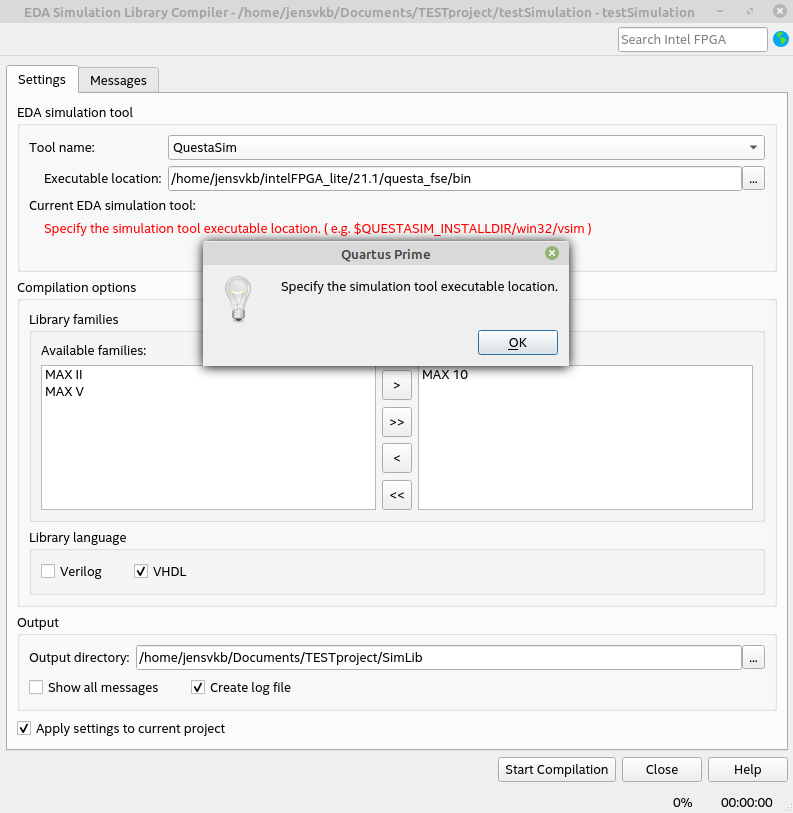
Googling this error message often gave the solution "you need to compile your simulation libraries". I thought "this is just Intel stuff, both the IP as the simulator, so that should already be done, but ok, I'll try it". So Tools->Launch Simulation Library Compiler. I set "Tool name" to "QuestaSim", since I'm using the Questa_fse simulator. I point "Executable location" to the path "/home/jensvkb/intelFPGA_lite/21.1/questa_fse/bin" where the vsim executable is located, give it an output directory and hit "Start Compilation". The problem here is, no matter what I give as "Executable location" it does not accept it! So I cannot compile the simulation libraries.
Any pointers on how to continue from here?

 Contributor
The executable location has to close with '/ '. So, you have to use this " /home/jensvkb/intelFPGA_lite/21.1/questa_fse/bin/ " to start compilation.
- JensVkb4 years ago
sometimes that works sometimes not. No idea what goes on behind the screens, but pushing a random amount of "ENTER" sometimes makes the compiler go.
Anyway, when I then link the compilation output folder to the simulator it just gives the error that it can't find the other simulation files anymore, see screenshot. I'm guessing some automatic linking or something is not done properly. So that' not the way forward.
When using the "nativelink flow", which is the one I thought I could use, since I'm only using Intel provided stuff that I create through Quartus, the simulation thus gives the "protected region" error.
I'm at the end of my wits here and quite frankly frustrated that this whole simulation hick up has halted my development for several weeks now.
Attached is the project archived, without the compiled simulation libraries, only the "nativelink flow" files. (this .qar is just generated by Quartus->Project->Archive project with the default settings) Hopefully someone can take a look at this and tell me what I'm doing wrong.
- YEan4 years ago
Since you are using IP so you have to generate a script in Platform Designer.
1. Open the qsys files in Platform Designer , go to Generate -> Generate HDL.
2. Open the msim_setup.tcl and copy #TOP-LEVEL TEMPLATE - BEGIN until TOP-LEVEL TEMPLATE - END then paste in a new .do files. You may look into this for better understanding pg 6 https://d2pgu9s4sfmw1s.cloudfront.net/DITA-technical-publications/PROD/PSG/ug-20093-683305-666727.pdf?Expires=1646726604&Key-Pair-Id=APKAJKRNIMMSNYXST6UA&Signature=vXL8PTAL9bhyls-iG6lIlfN0fvklOOHabOoQ5qWCCdo1ess2vDR5cQ~RWjSkxk33jSVzmOuT7Kwt~SVGtcGmtdZuJMFZvxViwUMvTl9UpigTOx7IQKqWhIgAs~B2GF-DmAFzYJZwjqE3kD3k~MeUqRpLKBjHWSjvDJjHN1XYh2nNQNWnqDLL7pyYOwsiBatrHBTnLzm2gNVUdtaIL2rSdj1Olsh-lxF1eEuY2W7wiFJ~u2b3UR9Dqrty94YXBZjCTVDX2Gjo0OYcTK7QTaGb0NYzdknTpMg7tL8ifjl38WsvulVfaVsBSvJmaZvA3B2xK~Z8ImCP41-TstE0tl2lVA__ .
3. Modify the the commands in .do file. You may view QuestaSim user manual to understand which commands that you required https://1library.net/document/yd5d5m1q-questa-sim-user-manual.html .
4. Launch QuestaSim and cd to your msim_setup.tcl directory.
5. source msim_setup.tcl
6. load your .do file
7. Your design should able to simulate now.