Forum Discussion

 Occasional Contributor
Highlight routing in Chip Planner
 3 years ago
Hello,
Nope. You can leave the maximum slack limit blank.
You can report all timing paths by putting 0 at "Report number of paths", however this can be time consuming because there could be hundreds and thousands of timing paths. I would just put a large number until it starts reporting positive slack. You can also sort the paths by slack in the timing report by clicking "Slack" on the panel.
Regards,
Nurina
 Regular Contributor
Hello,
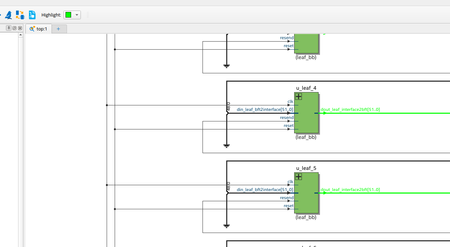
The reason you cannot highlight a route in chip planner from RTL viewer is because the RTL viewer is the synthesised RTL code you have written (Analysis & Synthesis stage). From there Quartus will perform place & route and also register retiming during the Fitter stage so the routes in the chip planner are entirely different from what you see in the RTL viewer. This is why you don't have the option to highlight route in Chip Planner from RTL viewer.
My suggestion is to cross probe from Timing Analyzer as you can locate path in Chip Planner from here. What you can do is report timing of the particular node you want to highlight in Chip Planner.
You can also do the report_timing on Timing Analyzer GUI. On Timing Analyzer, go to Reports>Timing Slack>Report Timing. In your targets, you can go to From and click on the 3 dots to open Node Finder and search for u_leaf_4.
From the report, you can right click on the path and locate in Chip Planner.
 Occasional Contributor
Thanks for the information. I tried
Reports>Timing Slack>Report Timing
in Timing Analyzer.
And it seems like we can probe only that nets that fail in timing.. Is this correct?


