Forum Discussion

 Super Contributor
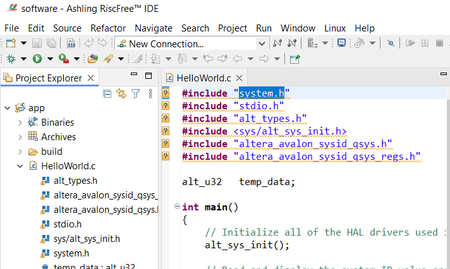
Ahsling RiscFree IDE 25.1.1: Unresolved inclusion
 10 months ago
Hi Frank, FvM
First, As you may already know,
RiscFree is based on Eclipse C/C++ Development Toolkit (CDT), and these "unresolved inclusion" messages are from Indexer, which is a component of Eclipse. Indexer parses and analyzes your project files to help your source code exploration in GUI. So these warnings are not related the build process for your binary and the build process can be successfully completed regardless the messages.(Back to the main topic)
As you pointed out, fully automatic resolution of Indexer search path settings is not supported yet in RiscFree today, unfortunately.
However, We can resolve "unresolved inclusion" issue by manually setting the search path for Indexer.To search files in BSP project:
After you have imported both the application and BSP project:- Right-click on the application project in Project Explorer
- Select Properties
- Navigate to the Project References tab
- Check the option box for the BSP project, then click Apply and Close
To search C/C++ libraries:
(This is how I workaround...) Add the default RISC-V gcc include file search paths into project properties. To do this, import the xml explained in my next post with the following steps. The xml file is an example for 25.1.1 RiscFree running on Windows PC, so named as include_search_path_25.1.1_win.xml.- Right-click on the application project in Project Explorer
- Select Import...
- Select C/C++ -> C/C++ Project Settings, then click Next
- Click Browse..., then select the attached xml file: include_search_path_25.1.1_win.xml
- Click Finish
After these setup, there is no "unresolved inclusion" in my RiscFree.
Hope this helps,
Sho
 Occasional Contributor
Hi Frank, FvM
First, As you may already know,
RiscFree is based on Eclipse C/C++ Development Toolkit (CDT), and these "unresolved inclusion" messages are from Indexer, which is a component of Eclipse. Indexer parses and analyzes your project files to help your source code exploration in GUI. So these warnings are not related the build process for your binary and the build process can be successfully completed regardless the messages.
(Back to the main topic)
As you pointed out, fully automatic resolution of Indexer search path settings is not supported yet in RiscFree today, unfortunately.
However, We can resolve "unresolved inclusion" issue by manually setting the search path for Indexer.
To search files in BSP project:
After you have imported both the application and BSP project:
- Right-click on the application project in Project Explorer
- Select Properties
- Navigate to the Project References tab
- Check the option box for the BSP project, then click Apply and Close
To search C/C++ libraries:
(This is how I workaround...) Add the default RISC-V gcc include file search paths into project properties. To do this, import the xml explained in my next post with the following steps. The xml file is an example for 25.1.1 RiscFree running on Windows PC, so named as include_search_path_25.1.1_win.xml.
- Right-click on the application project in Project Explorer
- Select Import...
- Select C/C++ -> C/C++ Project Settings, then click Next
- Click Browse..., then select the attached xml file: include_search_path_25.1.1_win.xml
- Click Finish
After these setup, there is no "unresolved inclusion" in my RiscFree.
Hope this helps,
Sho
- ShoH_Altera10 months ago
Hi Frank,
I can't attach XML file, so I'll just paste the contents of include_search_path_25.1.1_win.xml. Use this as the contents of the .xml file. Again, the xml file is an example for 25.1.1 RiscFree running on Windows PC, so named as include_search_path_25.1.1_win.xml.
<?xml version="1.0" encoding="UTF-8"?> <cdtprojectproperties> <section name="org.eclipse.cdt.internal.ui.wizards.settingswizards.IncludePaths"> <language id="org.eclipse.cdt.core.g++" name="C++ Source File"> <includepath>C:\altera_pro\25.1.1\riscfree\toolchain\riscv32-unknown-elf\riscv32-unknown-elf\include\c++\13.2.0</includepath> <includepath>C:\altera_pro\25.1.1\riscfree\toolchain\riscv32-unknown-elf\riscv32-unknown-elf\include\c++\13.2.0\backward</includepath> <includepath>C:\altera_pro\25.1.1\riscfree\toolchain\riscv32-unknown-elf\lib\gcc\riscv32-unknown-elf\13.2.0\include</includepath> <includepath>C:\altera_pro\25.1.1\riscfree\toolchain\riscv32-unknown-elf\lib\gcc\riscv32-unknown-elf\13.2.0\include-fixed</includepath> <includepath>C:\altera_pro\25.1.1\riscfree\toolchain\riscv32-unknown-elf\riscv32-unknown-elf\include</includepath> </language> <language id="org.eclipse.cdt.core.gcc" name="C Source File"> <includepath>C:\altera_pro\25.1.1\riscfree\toolchain\riscv32-unknown-elf\riscv32-unknown-elf\include\c++\13.2.0</includepath> <includepath>C:\altera_pro\25.1.1\riscfree\toolchain\riscv32-unknown-elf\riscv32-unknown-elf\include\c++\13.2.0\backward</includepath> <includepath>C:\altera_pro\25.1.1\riscfree\toolchain\riscv32-unknown-elf\lib\gcc\riscv32-unknown-elf\13.2.0\include</includepath> <includepath>C:\altera_pro\25.1.1\riscfree\toolchain\riscv32-unknown-elf\lib\gcc\riscv32-unknown-elf\13.2.0\include-fixed</includepath> <includepath>C:\altera_pro\25.1.1\riscfree\toolchain\riscv32-unknown-elf\riscv32-unknown-elf\include</includepath> </language> </section> <section name="org.eclipse.cdt.internal.ui.wizards.settingswizards.Macros"> <language id="org.eclipse.cdt.core.g++" name="C++ Source File"/> <language id="org.eclipse.cdt.core.gcc" name="C Source File"/> </section> </cdtprojectproperties>Note: If you installed RiscFree in non-default folder, edit the attached xml with a text editor and replace path names accordingly. Also If you are running on Linux platform, need to change it as your Linux install folder and path format.
Thanks,
Sho- ShoH_Altera10 months ago
Hi Frank,
In case you want to create your own xml file (or to create an xml for different version of tool etc.),
How the xml file was created:
1. Right-click on the application project in Project Explorer
2. Select Properties
3. Navigate to the "C/C++ General -> Paths and Symbols" tab
4. Select "Includes" tab in the "Paths and Symbols" pain on the right side
5. Click "Add...", then added the default riscv32 gcc include paths.
6. Click "Export Settings..." , and export your settings with an adequate filename.How to find the default riscv32 gcc include paths:
In niosv-command-shell, run the commandWindows :
riscv32-unknown-elf-gcc -x c++ -v -E NUL
Linux :
riscv32-unknown-elf-gcc -x c++ -v -E /dev/null
This command shows various info. Extract lines from "#include <...> search starts here:" to "End of search list."
....
#include <...> search starts here:
C:/altera_pro/25.1/riscfree/toolchain/riscv32-unknown-elf/bin/.....
C:/altera_pro/25.1/riscfree/toolchain/riscv32-unknown-elf/bin/.....
C:/altera_pro/25.1/riscfree/toolchain/riscv32-unknown-elf/bin/.....
C:/altera_pro/25.1/riscfree/toolchain/riscv32-unknown-elf/bin/.....
C:/altera_pro/25.1/riscfree/toolchain/riscv32-unknown-elf/bin/.....
C:/altera_pro/25.1/riscfree/toolchain/riscv32-unknown-elf/bin/.....
End of search list.
....Or if Linux, you can use awk command to extract necessary lines, like this:
riscv32-unknown-elf-gcc -x c++ -v -E /dev/null 2>&1 | awk '/ <...> search starts here/{flag=1} flag {print} /End/{flag=0}'
Regards,
Sho


