cyclone® 10 gx fpga
328 Topics
Why do I get the error "Verilog HDL error at name_of_file.sv (XXX): Name_of_parameter is not declared under the prefix 'Name_of_interface'" when using nested interface instances with parameters in Quartus® Prime Pro 26.1 and earlier?
Description When using nested interface instances with parameters in Quartus® Prime Pro 26.1 and earlier, compilation may fail with the following error message: Verilog HDL error at name_of_file.sv (XXX): Name_of_parameter is not declared under the prefix "Name_of_interface" This issue can occur when a parameter is referenced through a nested interface hierarchy and is not correctly resolved during compilation. Resolution This issue has been fixed in Quartus® Prime Pro 26.1.1. If a patch for an earlier version is required, please contact Altera Support and reference patch ID QS-20872.26Views0likes0CommentsWhy does compilation fail after restoring a project archive?
Description Due to a problem in the Quartus® Prime Pro Edition software Windows version 26.1.1, an archived project that compiles successfully before may fail to compile after it is restored from a Quartus Archive File (.qar). Some IP-generated files may be missing from the restored project. Resolution To work around this problem, open your project from the QAR file and change the following IP Generation settings: Open Assignments → Settings → IP Generation. Select VHDL as the IP generation language. Note: Do not regenerate the IP.54Views0likes0CommentsWhy Can't I Program Using Active Serial Programming with my USB Blaster III?
Description Due to a firmware issue the USB Blaster III Development cable may not have the correct product ID and may inadvertently disabled FLASH programming using the active serial x1/x2 interface in the Quartus Programmer. It does not impact just using ASx4 to program your FPGA or using JTAG to program your flash device. Is my Development Cable affected by this? If your USB Blaster III Development cable has a serial number ranging from UB3000000 - UB3006090, then you will need to update the PID. Resolution To resolve this issue the Product ID of the cable should be updated to (6023). Perform the following steps on Windows to update the ID. Download and Install the FT_PROG.exe the EEPROM Programming Utility from FTDI https://ftdichip.com/utilities/ Plug-in your USB Blaster III development cable into your computer. Uninstall the USB Blaster III device driver from the device manager. Open the Windows Device Manager. Find the group called JTAG cables, under this group there should be a USB Blaster III device. Right Click on the USB Blaster III device and Click Uninstall. Tick "Attempt to delete the driver for this device" or "Delete the driver software for this device" during uninstallation. This prevents the UB3 driver from being automatically reinstalled. Install the FTDI Device driver. Open the Windows Device Manager. Find the group called Other Devices. In the group Other Devices there may be several USB Blaster III devices. To Identify the correct USB Blaster III device Right click on each USB Blaster III device and click Properties. Find USB Blaster III device that contains values that end with MI_00 Once Identified, Right click on correct USB Blaster III device and click Update driver To Update driver click Browse my computer for drivers Search and select the USB Blaster III driver directory under your Quartus installation. <Quartus Path>\qdrivers\quartus\drivers\usb-blaster-iii Click Let me pick from a list of available drivers on my computer. If, Select your device’s type from the list below, choose Universal Serial Bus controllers. When selecting a driver click the FTDI manufacturer then select USB Serial Converter A Version: 2.12.36.4 and click the Next button. Program your USB Blaster III Development Cable with FT_PROG.exe to update your product ID. Open the FT_PROG.exe from FTDI installed in step 1. From the DEVICES menu click Scan and Parse to bring up your USB Blaster III Device Under the Device Tree select the section called USB Device Descriptor This should contain a property called Product ID and should have a value of 6023, change this to 6023 if it is not set to this value. Once changed, under the DEVICES menu click Program to flash the EEPROM Uninstall the FTDI driver installed in step 4. Open the Windows Device Manager. Find the group Universal Serial Sub controllers In the Universal Serial Bus controllers right click on the USB Serial Converter A and Click Uninstall. Do not tick "Attempt to delete the driver for this device" or "Delete the driver software for this device". Re-Install the USB Blaster III device driver. Open the Windows Device Manager. Find the group called Other Devices. In the group Other Devices there may be several USB Serial Port devices or USB Blaster III devices. To Identify the correct USB Serial Port device Right click on each USB Serial Port device and click Properties. Find USB Serial Port device that contains values that end with MI_00 Once Identified, Right click on correct USB Blaster III device and click Update driver To Update driver click Browse my computer for drivers Search and select the USB Blaster III driver directory under your Quartus installation. <Quartus Path>\qdrivers\quartus\drivers\usb-blaster-iii Click the Next button. Windows should show USB Blaster III driver installed. Verify USB Blaster III device has the correct Product ID. Open the Windows Device Manager. Find the group called JTAG cables, under this group there should be a USB Blaster III device. Right click on each USB Blaster III device and click Properties. Values should contain PID_6023 in the string, if not unplug and re-plugin the device. Open Quartus Programmer and Validate that the Active Serial programing is now available.551Views0likes0CommentsWhy does the SystemConsole.refreshMasters DSP Builder function fail?
Description When using the SystemConsole.refreshMasters DSP Builder function in the Quartus® Prime Pro Edition version 26.1.1 and above, you may see the following error: Unable to resolve the name 'com.altera.systemconsole.matlabapi.SystemConsoleLink' This error occurs because the Java version used by MATLAB is incompatible with com.altera.systemconsole.matlabapi.SystemConsoleLink. For DSP Builder version 26.1.1 and later, MATLAB must use Java version 11 or later for SystemConsole.refreshMasters to run successfully. Resolution You can change MATLAB's Java version using either the jenv MATLAB function or the matlab_jenv executable. For information on how to use jenv and matlab_jenv, refer to the MATLAB documentation.54Views0likes0CommentsWhy are there no example design options available in the “Select Design” drop-down list in the DisplayPort IP Parameter Editor GUI?
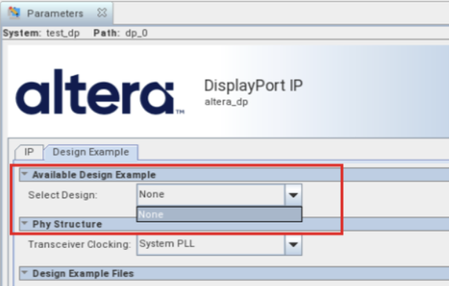
Description Due to a problem in the Quartus ® Prime Pro Edition Software version 26.1, the drop-down list for “Select Design” in the Display Port IP Parameter Editor GUI only has “None” option, as shown in the screenshot below. Resolution This problem has been fixed beginning with version 26.1.1 of the Quartus® Prime Pro Edition Software.177Views0likes0CommentsError: (vlog-7) Failed to open design unit file
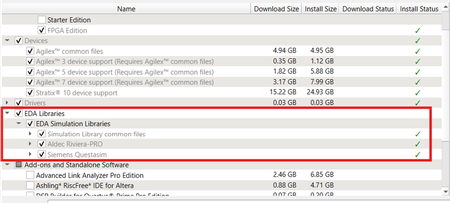
Description Due to simulation models not being installed along with the Quartus ® Prime Pro Edition Software, an error such as: Error: (vlog-7) Failed to open design unit file "C:/altera_pro/26.1.1/quartus/eda/sim_lib/220model.v" in read mode may occur during simulation. The root cause of missing files is that “EDA libraries” are not installed properly during installation of the Quartus ® Prime Pro Edition Software. Resolution To fix this problem, make sure “EDA Libraries” has been checked and installed properly during installation of the Quartus ® Prime Pro Edition Software, as shown in the screenshot below.103Views0likes0CommentsWhy am I unable to run BKP operations with Quartus® Prime Pro Edition 26.1.1 on Windows*?
Description Due to a problem in the Quartus® Prime Pro Edition Software version 26.1.1, Black Key Provisioning (BKP) operations might fail on Windows* with the following error: Error: BKP PLUGIN: [3000] Http error: Could not use specified SSL cipher because Quartus has enabled the Windows SSP interface Schannel (Secure Channel) to work with the OpenSSL library. When using libcurl with the Schannel (Windows) backend, the option CURLOPT_SSL_CIPHER_LIST does not accept individual, specific cipher suites (for example TLS_ECDHE_RSA_WITH_AES_256_GCM_SHA384). Resolution To work around this problem in the Quartus® Prime Pro Edition Software version 26.1.1, build a patched bkpprog.dll and select it through the project configuration, as follows: 1. Clone the source repository: GitHub - altera-fpga/device-security-software-services: Device Security Software and Services source code for FPGA Device Onboarding, Attestation, Secure Session, Black Key Provisioning. 2. Prepare the Windows build environment. Follow the Windows Build instructions in the repository README. Install the listed prerequisites and prepare the repository dependencies exactly as documented there. 3. Modify network_wrapper.cpp. Open the following file in the cloned repository: bkpprogrammer/src/core/cpp/network/network_wrapper.cpp In CurlWrapper::CurlWrapper, locate the TLS version and cipher-list configuration: setCurlOptionWithErrorHandling( curlHandle, CURLOPT_SSLVERSION, CURL_SSLVERSION_TLSv1_2); setCurlOptionWithErrorHandling( curlHandle, CURLOPT_SSL_CIPHER_LIST, acceptedCiphers.c_str()); Replace it with: setCurlOptionWithErrorHandling( curlHandle, CURLOPT_SSLVERSION, CURL_SSLVERSION_TLSv1_2); 4. Build the patched plug-in. Return to the repository root and build by following the repository Windows Build instructions. Confirm that bkpprog.dll is regenerated after network_wrapper.cpp was modified. 5. Place the custom plug-in. Create the following directory under the BKPS project and copy the rebuilt bkpprog.dll into it. Do not replace the DLL inside the Quartus installation. <project>\cm_provisioning\bkp_plugin\bkpprog.dll 6. Create quartus.ini. Create a quartus.ini file directly under the project cm_provisioning directory with the following line: PGM_ALLOW_CUSTOM_BKP_PLUGIN=7S6Nh0s3@on 7. Update bkp_options.txt. Use the normal project-specific BKP values and add bkp_plugin with the path to the rebuilt DLL: bkp_cfg_id = <ID> bkp_ip = <IP> bkp_port = <PORT> bkp_tls_ca_cert = "<Path_To_bkps_ssl_cert.crt>" bkp_tls_prog_cert = "<Path_To_pro_cert>" bkp_device_opn = <OPN> bkp_plugin = "<Path_To_bkpprog.dll>" 8. Run Quartus Programmer where quartus.ini is located. Set the current working directory to the cm_provisioning directory that contains quartus.ini and bkp_options.txt. Quartus reads quartus.ini from its current working directory, so run the commands from here: quartus_pgm.exe -c 1 -m jtag --bkp_options=bkp_options.txt --bkp_prefetch Use the same working directory for Set Authority and Provision operations, so Quartus continues to load the custom plug-in setting from quartus.ini. This problem is scheduled to be resolved in a future release of the Quartus® Prime Pro Edition Software.60Views0likes0CommentsError(14394): Verilog HDL error at <module_name>.sv(<line>): vector/single is not declared under the prefix ""
Description Due to a problem in the Quartus® Prime Pro Edition Software version 26.1.1 or earlier, you might see this error when synthesizing the SystemVerilog HDL code where a typedef struct declared inside an interface is referenced within a nested submodule. The SystemVerilog HDL code as below: interface my_interface #( parameter int WIDTH = 1 )(); typedef struct packed { logic single; logic [WIDTH-1:0] vector; } MY_STRUCT; logic req; logic ack; MY_STRUCT data; modport src ( output req, input ack, output data ); modport dst ( input req, output ack, input data ); endinterface module testmodule ( input wire clock, my_interface.dst data_in, my_interface.src data_out ); typedef data_in.MY_STRUCT ITYPE; typedef data_out.MY_STRUCT OTYPE; … ITYPE demo_in; OTYPE demo_out; assign demo_in = data_in.data; assign data_out.data = demo_out; submodule my_sub ( .data_in ( demo_in ), .data_out ( demo_out ) ); module submodule ( input ITYPE data_in, output OTYPE data_out ); … endmodule endmodule Resolution To work around this problem in the Quartus® Prime Pro Edition Software version 26.1, download and install the patch 0.37 below. This problem is scheduled to be fixed in a future release of the Quartus® Prime Pro Edition Software.153Views0likes0CommentsWhy does Nios® V/g experience data corruption when using DTCM?
Description Due to a problem in Quartus® Prime software, data corruption may occur when running a Nios® V/g processor application that interacts with a Tightly-Coupled Memory (TCM). This happens because of a RTL bug in the load-store unit. This problem is affecting Nios® V/g processor in, Quartus® Prime Pro Edition release 25.3.1 and earlier Quartus® Prime Standard Edition release 25.1 and earlier When Nios® V/g processor executes a non-TCM load (i.e. Load from On-Chip Memory or memory-mapped CSR) followed by a Data TCM load, the latter corrupts the former. This causes the non-TCM load to receive incorrect load data. For example, lw rd1,0(non-TCM) lw rd2,0(TCM) Expectation Actual Failure rd1 = load data from address “non-TCM” rd1 = load data from address “TCM” rd2 = load data from address “TCM“ rd2 = load data from address “TCM“ Resolution This problem is fixed in Quartus® Prime Pro Edition 26.1 and is scheduled to be resolved in a future Quartus® Prime Standard Edition release. Additional Information A patch is available to fix this problem. Quartus® Prime Standard Edition Software v25.1 Patch 0.01 Please contact Altera Support for additional support.199Views0likes0CommentsError(24244): Found an error when generating the IBIS Output File for board analysis. Refer to "<project_directory>/output_files/xxx.log" for more information
Description Due to a problem in the Quartus® Prime Pro Edition Software version 24.3 and earlier, you mat see this error when using the EDA Netlist Writer to generate an IBIS Model. This problem occurs when the project includes R-tile or P-tile I/O pins. Resolution This problem has been fixed beginning with version 24.3 of the Quartus® Prime Pro Edition Software.79Views0likes0Comments