how to
12 Topics
Why do I get an error when trying the BKPS provisioning flow commads on my Agilex® 5 FPGA device?
Description Due to a problem in Quartus® Prime Pro Edition 26.1.1, the Quartus Programmer may load the incorrect SDM Firmware when executing the BKPS provisioning flow commands shown below on Agilex® 5 FPGA devices enabled for Post-Quantum Cryptography (PQC) secure boot. quartus_pgm -c 1 -m jtag --bkp_options=bkp_options.txt [--bkp_prefetch] [--bkp_puf_activate] [--bkp_set_authority] The incorrect Firmware is loaded at the start of the commad operation and causes it to fail. Resolution Using the Quartus Programmer, manually generate and preload the correct Agilex® 5 SDM firmware for your specific OPN variant before executing the BKPS commands, as shown below. quartus_pfg --helper_image -o helper_device=[YOUR_OPN] -o subtype=PROVISION -o pqc_mode=OFF provision_pq_cs.rbf quartus_pgm -c 1 -m jtag -o "p;provision_pq_cs.rbf" quartus_pgm -c 1 -m jtag --cmd_code=0x1180 --cmd_param=0xF quartus_pgm -c 1 -m jtag -o "p;provision_pq_cs.rbf" Then, when executing the BKPS commands, use the --skip_init option to prevent the Quartus Programmer from reloading the incorrect Agilex® 5 SDM firmware. quartus_pgm -c 1 -m jtag --bkp_options=bkp_options.txt --skip_init [--bkp_prefetch] [--bkp_puf_activate] [--bkp_set_authority] This issue is scheduled to be fixed in future release of Quartus® Prime Pro Edition Software.28Views0likes0CommentsWhy I can't open Early Power Estimators (EPE) tool in the latest version of Microsoft Excel?
Description There is a compatibility issue with the current EPE tools with the latest update from Microsoft* on the Excel version 2505 and later. The update from Microsoft causes the EPE tools to stop working. Resolution There is no plan to fix this. Users need to use the Excel version before version 2505 for the EPE tools to work. There is a workaround if the user needs to use the latest Excel version, please contact Altera support and quote this ID #15018720346138Views0likes0Comments
Is there any problem if a floating voltage exists on VCCIO and VCCPT before it is ramped up and after it is ramped down in Arria® 10 FPGA devices and Cyclone® 10 FPGA devices?
Description No, there is no problem if a floating voltage exists on VCCIO and VCCPT before it is ramped up and after it is ramped down in Arria® 10 FPGA devices and Cyclone® 10 FPGA devices. Leakage can occur between VCC and VCCIO as well as between VCC and VCCPT, which can cause both VCCIO and VCCPT to float up to a maximum approximation of 0.8V before the power supply is ramped up and after the power supply is ramped down. This is expected behavior, and if the power-up and power-down sequences are followed, it will neither cause any functional failure nor concern the device's reliability. This behavior can only be observed if the regulators were designed to leave the power supplies to float before they ramp up and after they ramp down. Resolution This is an expected behavior and will neither cause any functional failure nor reliability concern to the device if the power-up sequence and power-down sequence are followed. This behavior can only be observed if the regulators were designed to leave the power supplies to float before they ramp up and after they ramp down.303Views0likes0CommentsCan I perform multiple compilations at the same time on one computer with a single-seat license?
Description You cannot perform multiple simultaneous compilations using the Quartus® Prime Software if you have a floating license with a single license seat. The number of concurrent compilations that can be run on a single computer cannot exceed the number of available license seats. If you have one fixed (node-locked) license, you can run multiple simultaneous compilations on that machine. Resolution See the related solution below for details on when the Quartus® Prime Software checks for available licenses. Related Articles When is a license checked out by the Quartus II software, IP cores and ModelSim-Altera Edition software?277Views0likes0CommentsWhy do I see a large timing violation when using the IOPLL IP’s Non-Dedicated Feedback Path option?
Description A timing violation may occur when the Non-Dedicated Feedback Path option is enabled in the IOPLL IP. This is caused by the C-counter starting to toggle unexpectedly, resulting in a phase shift of the output clocks relative to the input clock. This problem affects the following device families: Stratix® 10 FPGAs Agilex® 3 FPGAs Agilex® 5 FPGAs Agilex® 7 FPGAs Resolution To address this timing violation, add multi-cycle constraints to the impacted timing paths. 1) The set_multicycle_path constraint should only be applied to the affected path. 2) The affected clock domain can be either the source or the destination clock domain in the timing transfers that this behavior may impact.231Views0likes0CommentsWhy does my Stratix® 10 FPGA device hang when triggering FPGA reconfiguration via nCONFIG pin and Frequency Tamper Detection feature is enabled?
Description In Quartus® Prime Pro Edition Software version 25.1 and earlier, an issue occurs when the physical anti‑tamper feature is enabled using the Frequency Tamper Detection method in combination with an Active Serial configuration scheme. If you initiate a device reconfiguration by pulsing the nCONFIG pin, the Stratix® 10 FPGA may hang and fail to proceed with the reconfiguration process. Resolution You can recover the device by performing a power cycle. The problem has been fixed starting with Quartus® Prime Pro Edition software version 26.1.66Views0likes0CommentsCan I automatically legalize memory IPs with conflicting locations in Power and Thermal Analyzer?
Description When you add multiple memory interface IPs to a PTA design, they do not get automatically allocated into multiple IO banks. This can cause errors from having too many interfaces in a single IO bank. Resolution You may need to manually change location information for multiple interfaces to resolve the errors. Alternately, you can use a script to automate the process of allocating memory interfaces into multiple IO banks. To use the script, download it from this KDB and save it on your computer. Then run the following command in the Tcl console of PTA: source <path to file>/reallocate_emif_pins.tcl Additional Information The script uses a simple method to allocate memory interfaces into multiple IO banks. It does not perform a full legalization such as is performed by the Quartus® Prime Pro Edition software. Therefore, in certain limited cases, it may not be possible for the Quartus Prime Pro compiler to implement some memory interfaces in the locations generated by the script. Additionally, the script cannot resolve errors caused by having more memory interface IPs than are supported by the device. If you have too many memory interface IPs in your PTA design, you must remove some.60Views0likes0CommentsWhy do I see SEU errors being detected consistently on my Agilex® 7 FPGA F-Series Development Kit (2x F-Tile) (DK-DEV-AGF023FA)?
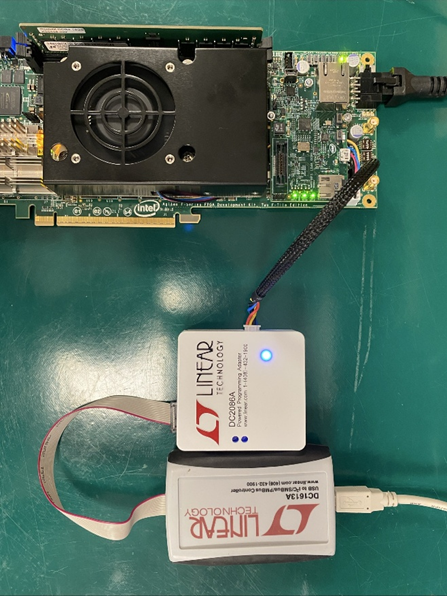
Description Due to an issue with the settings of the Voltage Regulator LTC3888 used on the Agilex® 7 FPGA F-Series Development Kit (2x F-Tile) (DK-DEV-AGF023FA), you may see SEU error being detected regularly when you enable SEU error check. The behavior occurs because the voltage required by Agilex® 7 devices during operation, which can be between 0.7 V and 0.9 V, is over the VOUT_OV_WARN_LIMIT value programmed on LTC3888. Triggering the LTC388 to report an error back to the FPGA SDM. The SDM queues this error on the Error Message Queue (EMQ) which then asserts the SEU Error check. Resolution To solve this problem, you will need to reconfigure the Non-Volatile Memory registers of the Voltage Regulator using a Linear Technologies USB-to PMBus Controller (DC1613A) and Programming Adapter (DC2086A) and the Linear Technologies LTpowerPlay Software. Using the PMBus Controller and the LTpowerPlay software, configure the following Voltage Regulator configuration file linked at the bottom of this article and follow the steps lay out below: 1. Open the LTpowerPlay on a Windows computer. 2. Connect dongles as shown in picture, power up the board 3. Start LTpowerPlay. It will show a window like below: 4. Click "Open Project", browse to the project file, select it and click "Open". 5. Go to Utilities > Programming Utility. 6. Press OK when asked 7. In the LT Device Programmer, browse again for the project file: 8. Click "Program and Verify System" 9. Application will confirm all was programmed fine: Loading this file will configure the LTC3888 Voltage Regulator to operate within the required voltage range and allow the Agilex® 7 FPGA device to operate with getting assertions from false errors.58Views0likes0CommentsWhat should I consider when designing a system board using Schmitt trigger inputs on MAX® 10 FPGAs?
Description When designing a system board that uses Schmitt trigger inputs on MAX® 10 FPGAs, board-level noise, power integrity, and signal integrity can significantly affect the effective hysteresis behavior. Factors such as power supply noise, input signal noise, and PCB layout practices may cause the observed switching thresholds to deviate from their typical values. This article outlines key considerations to help minimize noise sensitivity when using Schmitt trigger inputs in a system-level design Resolution When designing a system board that uses Schmitt trigger inputs, consider the following: Follow the recommendations in the MAX® 10 FPGA Design Guidelines, especially sections related to power distribution network (PDN) and signal integrity. Minimize power supply noise by using proper decoupling, grounding, and PCB layout practices. Note: The MAX® 10 FPGA 10M08 Evaluation Kit is intended for low-cost application testing and is not designed for DC or PDN characterization. It should not be used to measure intrinsic transistor switching thresholds.162Views0likes0CommentsWhy I can't open Early Power Estimators (EPE) tool in the latest version of Microsoft* Excel?
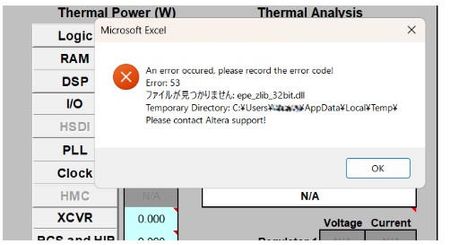
Description Due to the legacy design of the Early Power Estimator (EPE) worksheets, which include VBA macros, ActiveX components, and embedded DLL files, errors may occur when opening the Excel file on newer Windows platforms or when using Microsoft* Office 365, in both 32-bit and 64-bit versions. When the spreadsheet is opened, several actions occur in the background. Excel extracts the embedded DLLc files to the user's %TEMP% directory. A script then decompresses the DLLc files into standard DLL files. The script subsequently loads and executes the DLL files, which is used by the Excel macros. Why the issue occurs: To extract and execute the required DLL files, the Excel macros rely on a set of commands provided by Microsoft .NET and Microsoft Visual C++ runtime libraries, depending on the specific version of the Excel worksheet. In newer versions of Microsoft Windows and Microsoft Office 365, these runtime components are no longer bundled together by default, and some legacy functions used by older scripts have been deprecated or replaced with newer implementations. As a result, scripts designed for earlier environments may fail when attempting to call these functions. Note: In some systems, some of these are already installed automatically by other 3rd party software tools during installation. Additionally, the legacy script design does not support symbolic linking or modern handling of the user's %TEMP% directory, which can cause issues when extracting and accessing temporary files. Modern systems also enforce stricter security controls, including: ActiveX restrictions in newer versions of Microsoft Excel Trust Center policies that block code execution from untrusted locations Operating system security policies in Microsoft Windows that may prevent DLL execution from the %TEMP% directory if such restrictions are enabled As a result, if any of these conditions are triggered, users may encounter errors such as “Unable to find or load DLL files.” For example, errors may appear related to the zlib.dll file (the 32-bit or 64-bit version used depends on the installed Excel architecture). Resolution To workaround this issue PART A: Unblocking the Excel and Enable Macros/ActiveX 1. Unblock the Excel File • Right-click the EPE Excel file → Properties → Check Unblock under Security. • Click Apply → OK. 2. Enable Macros and ActiveX • Open Excel → File → Options → Trust Center → Trust Center Settings: Enable Macros. Enable ActiveX controls. Leave other settings as default (Safe Mode can remain enabled or disabled). 3. Check whether you can now open the EPE excel sheet. Else proceed to PART B. PART B: Installing the necessary Microsoft .NET and Visual C++ runtime libraries. Microsoft .NET installation Go to your Installed apps settings and find for .NET. It is recommended to have both .NET Runtime and ASP .NET installed in your system. If you already have a version installed on your machine then proceed to the next step( you only require 1 version each), otherwise refer to this location to download Download .NET 8.0 (Linux, macOS, and Windows) | .NET Example: Microsoft Visual C++ Installation As different EPE Excel sheet relies on specific Visual C++ version, you will need to install multiple versions of Visual C++ for both 32bit and 64bit. This is because even though Excel is running on 64bit, existing scripting might have dependency on 32bit functions as well. Recommendation to install C++ version for both 32 bit and 64 bit as below Latest Supported Visual C++ Redistributable Downloads Visual Studio 2017-2026 Visual Studio 2015 (in older Microsoft release, it might show as C++ V14 or 2015-2022 version) Visual Studio 2013 Visual Studio 2012 Example After installing both 32 bit and 64 bit, do restart the system and then try launching the EPE excel sheet again. In some rare occurrences, you might need to install Visual Studio C++ 2010 , Visual Studio C++ 2008 and Visual Studio C++ 2005. Do refer to PART C first as the issue might not be due to Visual C++ but symbolic link. PART C: Symbolic Link issue workaround (optional) If installing the .NET and Visual C++ runtime libraries still does not help in resolving the error opening EPE Excel, you should check whether your %TEMP% file folder is the same as what reported in the error when opening the EPE excel sheet. If the folder path are different between %TEMP% and the path reported by Excel sheet, it means that they are using symbolic link folder. In this case user should copy the .dll files generated out from the %TEMP% when they opened the excel sheet and copy it over to the Windows SySWoW folder (%windir%\SysWOW64). To access your %TEMP% folder , just type %TEMP% into your explorer and it will open your folder location (%TEMP% is set in windows environment variables) From the %TEMP% folder, there are multiple *epe* DLL files if you open different EPE excel sheets. Copy all of these .DLL files into your Windows SysWOW64 folder and try launching the EPE excel sheet again. Example, if using Cyclone® V EPE excel sheet, these are the 4 files required in red box in %TEMP% to be copied over NOTE 1: The SysWOW64 folder is selected because it is part of Windows’ default search locations when required DLL files cannot be found. Alternatively, you can add a custom directory to the Windows Environment Variables (PATH) so that Windows will also search that folder when looking for the DLL files. NOTE 2: Adding the %TEMP% folder into the system environment variables will not have any effect as latest Microsoft Windows have blocked the DLL searching mechanism to prevent search %TEMP% folder as part of the security to prevent remote execution from DLL. Additional Information If all fails, alternatively install Process Monitor from Microsoft to analyze the DLL failure/error 1. Download Process Monitor from this location Process Monitor - Sysinternals 2. Close all excel sheets that is open in Windows. 3. Launch the Process Monitor , then select Filter. Set to Process Name and EXCEL.exe and click Add. 4. After adding the filter, ensure that capturing is started 5. Then open any of the EPE excel file,and wait till you get the DLL (eg. epe_zlib_32bit.dll) error then press pause on the Process Monitor. 6. Then use Find and search for the dll error stated in the excel(eg. epe_zlib_32bit.dll) It will give you a list of things, but important is to check the details on createfile, open, close , query, those are the functions that are in the zlib dll file. Example Good case scenario where no error occurred. Fail case scenario where Windows unable to locate the DLL (due to symbolic link issue)253Views0likes0Comments