fpga dev tools quartus® prime software quartus-alite
44 Topics
How to mitigate the security vulnerability in the Nios® II Command Shell utility?
Description Due to a problem in the Quartus ® Prime Standard and Lite Edition Software version 19.1 through 24.1, the Nios® II Command Shell utility included in the Quartus ® Prime Software for Windows* is vulnerable to a Current Working Directory (CWD) planting attack. The Linux* versions are not affected. Resolution To work around this problem, replace the “Nios II Command Shell.bat” Windows Batch File located in the <drive>:\<edition>\<version number>\nios2eds\, with the attached file below. This problem is fixed beginning with the Quartus® Prime Standard and Lite Edition Software version 25.1.280Views0likes0CommentsWhy I can't open Early Power Estimators (EPE) tool in the latest version of Microsoft Excel?
Description There is a compatibility issue with the current EPE tools with the latest update from Microsoft* on the Excel version 2505 and later. The update from Microsoft causes the EPE tools to stop working. Resolution There is no plan to fix this. Users need to use the Excel version before version 2505 for the EPE tools to work. There is a workaround if the user needs to use the latest Excel version, please contact Altera support and quote this ID #15018720346119Views0likes0Comments
Why does the Intel® FPGA Download Cables drivers installation fail on Windows* operating system?
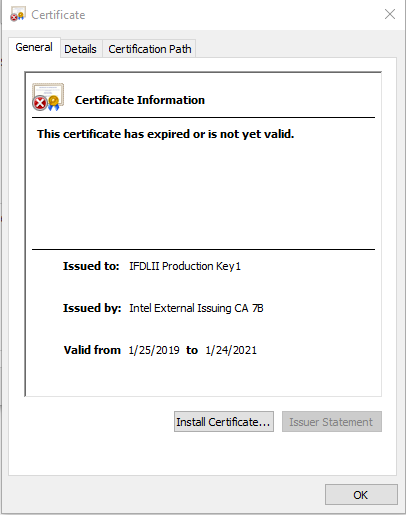
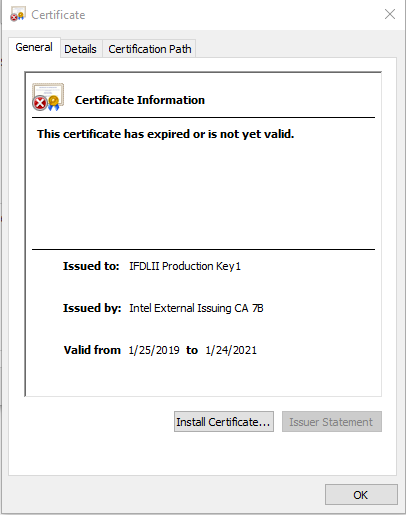
Description Due to the expiration of the digital signature certificate of the Intel® FPGA Download Cable I (formerly referred to as USB Blaster I download cable) and the Intel® FPGA Download Cable II (formerly referred to as USB Blaster II download cable) drivers for Windows* operating system, the installation process of the drivers may fail. Follow the next steps to verify if the digital signature certificate of your driver has expired: Go to '<Quartus Installation Path>\qprogrammer\quartus\drivers\usb-blaster-ii' folder Right-click on 'usbblasterii.cat' and select 'Properties, then select the 'Digital Signatures' tab Select the 'IFDLII Production Key1' signature from the 'Signature List' and click 'Details' Click on 'View Certificate' If the driver has expired, you will see the 'This certificate has expired or is not yet valid' message Resolution A patch is available to fix this problem for the Intel® Quartus® Prime Software. Download and install Patch 0.02i for the Intel® Quartus® Prime Pro Edition Software version 20.4 and the Intel® Quartus® Prime Standard Edition Software version 21.1. Download and install Patch 0.02i for the Intel® Quartus® Prime Pro Edition Programmer and Tools or Patch 0.02stdp for the Intel® Quartus® Prime Standard Edition Programmer and Tools from the appropriate link below. Download Intel® Quartus® Prime Pro Edition Software version 20.4 patch 0.02i for Windows (.exe) Download the Readme for Intel® Quartus® Prime Pro Edition Software version 20.4 patch 0.02i (.txt) Download Intel® Quartus® Prime Standard Edition Software version 21.1patch 0.02stdp for Windows (.exe) Download the Readme for Intel® Quartus® Prime Standard Edition Software version 21.1 patch 0.02stdp (.txt) After installing patch 0.02i or patch 0.02stdp for Windows, follow the next steps to update the driver on the operating system: Connect your Intel FPGA download cable or Intel FPGA download cable II Open Device Manager window of Windows* OS Choose Windows Settings from Start menu > Type “Device Manager” into the search area > Choose Device Manager Find Altera USB-Blaster II under JTAG cables or Altera USB-Blaster under Universal Serial Bus controllers Find USB-Blaster or USB-Blaster II under Other devices Choose Altera USB-Blaster or Altera USB-Blaster II Right-click and choose Update driver from the context menu Choose Browse my computer for driver software on the Update Drivers window Enter the following path for the driver and enable; include subfolders - <Intel Quartus Prime software install directory>\quartus\drivers or - <Intel Quartus Prime Programmer install directory>\qprogrammer\drivers or - <Intel Quartus Prime Programmer install directory>\qprogrammer\quartus\drivers Click Next This problem is fixed starting with the Intel® Quartus® Prime Pro Edition Software version 21.1.2.1KViews0likes0CommentsWhy does the Altera® FPGA Download Cable II driver installation fail on Windows* operating system?
Description Due to the expiration of the digital signature certificate of the Altera® FPGA Download Cable II driver for Windows* operating system, the installation process of the driver may fail. Follow the next steps to verify if the digital signature certificate of your driver has expired: Go to '<Quartus Installation Path>\qprogrammer\quartus\drivers\usb-blaster-ii' folder Right click on 'usbblasterii.cat' and select 'Properties', then select the 'Digital Signatures' tab Select the 'IFDLII Production Key1' signature from the 'Signature List' and click 'Details' Click on 'View Certificate' If the driver has expired, you will see the 'This certificate has expired or is not yet valid' message Resolution To work around this problem, follow the next steps: Download an updated version of the driver from the following link Decompress the downloaded file and substitute 'usb-blaster-ii.inf' and 'usb-blaster-ii.cat' files in '<Quartus Installation Path>\qprogrammer\quartus\drivers\usb-blaster-ii' folder Launch the Windows* 'Device Manager' Locate 'Altera USB-Blaster II (JTAG interface)' node under 'JTAG cables' in the Windows* 'Device Manager', right click and select 'Update Driver' Choose ´'Browse my computer for driver software' then click on 'Search for drivers in this location' and point to the new 'usb-blaster-ii.inf' file This problem is fixed starting with the Quartus® Prime Pro Edition software version 21.1.1.1KViews0likes0CommentsWhy does my Quartus® Prime Installation fail with certificate error: SSL certificate problem: unable to get local issuer certificate (curlcode 60)?
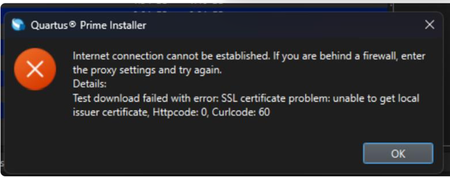
Description Due to a problem in the Quartus® Prime Installer Software, you might see the error message shown below when you click Download & Install. This happens because the certificate bundled with the Quartus® Prime Installer Software is no longer accepted by the Altera® Content Delivery Network (CDN). As a result, secure downloads initiated during the installation process cannot be verified using the outdated certificate. The issue impacts the Installer for the following versions of Quartus software: Operating System Quartus Prime Pro Installer Version(s) Quartus Std/Lite Installer Version(s) Microsoft Windows* 23.3 to 25.3.1 23.1std to 25.1std Linux* 23.3 to 23.4 23.1std The KDB workaround provided below applies to the following versions of Quartus software: Quartus Prime Pro Installer Version(s) Quartus Std/Lite Installer Version(s) KDB workaround applies to 24.3 to 25.3.1 24.1std to 25.1std Note that for all other affected versions not covered by the KDB, you cannot use the installer workaround and must download Quartus software package files individually without using the installer. Separate packages can be found in the Individual Files tab of the Quartus Software Download pages. Resolution To work around this problem, follow these steps: 1. Download and unzip the cacert.zip, which contains the cacert.pem certificate file. 2. Specify the new certificate using one of the following methods: i) Command Line Interface (CLI): Open a command prompt or terminal and run the installer with the--cacert option, pointing to the new certificate file. Windows*: qinst_<version>.exe -sp"--cacert <full path to cacert.pem>" Linux*: qinst_<version>.run -- --cacert <full path to cacert.pem> ii) Graphical User Interface (GUI): - Open the Quartus® Prime Installer, navigate to Settings, locate the CA Certificate Path, and specify the full path to the cacert.pem certificate file. - Then, click Apply > OK. This problem is scheduled to be resolved in a future release of the Quartus® Prime Installer Software.10KViews1like0CommentsWhy I can't open Early Power Estimators (EPE) tool in the latest version of Microsoft* Excel?
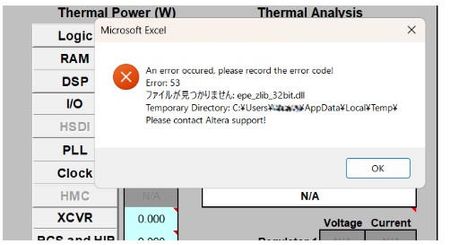
Description Due to the legacy design of the Early Power Estimator (EPE) worksheets, which include VBA macros, ActiveX components, and embedded DLL files, errors may occur when opening the Excel file on newer Windows platforms or when using Microsoft* Office 365, in both 32-bit and 64-bit versions. When the spreadsheet is opened, several actions occur in the background. Excel extracts the embedded DLLc files to the user's %TEMP% directory. A script then decompresses the DLLc files into standard DLL files. The script subsequently loads and executes the DLL files, which is used by the Excel macros. Why the issue occurs: To extract and execute the required DLL files, the Excel macros rely on a set of commands provided by Microsoft .NET and Microsoft Visual C++ runtime libraries, depending on the specific version of the Excel worksheet. In newer versions of Microsoft Windows and Microsoft Office 365, these runtime components are no longer bundled together by default, and some legacy functions used by older scripts have been deprecated or replaced with newer implementations. As a result, scripts designed for earlier environments may fail when attempting to call these functions. Note: In some systems, some of these are already installed automatically by other 3rd party software tools during installation. Additionally, the legacy script design does not support symbolic linking or modern handling of the user's %TEMP% directory, which can cause issues when extracting and accessing temporary files. Modern systems also enforce stricter security controls, including: ActiveX restrictions in newer versions of Microsoft Excel Trust Center policies that block code execution from untrusted locations Operating system security policies in Microsoft Windows that may prevent DLL execution from the %TEMP% directory if such restrictions are enabled As a result, if any of these conditions are triggered, users may encounter errors such as “Unable to find or load DLL files.” For example, errors may appear related to the zlib.dll file (the 32-bit or 64-bit version used depends on the installed Excel architecture). Resolution To workaround this issue PART A: Unblocking the Excel and Enable Macros/ActiveX 1. Unblock the Excel File • Right-click the EPE Excel file → Properties → Check Unblock under Security. • Click Apply → OK. 2. Enable Macros and ActiveX • Open Excel → File → Options → Trust Center → Trust Center Settings: Enable Macros. Enable ActiveX controls. Leave other settings as default (Safe Mode can remain enabled or disabled). 3. Check whether you can now open the EPE excel sheet. Else proceed to PART B. PART B: Installing the necessary Microsoft .NET and Visual C++ runtime libraries. Microsoft .NET installation Go to your Installed apps settings and find for .NET. It is recommended to have both .NET Runtime and ASP .NET installed in your system. If you already have a version installed on your machine then proceed to the next step( you only require 1 version each), otherwise refer to this location to download Download .NET 8.0 (Linux, macOS, and Windows) | .NET Example: Microsoft Visual C++ Installation As different EPE Excel sheet relies on specific Visual C++ version, you will need to install multiple versions of Visual C++ for both 32bit and 64bit. This is because even though Excel is running on 64bit, existing scripting might have dependency on 32bit functions as well. Recommendation to install C++ version for both 32 bit and 64 bit as below Latest Supported Visual C++ Redistributable Downloads Visual Studio 2017-2026 Visual Studio 2015 (in older Microsoft release, it might show as C++ V14 or 2015-2022 version) Visual Studio 2013 Visual Studio 2012 Example After installing both 32 bit and 64 bit, do restart the system and then try launching the EPE excel sheet again. In some rare occurrences, you might need to install Visual Studio C++ 2010 , Visual Studio C++ 2008 and Visual Studio C++ 2005. Do refer to PART C first as the issue might not be due to Visual C++ but symbolic link. PART C: Symbolic Link issue workaround (optional) If installing the .NET and Visual C++ runtime libraries still does not help in resolving the error opening EPE Excel, you should check whether your %TEMP% file folder is the same as what reported in the error when opening the EPE excel sheet. If the folder path are different between %TEMP% and the path reported by Excel sheet, it means that they are using symbolic link folder. In this case user should copy the .dll files generated out from the %TEMP% when they opened the excel sheet and copy it over to the Windows SySWoW folder (%windir%\SysWOW64). To access your %TEMP% folder , just type %TEMP% into your explorer and it will open your folder location (%TEMP% is set in windows environment variables) From the %TEMP% folder, there are multiple *epe* DLL files if you open different EPE excel sheets. Copy all of these .DLL files into your Windows SysWOW64 folder and try launching the EPE excel sheet again. Example, if using Cyclone® V EPE excel sheet, these are the 4 files required in red box in %TEMP% to be copied over NOTE 1: The SysWOW64 folder is selected because it is part of Windows’ default search locations when required DLL files cannot be found. Alternatively, you can add a custom directory to the Windows Environment Variables (PATH) so that Windows will also search that folder when looking for the DLL files. NOTE 2: Adding the %TEMP% folder into the system environment variables will not have any effect as latest Microsoft Windows have blocked the DLL searching mechanism to prevent search %TEMP% folder as part of the security to prevent remote execution from DLL. Additional Information If all fails, alternatively install Process Monitor from Microsoft to analyze the DLL failure/error 1. Download Process Monitor from this location Process Monitor - Sysinternals 2. Close all excel sheets that is open in Windows. 3. Launch the Process Monitor , then select Filter. Set to Process Name and EXCEL.exe and click Add. 4. After adding the filter, ensure that capturing is started 5. Then open any of the EPE excel file,and wait till you get the DLL (eg. epe_zlib_32bit.dll) error then press pause on the Process Monitor. 6. Then use Find and search for the dll error stated in the excel(eg. epe_zlib_32bit.dll) It will give you a list of things, but important is to check the details on createfile, open, close , query, those are the functions that are in the zlib dll file. Example Good case scenario where no error occurred. Fail case scenario where Windows unable to locate the DLL (due to symbolic link issue)233Views0likes0CommentsWhy do some GPIO pins drive low during JIC programming in Cyclone® V SoC devices?
Description Due to a problem in the factory default SFL image in the Quartus® Prime Software, some general purpose I/O (GPIO) pins drive low when programming a serial configuration device with JTAG indirect configuration file (.jic) in the following variants of Cyclone® V SoC devices: Cyclone V SE - Member Code A5, Package F896 (31mm) Cyclone V SX - Member Code C5, Package F896 (31mm) Cyclone V ST - Member Code D5, Package F896 (31mm) Resolution To work around this problem, replace the original factory default SFL image for the affected devices with the corrected image by doing the following steps. Download the following file and unzip it. You can find the corrected default SFL image, sfl_enhanced_01_02d120dd.sof. sfl_enhanced_01_02d120dd.sof.corrected.zip Open the directory factory default SFL images location. Quartus® Prime Software : <install directory>/quartus/common/devinfo/programmer Stand-alone Quartus® Prime Software Programmer : <install directory>/qprogrammer/common/devinfo/programmer Find sfl_enhanced_01_02d120dd.sof in the directory and replace it with the corrected SFL image. This problem has been fixed since the Quartus® Prime Pro Edition Software version 19.1. However, the Quartus® Prime Standard Edition Software is still affected by this problem. Use the above workaround when the Quartus® Prime Standard Edition is used or use the Quartus® Prime Pro Edition Programmer tool version 19.1 and later instead. The Quartus® Prime Standard Edition Software will be improved in a future version.169Views0likes0CommentsSourced NativeLink script <Quartus Installation Path>/quartus/common/tcl/internal/nativelink/modelsim.tcl missing"
Description Due to a problem in the Quartus® Prime Lite Edition Software version 22.1, you may see the below error message when you try to run the Nativelink simulation flow. Info: Starting NativeLink simulation with Questa Intel FPGA software Sourced NativeLink script c:/intelfpga_lite/22.1std/quartus/common/tcl/internal/nativelink/modelsim.tcl missing " Error: NativeLink simulation flow was NOT successful Resolution To work around the problem, download and replace the qnativelinkflow.tcl file located at the <Intel® Quartus® Installation Path>/quartus/common/tcl/internal/nativelink directory. Relaunch the simulation. Download the qnativelinkflow.tcl This problem is fixed beginning with the Quartus® Prime Lite Edition Software version 23.1.135Views0likes0CommentsError: altgx_internal: error copying "../ip/altera/ip_compiler_for_pci_express/lib/altpcie_serdes_3cgx_x1d_gen1_08p.v": no such file or directory
Description Due to a problem in the Intel® Quartus® Prime Pro Edition Software version 22.3, the Triple-Speed Ethernet Intel® FPGA IP simulation fail for Multiport Design Example in various simulators with the error message as shown below. VCS* simulator Error-[DECSPE] Decryption failed basic_avl_tb_top_mac_pcs.sv, 23 Error while decrypting source file Failed to load key needed to decrypt data_block. No key_block found for VCS. Please use vcs RSA public key and pragma expressions to identify the keyblock mentioned in vcs documentation while encrypting to be able to decrypt with vcs. "basic_avl_tb_top_mac_pcs.sv", 23 2. Xcelium* simulator xmvlog: *F,DECERR (./basic_avl_tb_top_mac_pcs_nc.sv,22|26): Error while decrypting : unable to load key :(invalid/blank keyOwner/KeyName (file ),may be wrong key is used for encryption/decryption ). xmelab(64): 21.09-s003: (c) Copyright 1995-2021 Cadence Design Systems, Inc. xmelab: *E,NOUNIT: Unable to find a unit named 'basic_avl_tb_top_mac_pcs_nc' in the libraries. xmsim(64): 21.09-s003: (c) Copyright 1995-2021 Cadence Design Systems, Inc. xmsim: *F,NOSNAP: Snapshot 'basic_avl_tb_top_mac_pcs_nc' does not exist in the libraries. 3. Questasim* simulator ** Error: (vlog-13069) ./basic_avl_tb_top_mac_pcs_msim.sv(23): syntax error in protected region. ** Error: ./basic_avl_tb_top_mac_pcs_msim.sv(23): (vlog-13205) Syntax error found in the scope following '<protected>'. Is there a missing '::'? End time: 16:35:05 on Oct 21,2022, Elapsed time: 0:00:00 Errors: 2, Warnings: 0 ** Error: /nfs/site/disks/psg_eda_3/mentor/modelsim_se/2022.2/linux64/linux_x86_64/vlog failed. Error in macro ./run_vsim_mac_pcs.do line 69 /nfs/site/disks/psg_eda_3/mentor/modelsim_se/2022.2/linux64/linux_x86_64/vlog failed. while executing "vlog +acc ./basic_avl_tb_top_mac_pcs_msim.sv" Resolution A patch is available to fix this problem for the Intel® Quartus® Prime Pro Edition Software version 22.3. Download and install patch 0.15 from the appropriate link below. Download patch 0.15 for Windows (Quartus-22.3-0.15-windows.exe) Download patch 0.15 for Linux (Quartus-22.3-0.15-linux.run) Download the Readme for patch 0.15 (Quartus-22.3-0.15-readme.txt) This problem is fixed in version 22.4 of the Intel® Quartus® Prime Pro Edition Software.160Views0likes0CommentsWhere to get the MAX® 10 FPGA Variable Pitch Ball-Grid Array(VPBGA) 610-pin Package Information?
Description The MAX® 10 VPBGA 610-pin Package Information is not being listed in the FPGA Packaging Device Information. Resolution Download the MAX® 10 VPBGA 610-pin Package Information from the Altera® FPGA 04r-00549-00 Package Mechanical Drawing56Views0likes0Comments